One of the most powerful concepts while storing assets, is to tag them in addition to storing them in a well planned folder layout.
An asset can be placed in a folder, but with tagging, we can have multiple tags associated with the asset. For example, a campaign that I just created is stored in the Q12023 folder, but I have tagged it with #bharath, #wintercollection, #APAC, etc.
I have used similar tags on many of the assets.
Now, I can just type my name #bharath and view all the assets, irrespective of the asset type, in one view. This saves me from jumping from folder to folder to view assets that are actually related to each other.
Access the Tags #
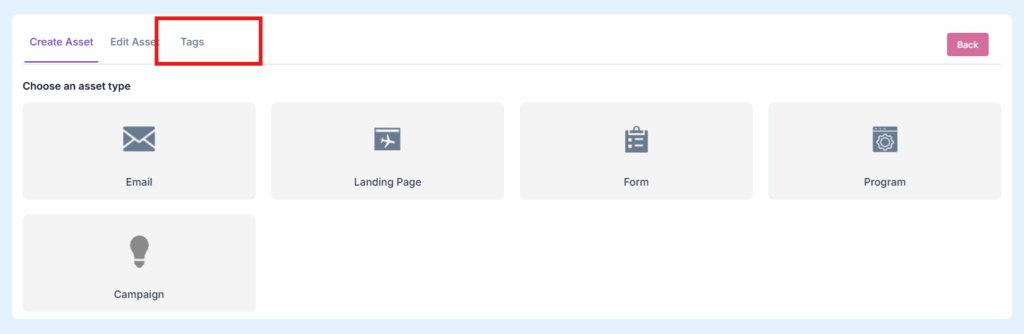
The Tags tab can be accessed after clicking on Create/Edit button, as shown here:
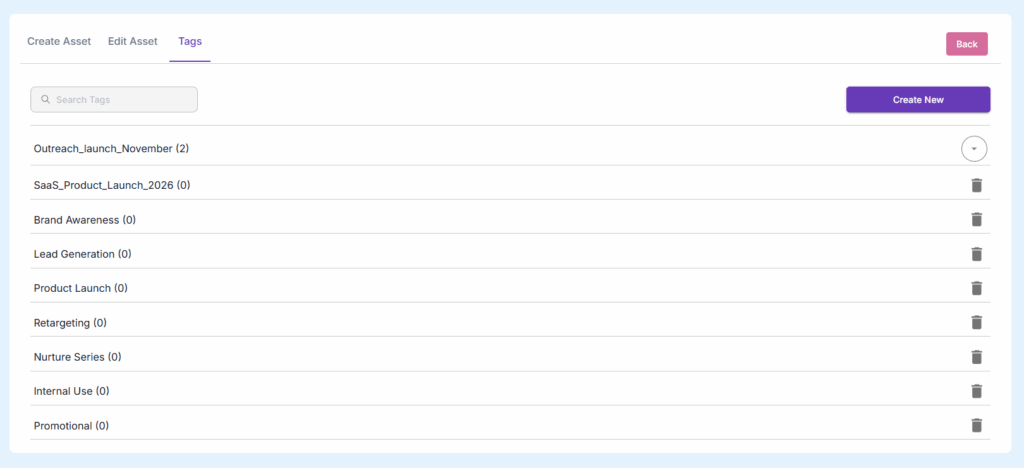
Choose the tag from the list:
Creating new Tags in Real-time #
The most convenient place to create tags, is at the time of the asset creation.
This is how we can do that:
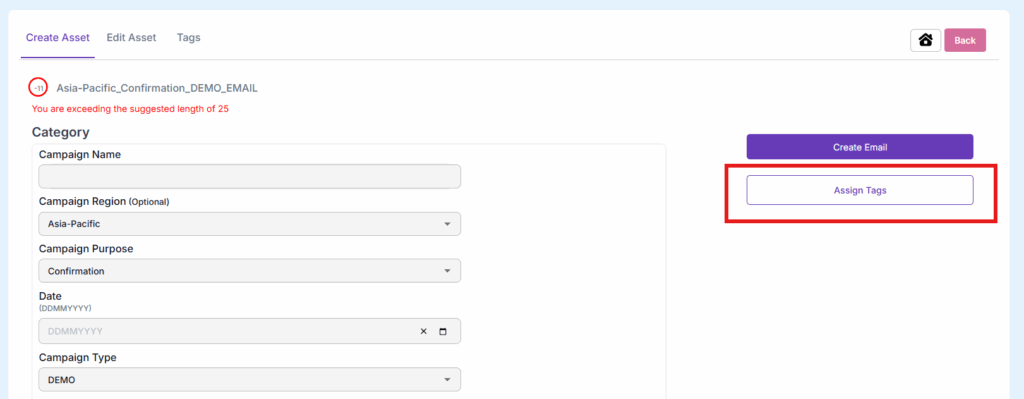
1. Click on Assign Tag
2. Click on the Create tag option at the top:
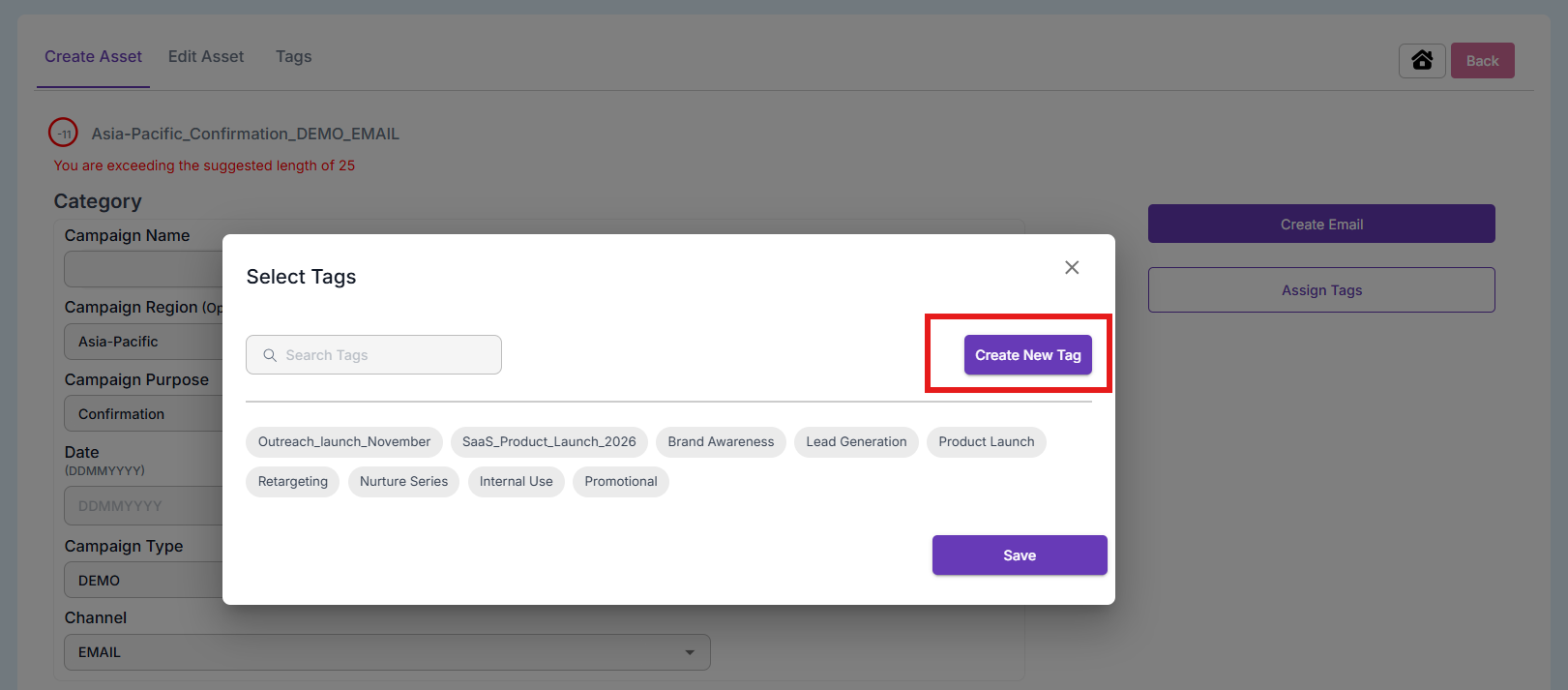
Type your new tag name and press the Return/Enter key on the keyboard.
We can have as many tags as we would like.