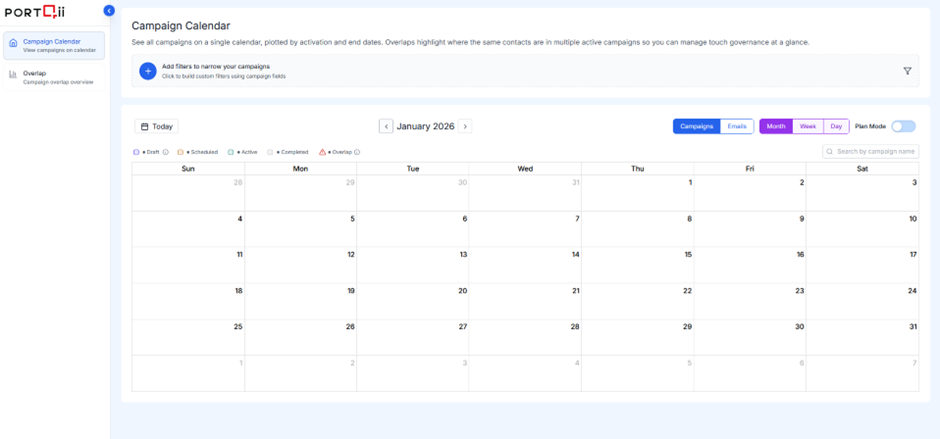
The Calendar section displays all campaigns connected from Eloqua, providing a unified visual timeline of Active, Scheduled, Draft, and Completed campaigns. This enables teams to assess impacts on audience touch frequency and proactively prevent overlaps.
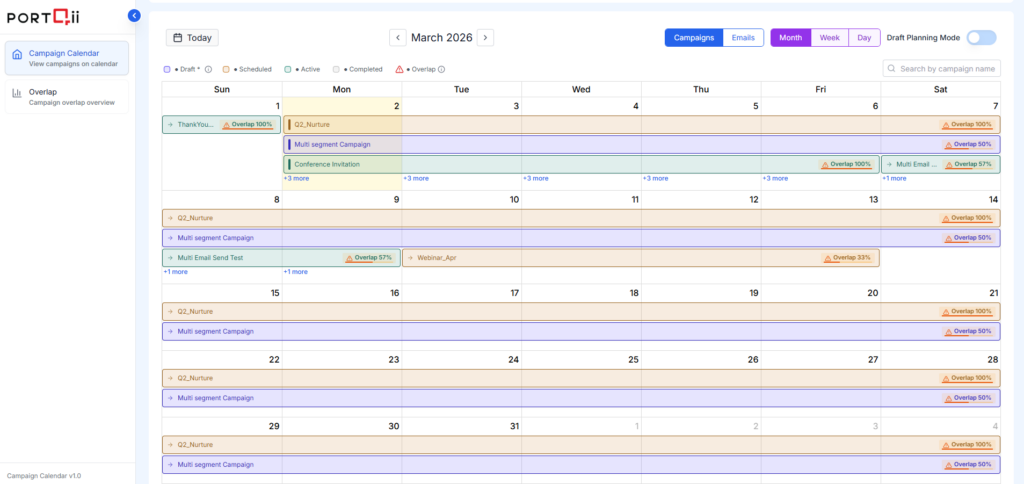
Campaign Display Rules #
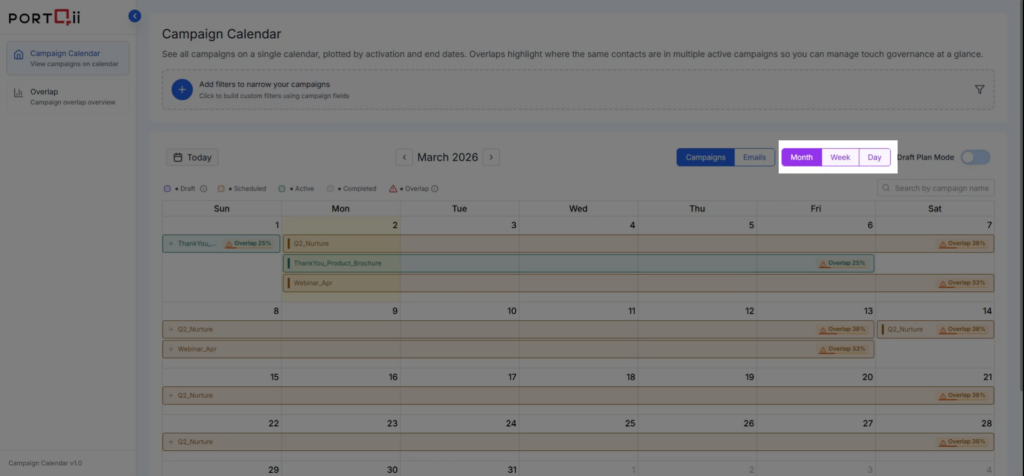
Each campaign is shown from start date to end date.
- Active Campaigns: Displayed in green.
- Scheduled Campaigns: Displayed in brownish-orange / earthy tone.
- Draft Campaigns: Displayed in deep blue.
- Completed Campaigns: Displayed in grey.
Overlap Logic #
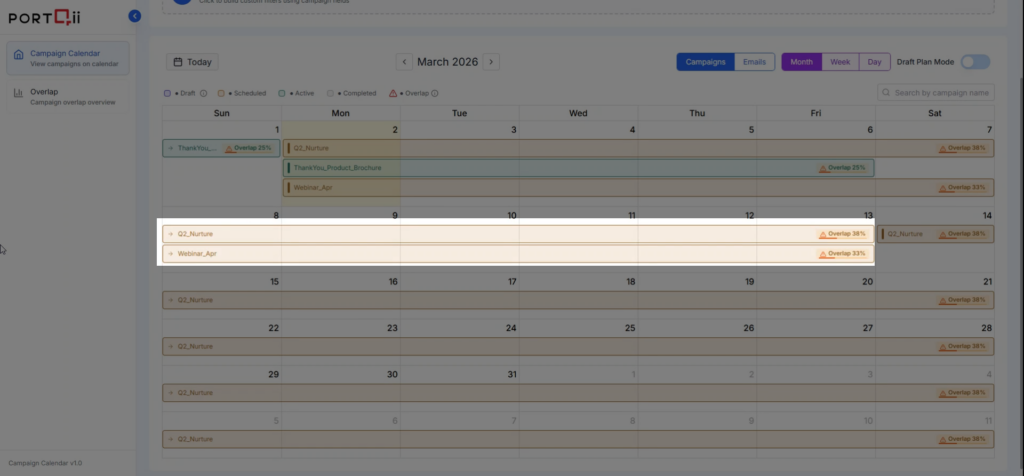
If any two campaigns share common contacts—regardless of status (Active, Scheduled, Draft, Completed)—both campaigns will appear across their overlapping start and end dates.
Calendar Views #
Users may navigate the following views:
- Month View
- Week View
- Day View
These options support high-level or detailed scheduling review.
Filters #
Filters allow users to narrow down the campaigns displayed in the calendar based on specific campaign attributes. Filters are built dynamically using campaign fields and logical conditions.
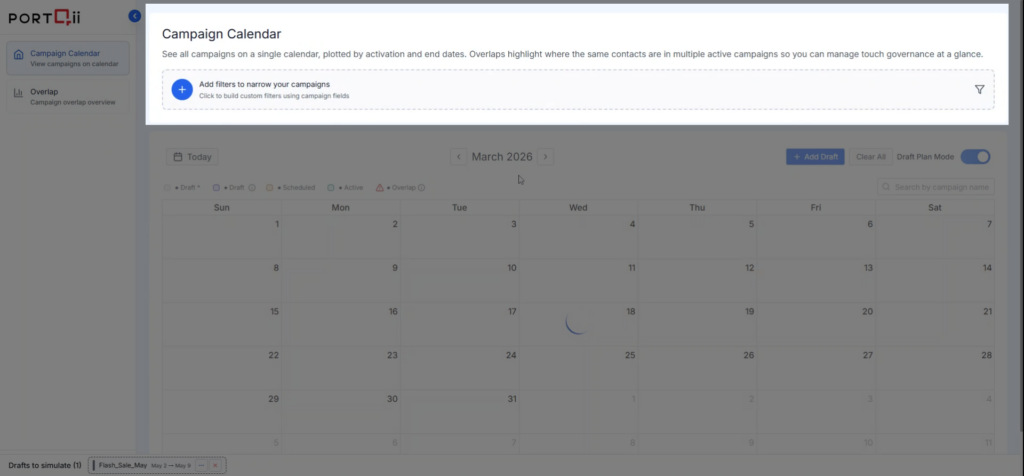
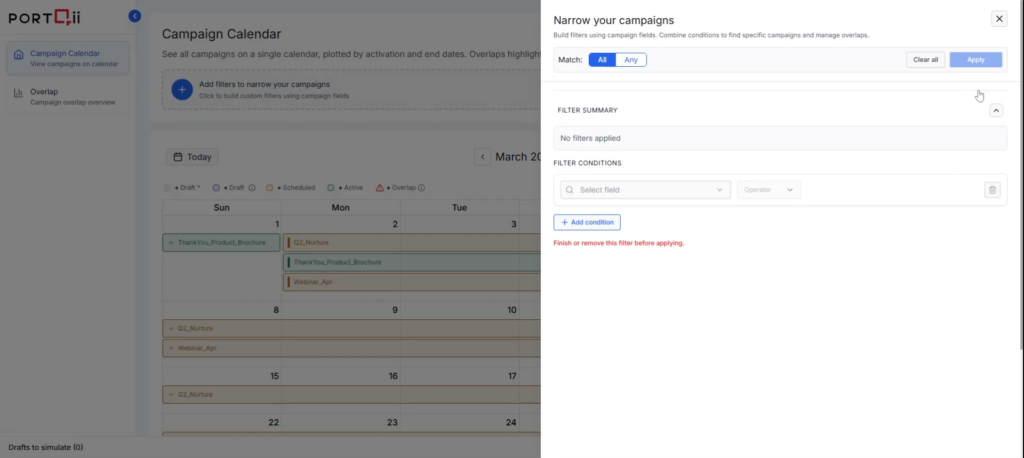
How to Add Filters #
- Click the ‘+’ icon to add a new filter.
- Under Filter Conditions, select a Field from the available campaign fields.
- Select an Operator (e.g., equals, contains).
- Enter the desired Value.
- Click Add Condition to include additional filter conditions if required.
Multiple Conditions Logic #
- Users may add multiple filter conditions.
- Select ‘All’ to apply an AND condition between filters.
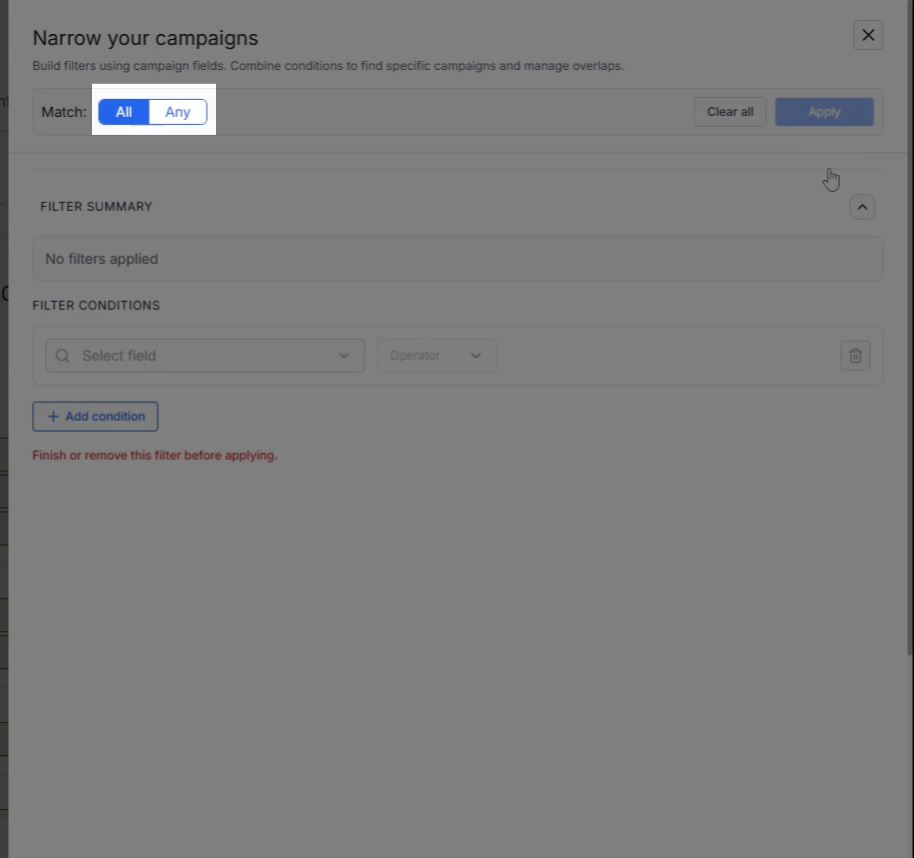
- Select ‘Any’ to apply an OR condition between filters.
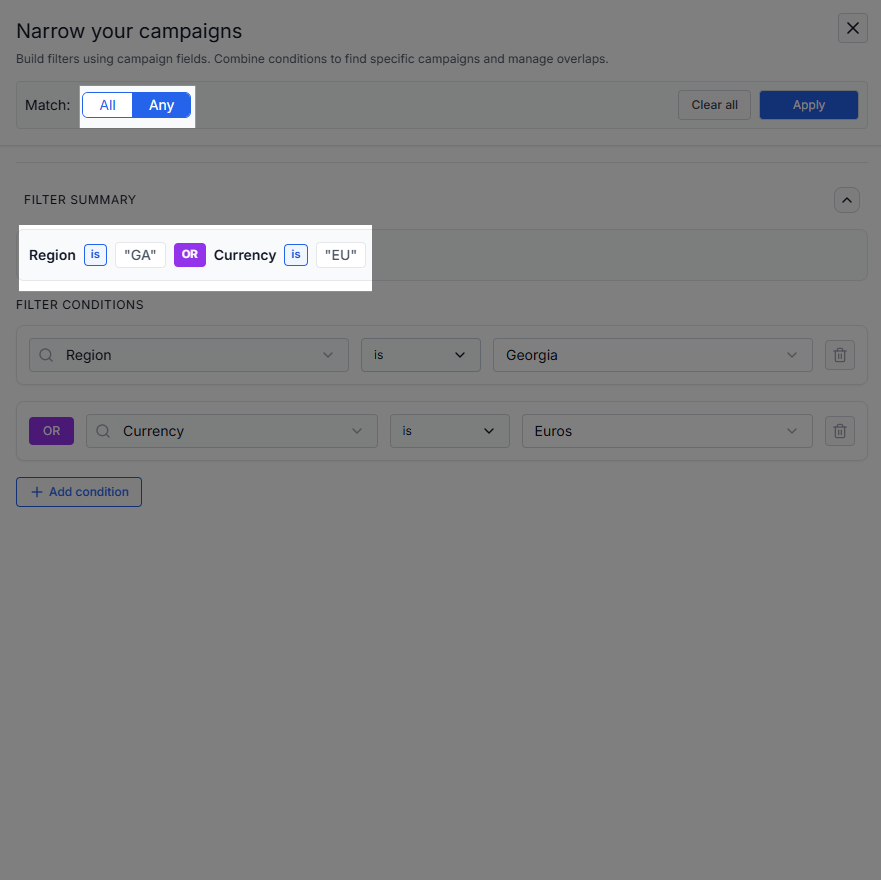
These options enable flexible and precise campaign filtering based on operational needs.