Like all apps, ANA needs some things to be setup before everyone starts using it. The setup and configuration can be carried out by the admin.
Accessing the Admin Configuration #
To access the admin configuration page, click on Configuration under the Asset Naming section.
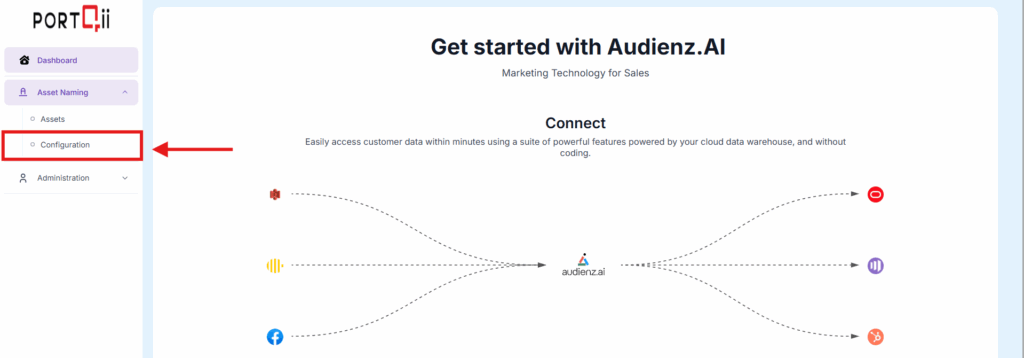
Note: Only admins have access to this page
HubSpot Engage Assets #
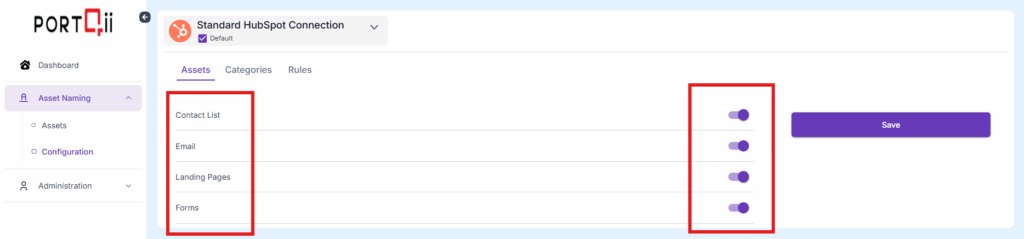
The first tab in settings allows us to choose which asset can use ANA and which not. In the screenshot above, we can see that Dynamic Content doesn’t use ANA, but every other asset type can.
Categories #
The asset names that will be created, will be based on the categories that we create. The second tab in settings, shows all the categories:
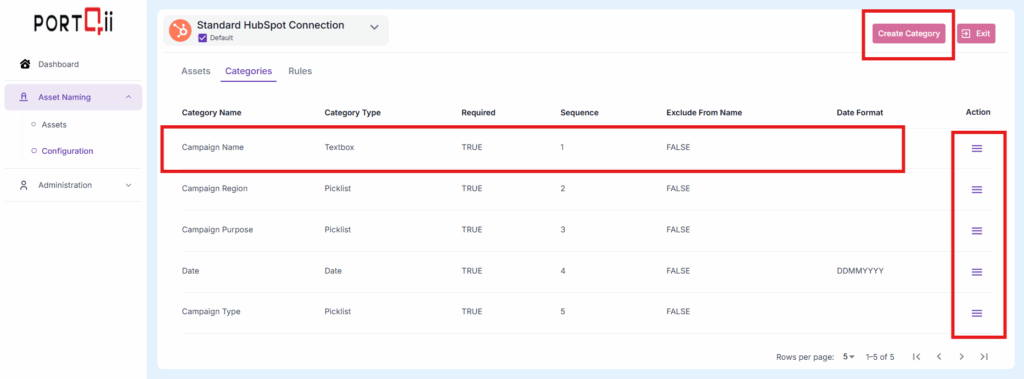
From this tab, we can:
- Add new Categories
- Action (Edit) Existing Categories
- View all Categories.
Here is what the various column headings mean on this screen:
| Category | This is the name of the Category |
| Sequence | Choose One here, and the name starts with this category |
| Category Type | Do we want the HubSpot User to pick from a picklist? or type into a textbox? We choose that here |
| Required/Optional | We can either force a category to be a part of the name, or keep it optional |
| Is Parent | At times, we want to group some categories under one mother category. At those times, we create a category and set Is Parent to True |
| Parent Category | If this category has a parent, then the parent’s name will be here. |
| Exclude from name | Do we want this category to contribute to the asset name? Mark this as ‘Yes’ if you do. This is different from Required. Required forces the HubSpot user to make a choice, and that choice can help in reports. But, that ‘required category’ can work as meta data, and not make it to the asset name. |
Add #
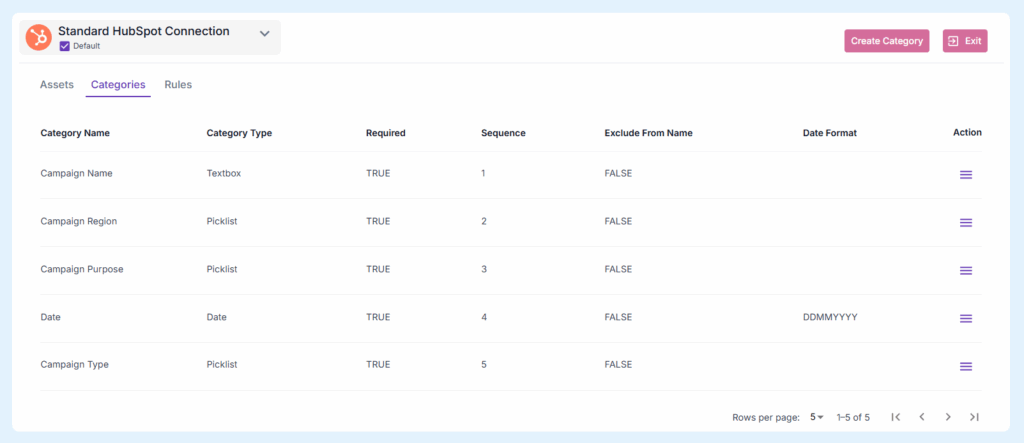
We also have an ‘Create Category’ button to add more categories.
Note: The Value Type can be Pick-list, Textbox or Date.
Edit #
The hamburger icon associated with each category to tweak in some changes.
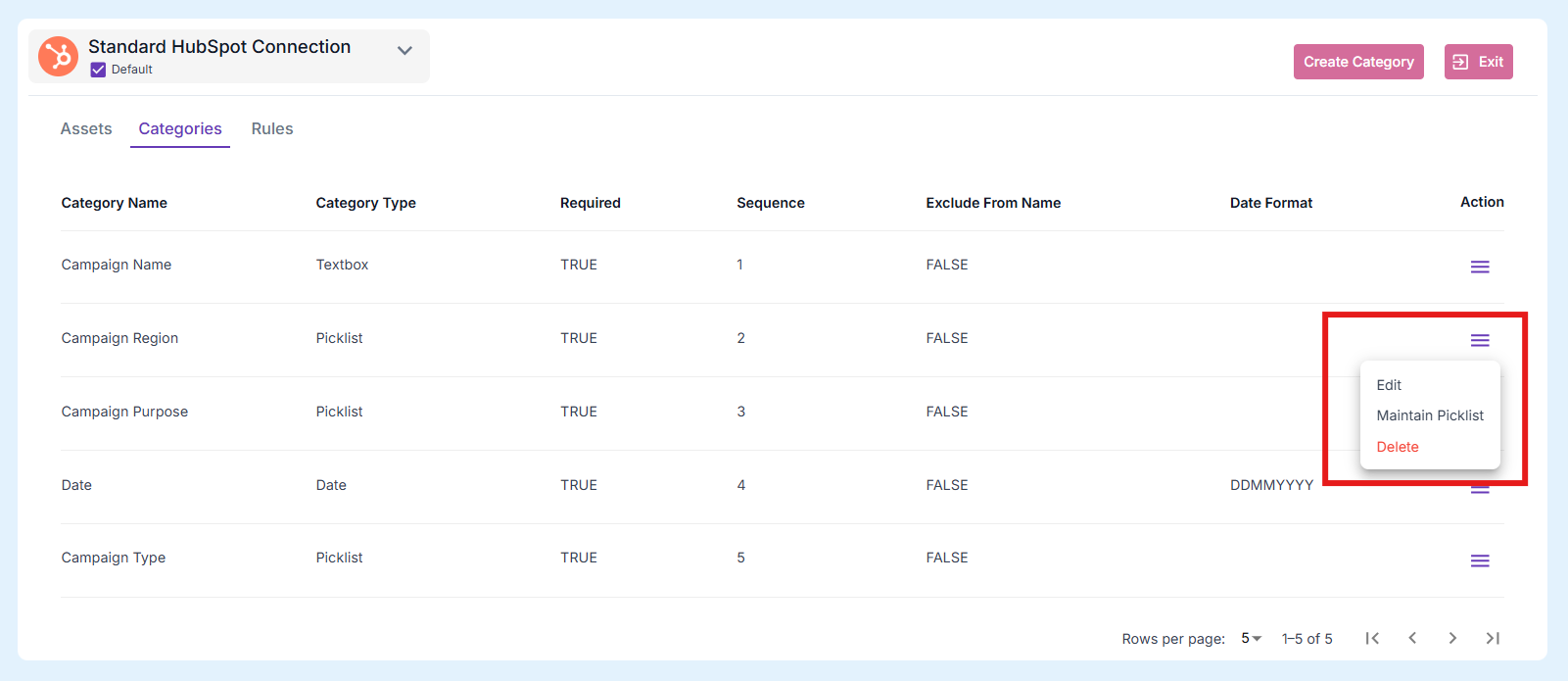
The edit button has access to the feature that helps us add values to a pick-list.
Once a pick-list has been created, use “Maintain Picklist” button to add values into the pick-list.
Rules #
Now to choose which category applies to which asset type:
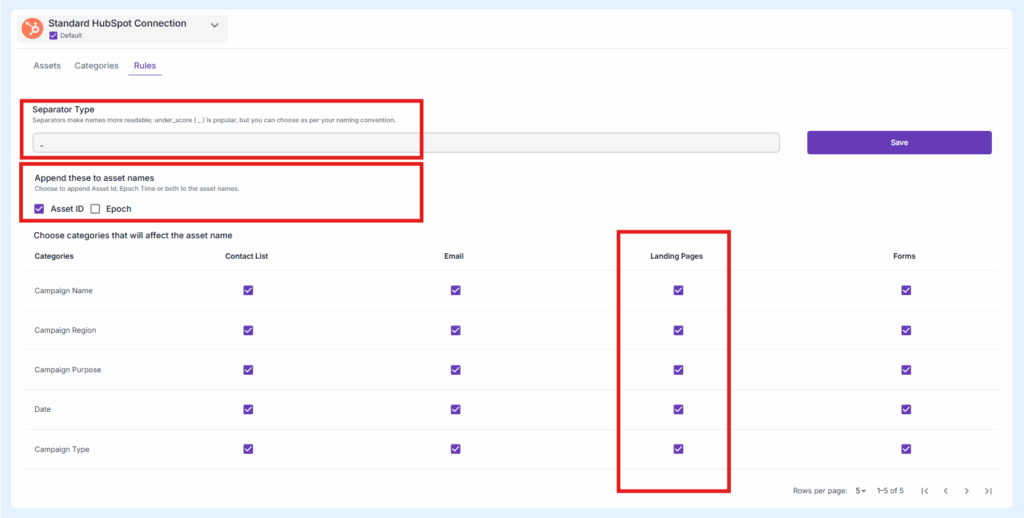
For example, look at the Form column. All the categories check marked will contribute to the name that ANA will synthesize for forms.
Apart from this, there are two more controls:
- Separator – We can also choose the special character that will separate the parts of the name; in this case, a hyphen is chosen.
- Suffix Asset id or Epoch time – If we want the asset id to be suffixed to the asset name, or the epoch time, there are check boxes for both those options.