1. Assets #
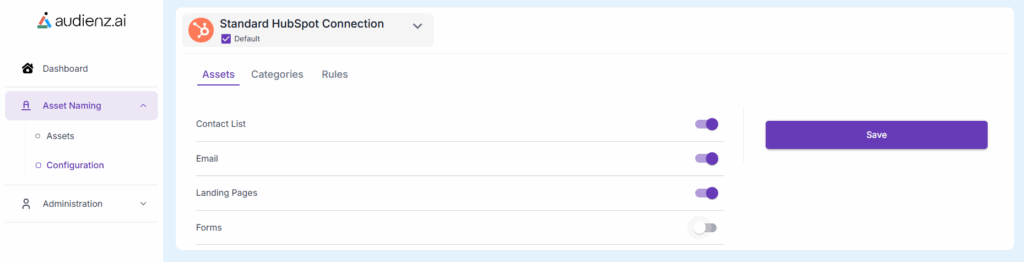
The Assets section displays a few available HubSpot asset types, each accompanied by a toggle button. These toggles control which asset types are available for creation or modification. This configuration ensures teams only see and work with asset types relevant to the organization’s workflow.
1.1 Available asset types are: #
- Contact List
- Landing Pages
- Forms
1.2. To activate asset types: #
- Go to the Homepage and click on Asset Naming.
- Then select Configuration.
- The Assets tab opens by default, where users can enable the required asset types using the toggle buttons.
2. Categories #
Categories allow users to build a list of fields that appear when creating or modifying any asset. The values entered in these fields are used to generate the asset name.
2.1 There are three types of categories: #
- Textbox
- Date
- Picklist
2.2 Common fields for all category types include: #
- Sequence – Defines the position of the category while creating or modifying an asset name (e.g., a sequence value of 2 places it second on the Create/Edit Asset page).
- Required – Marks the field as mandatory while creating or modifying an asset name. This can be enabled using a checkbox.
- Exclude from name – When checked, this category does not affect the asset name but can still be used as an attribute in reports.
2.3 To set up or configure a new category: #
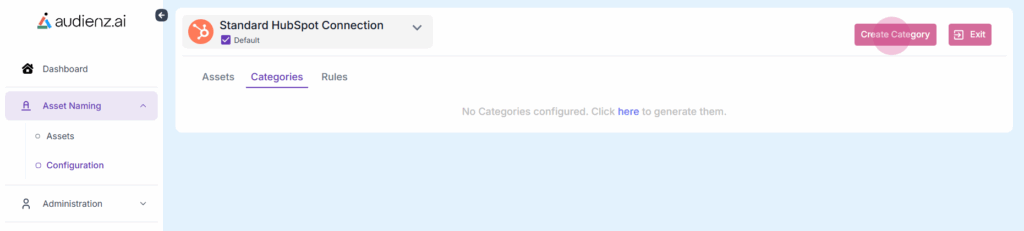
1. Click on Category Tab and then, click on Create Category button
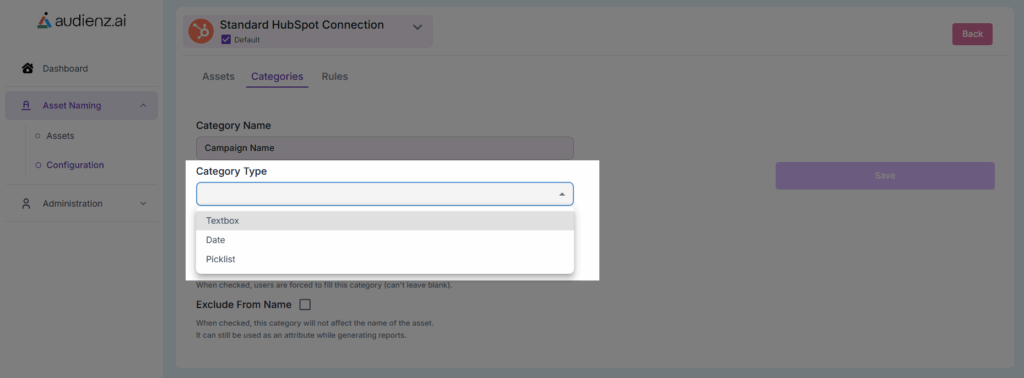
2. Enter the Category Name
3. Select a Category Type (Textbox, Date, or Picklist).
4. Specify the Sequence Number to define the display order of the category fields while creating or modifying an asset.
5. Enable the Required checkbox if the category must be filled out by users.
6. Select Exclude from Name if the category should not appear in the asset name but still be available as an attribute for reporting.
7. All created Categories will be visible under Categories list page.
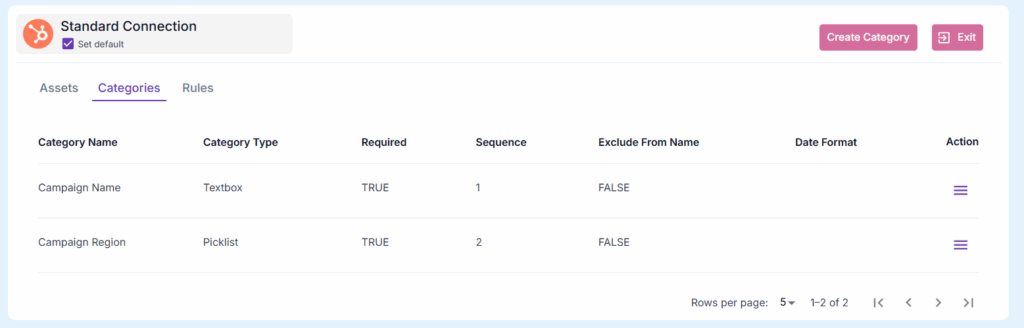
2.4 For Picklist categories, options can be managed after creation of category. #
1. Navigate to the Category List page.
2. Click the hamburger button next to the desired Picklist category.
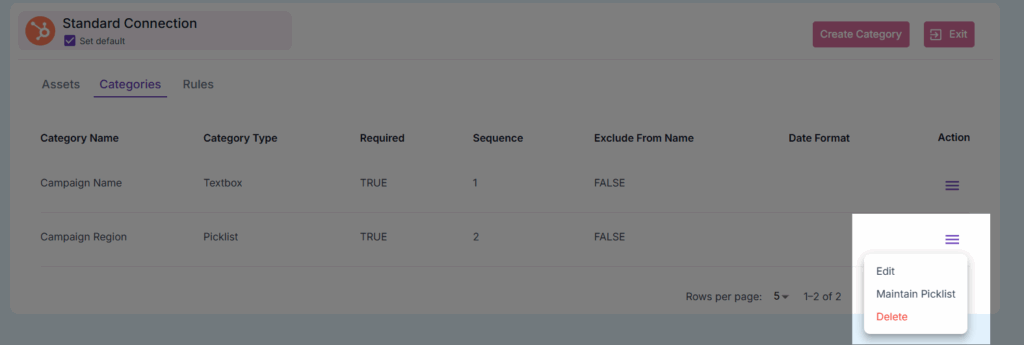
3. Select Maintain Picklist.
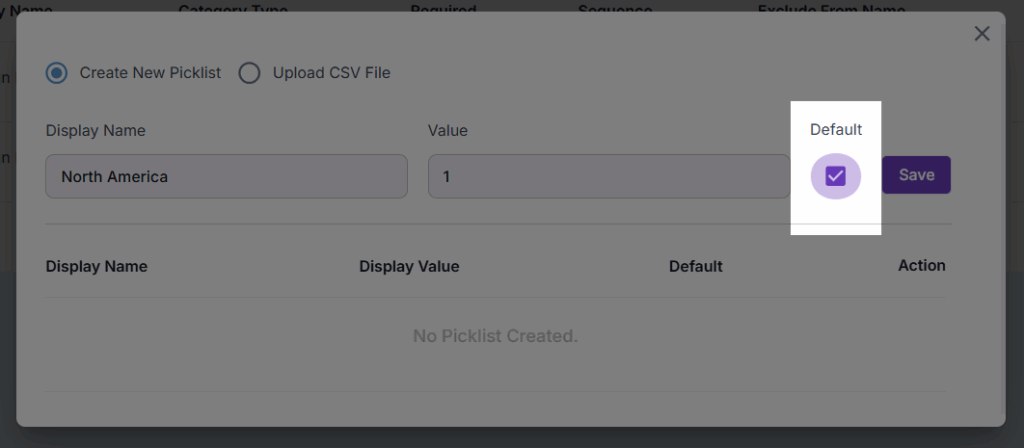
4. A pop-up window will appear where options can be added manually by entering a Name and Value.
5. One option can be marked as the default by selecting the corresponding checkbox.
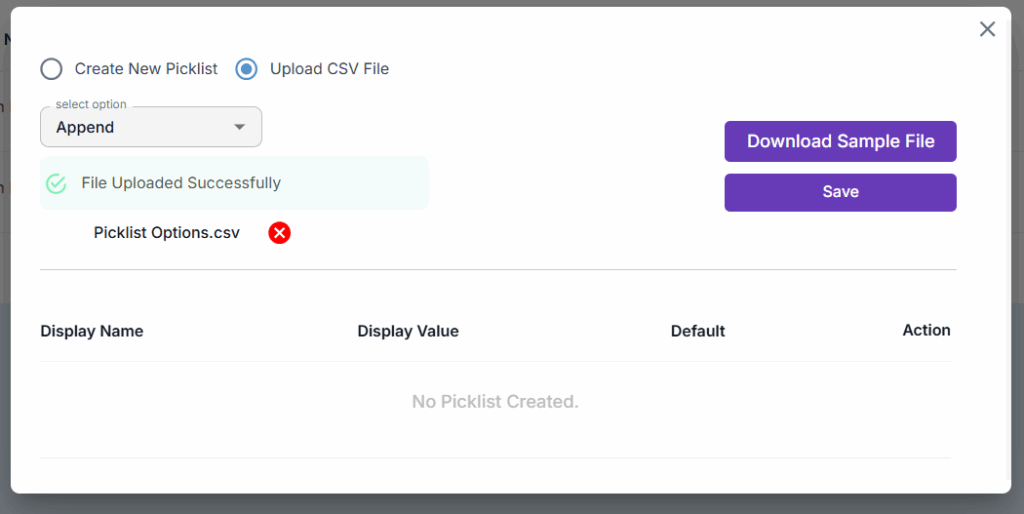
6. When there is a large number of Picklist options, click on Upload CSV File feature.
7. Select Append to add new picklist options or Overwrite to update the existing picklist options.
8. Upload the CSV file containing picklist options from your local system and click on Save button.
3. Rules #
The Rules tab defines how asset names are structured and formatted. It provides options to control separators, automatic additions, and the categories that influence asset naming.
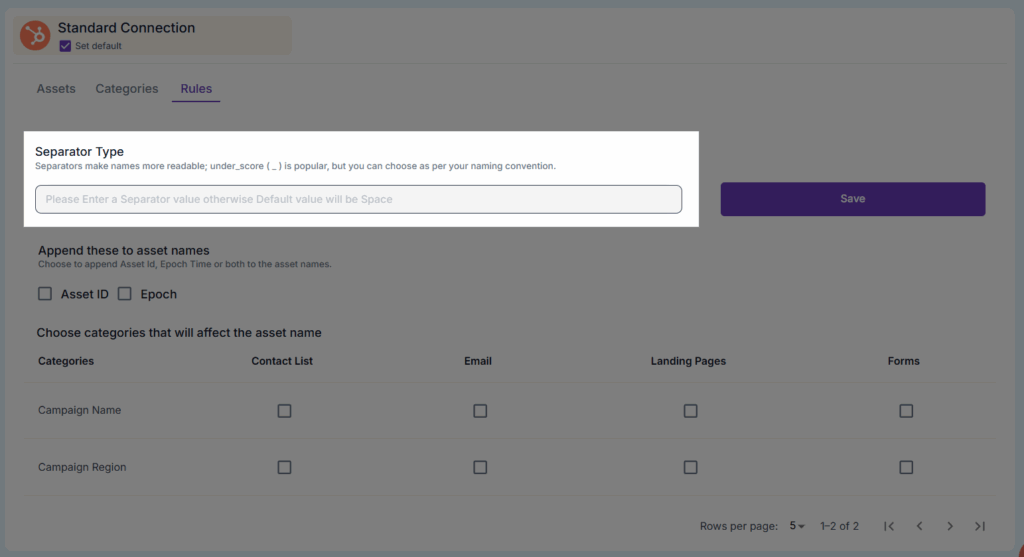
3.1 Separator Type #
Separators improve readability in asset names. Common examples include underscores (_), hyphens (-), or other characters, depending on the organization’s naming convention.
3.2 Append to Asset Names #
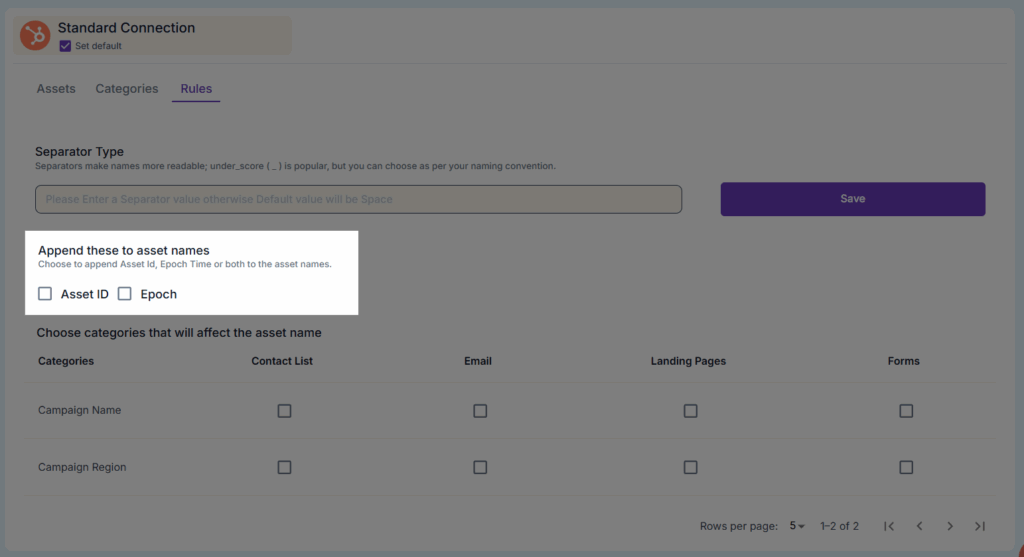
This section allows automatic addition of predefined elements to asset names. Two available options are:
- Asset ID – Appends the system-generated ID to ensure uniqueness.
- Epoch – Appends a timestamp-based value for tracking and identification.
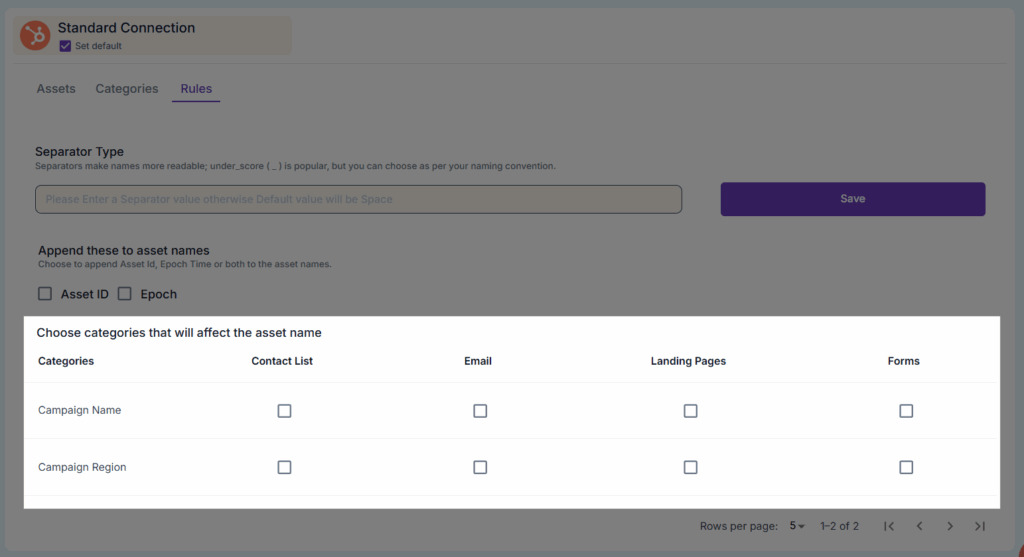
3.3. Choose Categories Affecting Asset Names #
Enable checkboxes for each category to specify which ones apply to different asset types.