Before using the ANA extension, ensure the following conditions are met:
- The extension is installed from the Chrome Web Store.
- The Audienz.ai account is logged in within the same browser (in a separate tab).
- A floating icon of Audienz ANA app should be visible on the right side, when HubSpot is opened.
- Click on the extension icon. If the extension is not loading or functioning correctly, refresh both the HubSpot page and the extension.
How to create Assets #
1. Click the floating ANA icon on the right side of the HubSpot page. A panel will appear on the right-hand side.
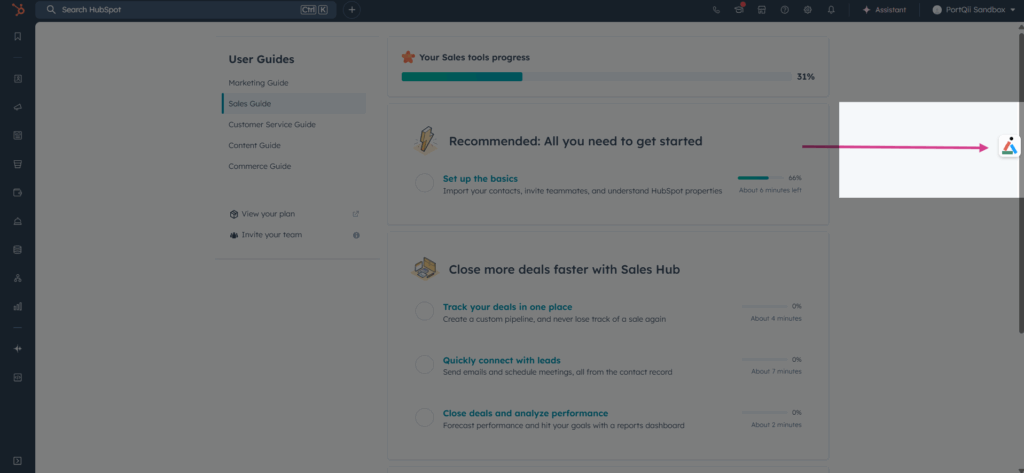
2. Select Create/Edit Asset button.
3. Choose an Asset Type from the available options — Contact List, Email, Landing Page, or Form.
- Example: Select Contact List, then choose the sub-type (e.g., Manual).
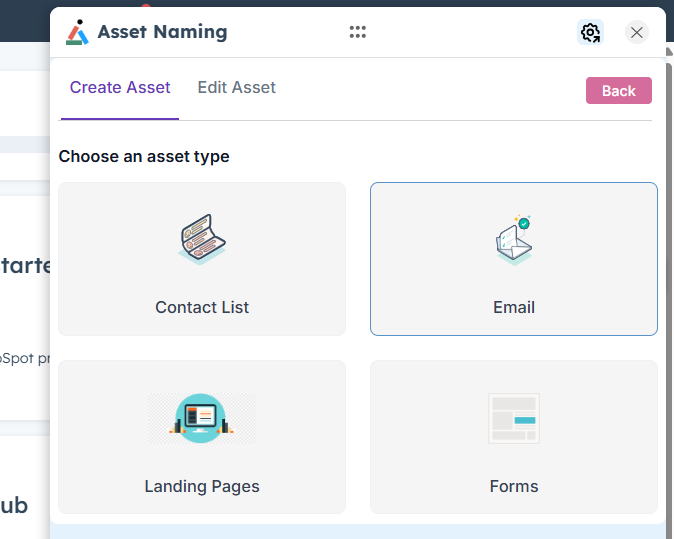
4. All categories configured and enabled for this asset type will now be visible. Fill in the required fields.
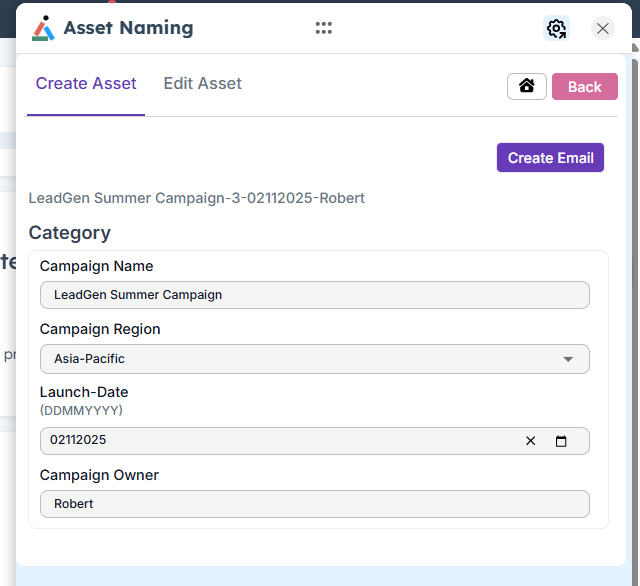
5. Click Create to generate the asset. A Success message will confirm that the asset has been created successfully.
Note: All recently created assets are listed in the Homepage of ANA extension.