1. Sign Up and Access #
The sign-up and connection process has been streamlined into a single guided flow through the HubSpot Assistant extension.
1.1. Steps:
1. Search for HubSpot Assistant in the Chrome Extension Store and install it.
2. Open the floating Portqii (Audienz) icon inside the Hubspot application. You will be prompted to either Sign In or Create a New Account.
3. Click Create Account.
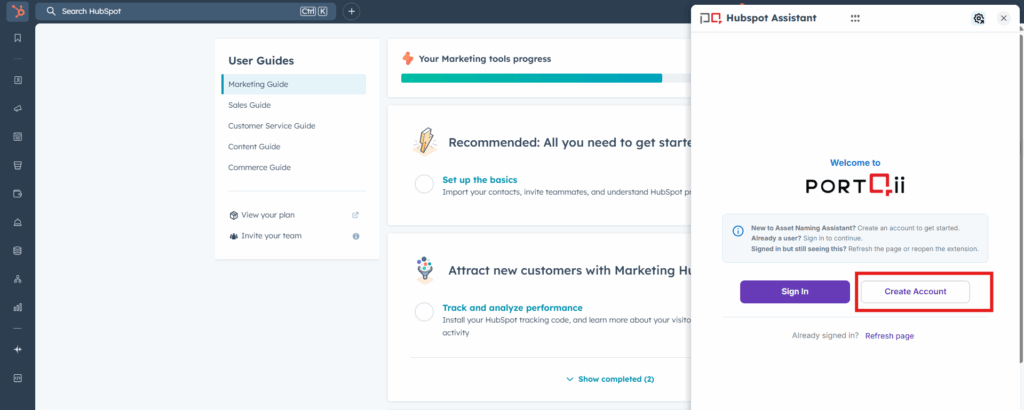
4. User will be redirected to Sign-up page of Asset naming Assistant. Enter your First Name, Last Name, Business Preference, and Business Email Address (only business email domains are accepted), then click Continue.
5. An activation email will be sent to your inbox. Open the email and click Activate Account.
6. Set your password. Once completed, you will be redirected to the Asset Naming Homepage.
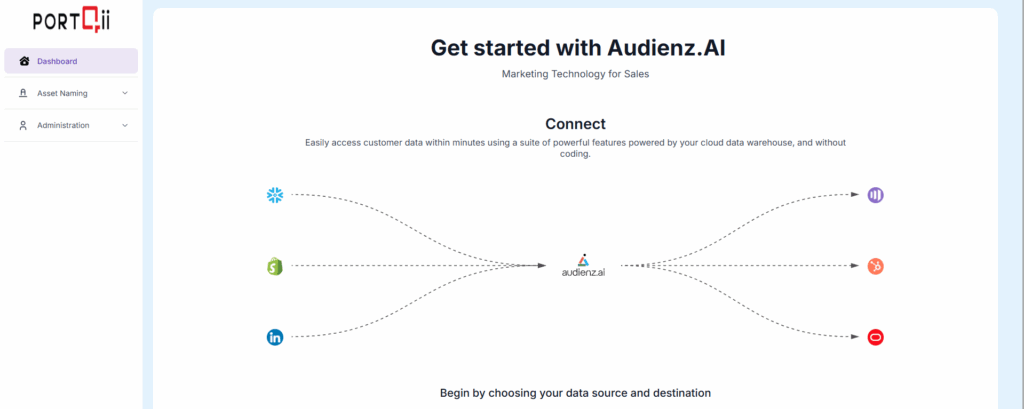
From here, a pop-up will guide you through creating your HubSpot connection. #
1.2. HubSpot Connection Setup (via pop-up):
1. Click Next in the pop-up to begin setting up your HubSpot connection.
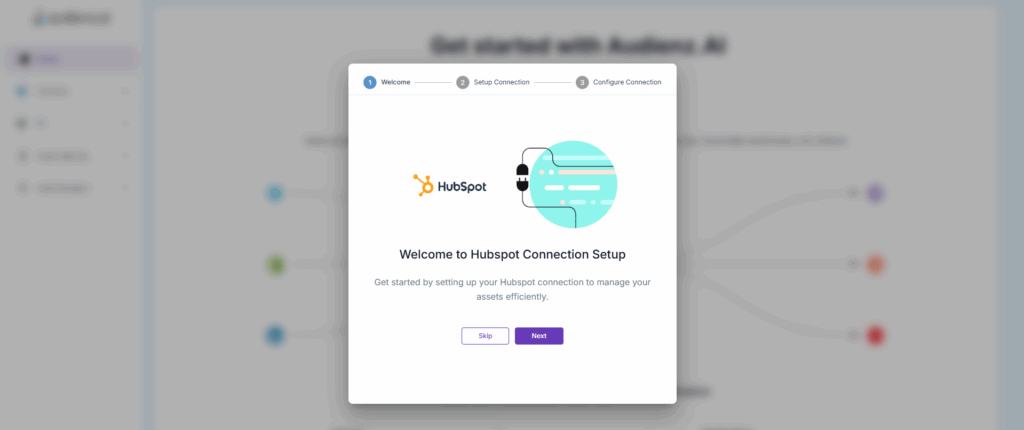
2. Enter required details: Connection Name and description if required.
3. Click Continue to finalize and create your connection.
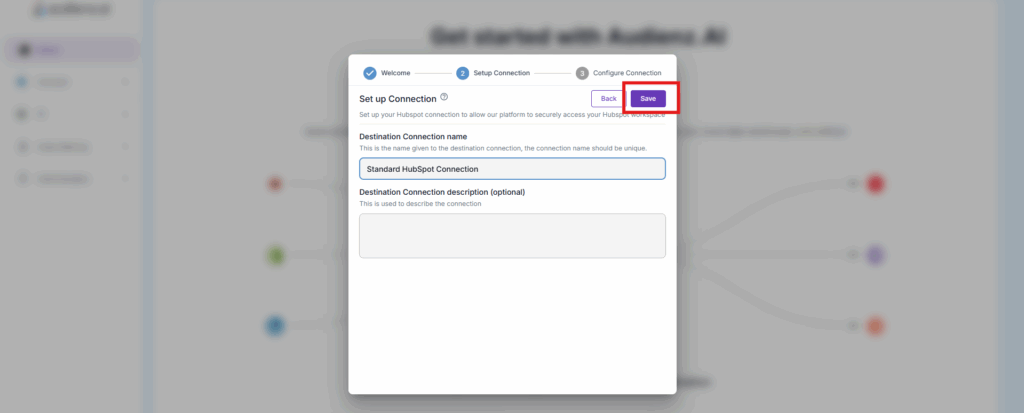
4. Proceed through the configuration setup by clicking Next. Review steps for enabling asset types, configuring categories, and setting up rules. Complete the setup.
2. Create HubSpot Connection #
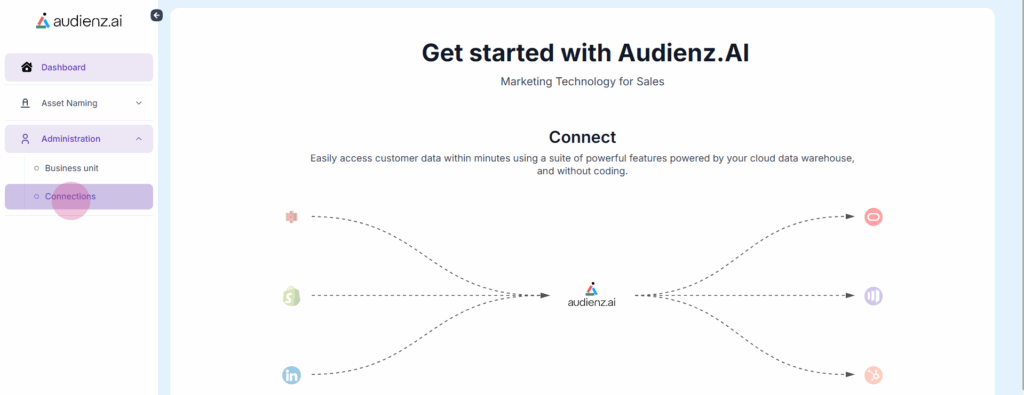
1. Log in with their Audienz.ai credentials.
2. Navigate to Administrations from Homepage and then click on Connections.
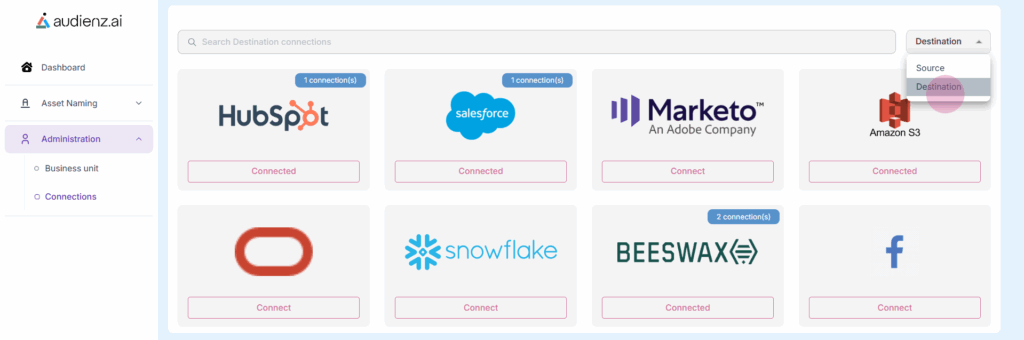
3. Find the dropdown at the top-right corner and select the Destination option.
4. Locate the HubSpot card and click on it.
5. Click on Add New.
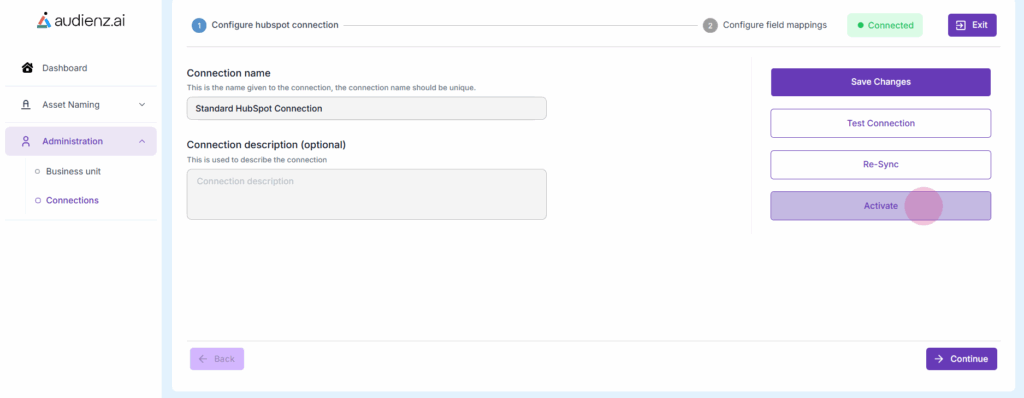
6. Enter the Name of the connection and an optional Description, then click Save Changes.
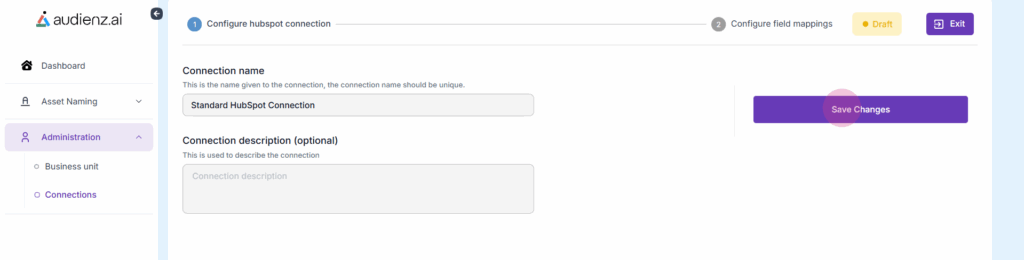
Note: Before clicking the Save Changes button, ensure the HubSpot account is open in the same browser (in a different tab) where the Audienz.ai app is open.
7. The user will then be redirected to their HubSpot account to authorize the connection. Select the appropriate HubSpot account when prompted.
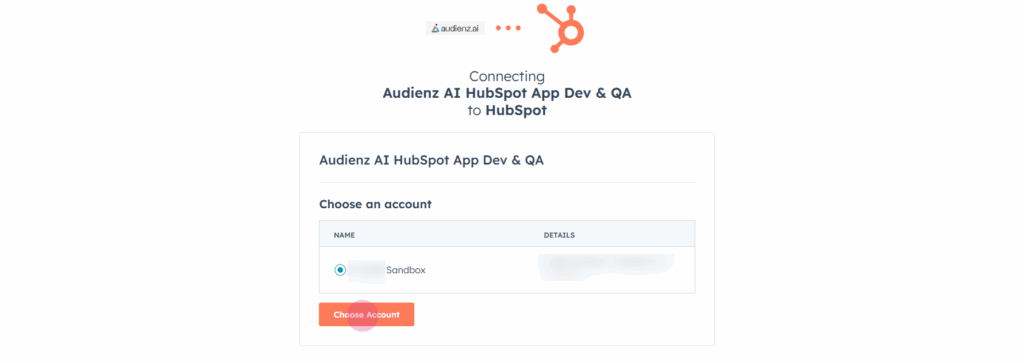
8. After authorization, the user will automatically be redirected back to the Audienz.ai application. Once the connection is established, click the Activate button to finalize and enable the connection.