
To modify configuration settings, navigate to Apps, select your app, and click the Configure icon (the gear icon).
| NOTE | Selecting the Reinstall icon will force you to go through the entire configuration process again. The app will be unavailable for all users during the reinstall. |
Launch Configuration Screen
To configure the application in your Oracle Eloqua instance:
- Log into the Eloqua instance where the application is installed
- Navigate to Setup → AppCloud Catalog
- Locate the application labeled "Transporter Sync"
- Click into the application and select the "Settings" icon to configure it
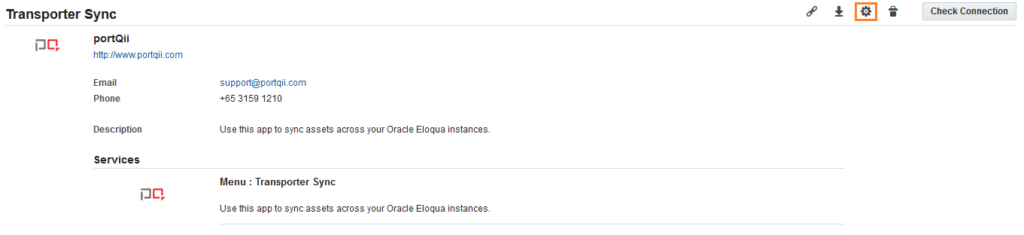
This opens the configuration page shown below.
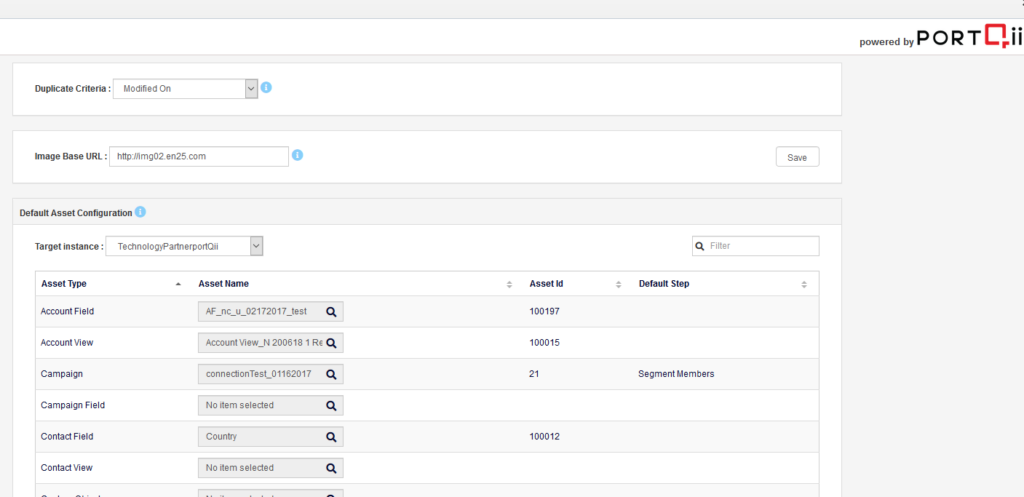
Duplicate Asset Configuration
When an asset exists in both source and target instances, the application needs to decide whether to sync the source asset or retain the target asset. You have two options for handling duplicate assets:
- Created On: The asset created earlier becomes the master asset. If the source instance asset was created earlier, the sync moves the asset from source to target. Otherwise, the sync is skipped and the target asset is retained.
- Modified On: The asset modified most recently becomes the master asset. If the source instance asset was modified last, the sync moves the asset from source to target. Otherwise, the sync is skipped and the target asset is retained. This is the default option.

Image Configuration
This configuration lets Eloqua admins provide a valid base URL specific to each instance.

Default Asset Configuration
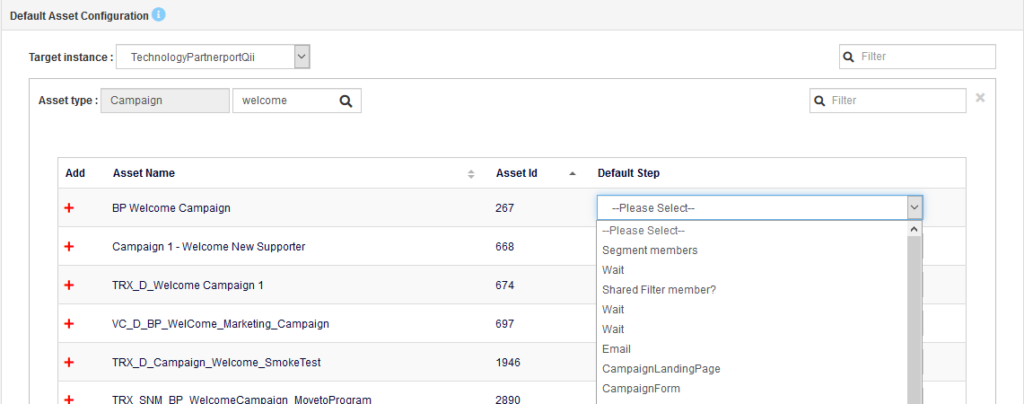
Default asset configuration is crucial for scenarios where the application cannot create an asset in the target instance. In these cases, the application checks this configuration to find a fallback asset for that asset type. When configuring a default asset for a campaign, you'll also need to configure the default step for that campaign. You can configure one default asset per asset type per Eloqua instance.
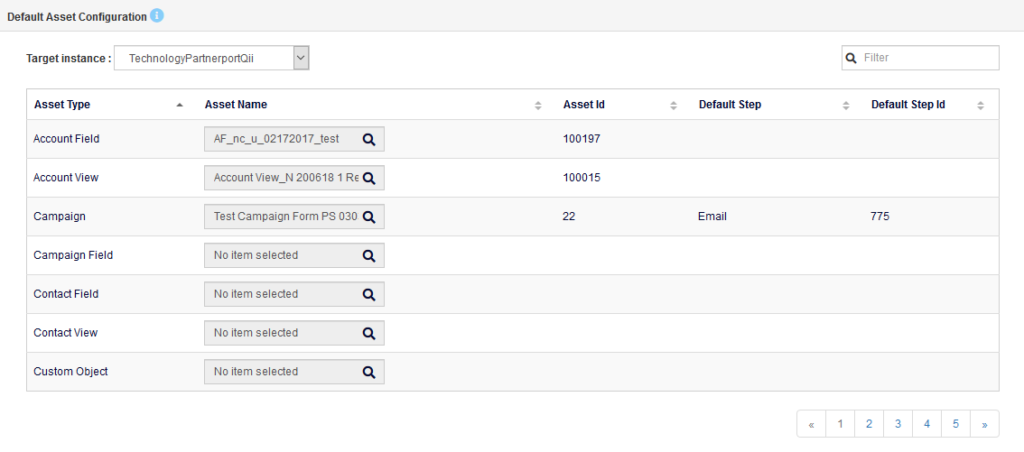
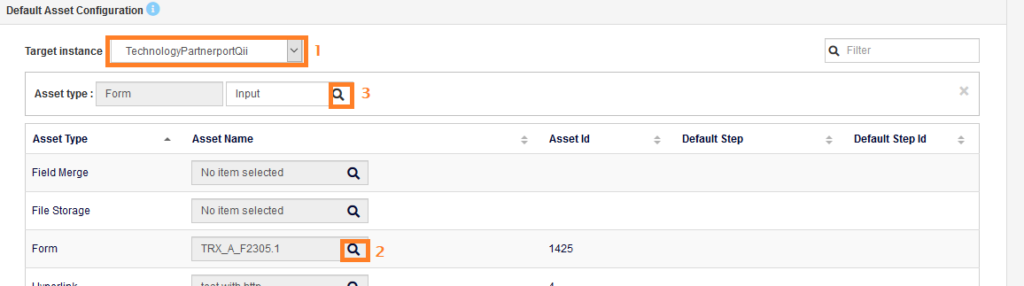
To configure a default asset:
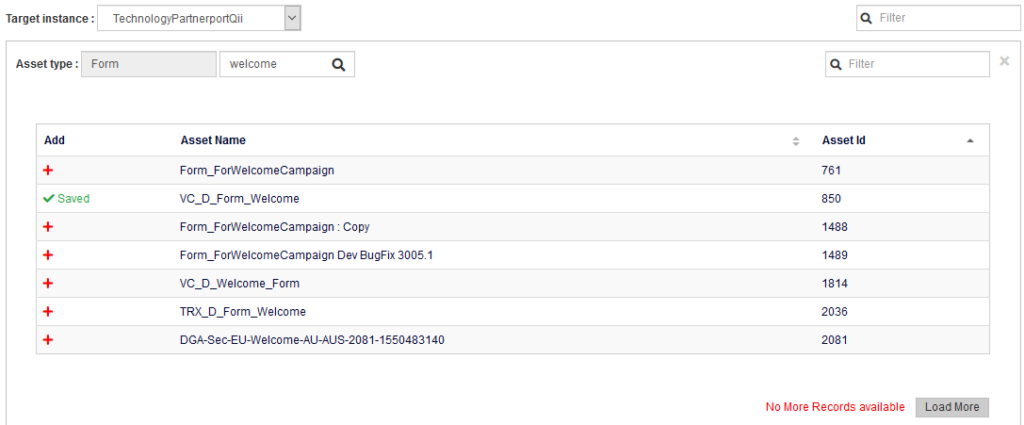
- Select the target instance
- Click the search icon for the asset type you want to configure
- A search field appears at the top. Enter at least three characters to search for an asset and hit search
- Select the asset from the search results. Use the filter option or Load More to browse additional assets if needed
If the asset type is campaign, after selecting the campaign you'll need to select a step to mark as the default step.
Microsite Configuration
When syncing a Landing Page asset, the application needs a valid microsite for the target instance. This configuration lets you configure the correct microsite for target instances. To configure a microsite, select one from the Microsites dropdown for each instance shown under the Microsite Configuration.

Email Configuration
When syncing an email asset, the application needs to replace the From Email and Reply To Email details from the source with valid values for the target instance. This configuration lets you set values for target instances. Simply provide the Sender Name, Sender Email Address, Reply to Name, and Reply To Email Address values for each target instance.

Switch Configuration
Switch Assets During Deployment
If you want to remove or replace child assets in the target instance, the application provides an option to define which assets should be replaced by child assets from the target instance. Administrators can define a mapping between source child assets and target child assets.
Configuring the Mapping in Admin page
- Go to the Transporter Sync Admin settings. Scroll down to find the Switch settings.
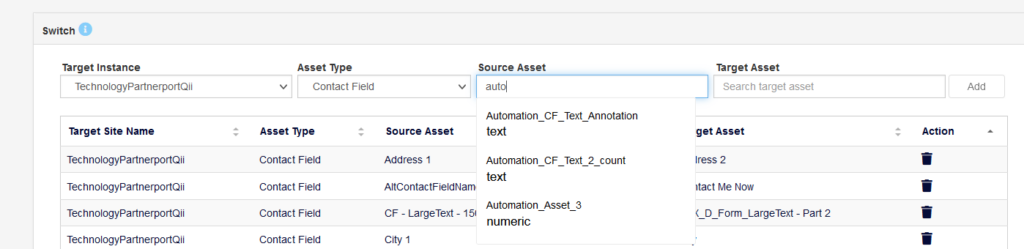
- Select the target instance and asset type. You must select the target instance before searching for the target asset. The source instance defaults to your current instance.
- Search the source asset name in the search box and select the asset you want to add the mapping for.
- Search for the target asset. The assets displayed in the target asset search match the source asset data type. Select the asset you want to map and click Add.
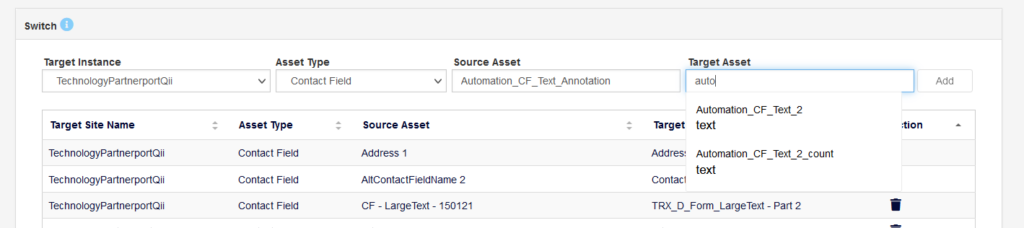
- This saves the mapping to the table below.
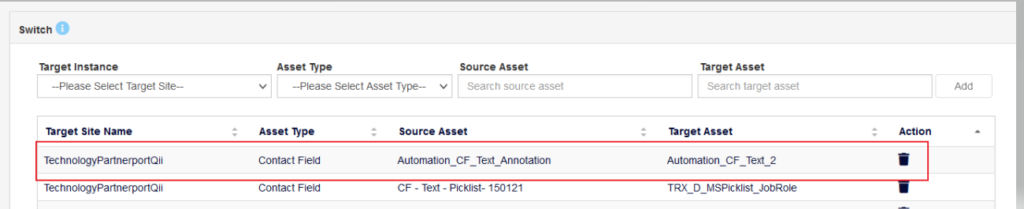
This means if a form is being moved from source instance to target and the form has the Automation_CF_Text_Annotation contact field, then the Automation_CF_Text_2 contact field of the target will be associated to the form.
Points to Note
- Transporter Sync supports one-to-one mapping of source and target assets. One asset from the source instance can only be mapped to one asset of the target instance.
- Currently, the asset type supported in Switch is replacement of Contact fields inside Forms. Support for other asset types will be available in future releases.
- Support for Remove action will be implemented in future releases.