
Calendar View gives you a unified visual timeline of all campaigns connected from Eloqua. See Active, Scheduled, Draft, and Completed campaigns at a glance to assess audience touch frequency and prevent overlaps before they happen.
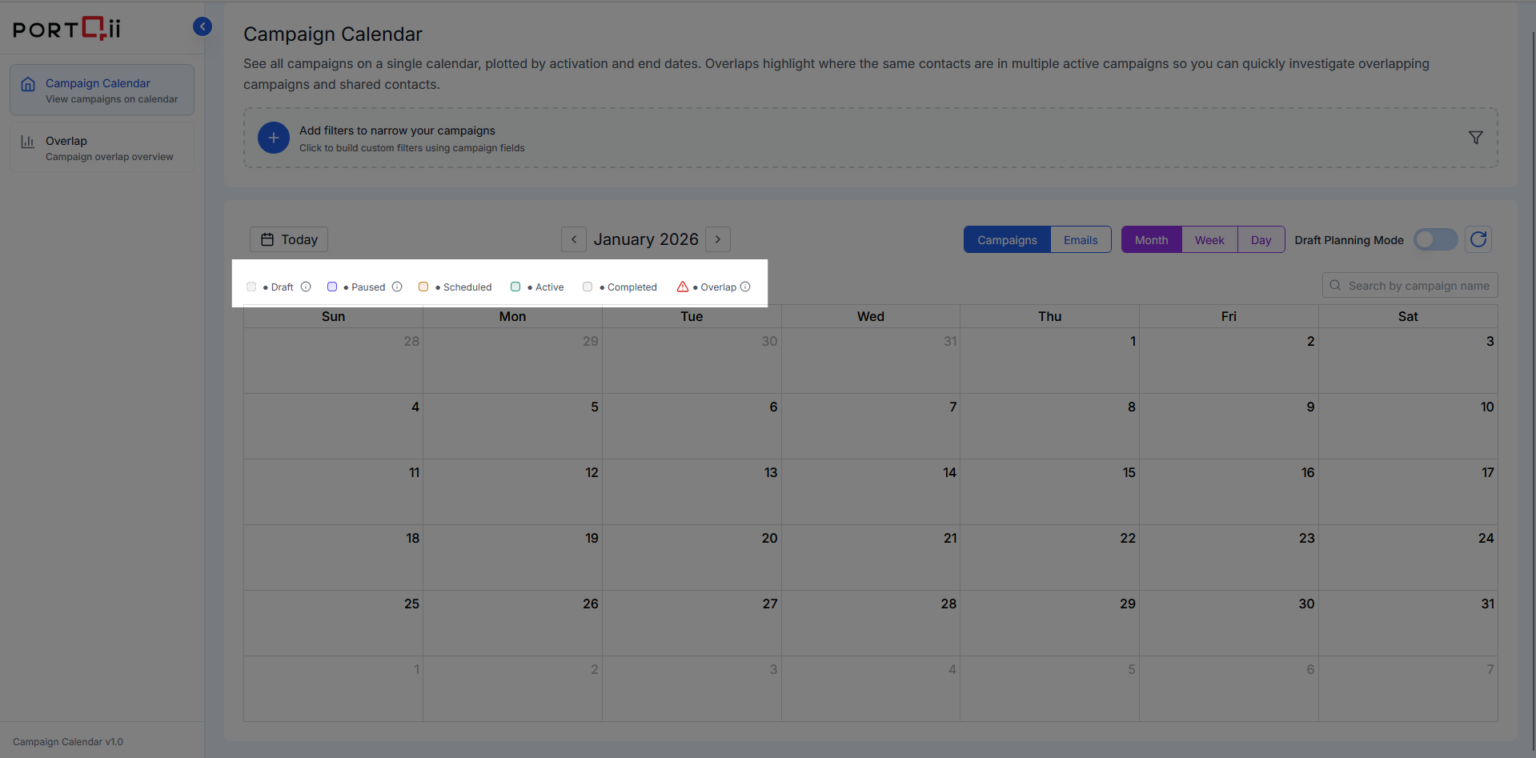
Campaign Display Rules
Each campaign displays from its start date to end date with color-coded status indicators:
- Active Campaigns: Displayed in green
- Scheduled Campaigns: Displayed in brownish-orange / earthy tone
- Draft Campaigns: Displayed in grey dots
- Completed Campaigns: Displayed in grey
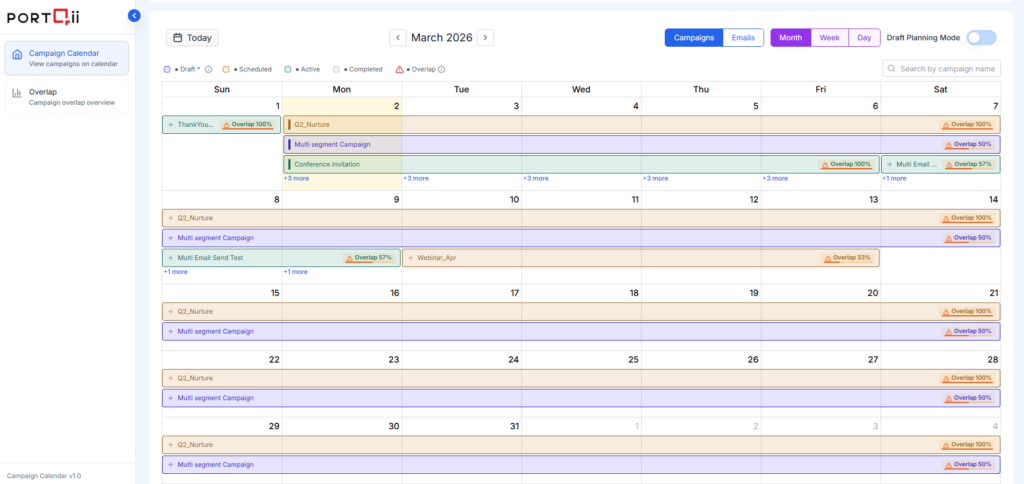
Overlap Logic
When any two campaigns share common contacts—regardless of their status—both campaigns appear across their overlapping date ranges. This helps you identify potential audience fatigue or conflicting messaging.
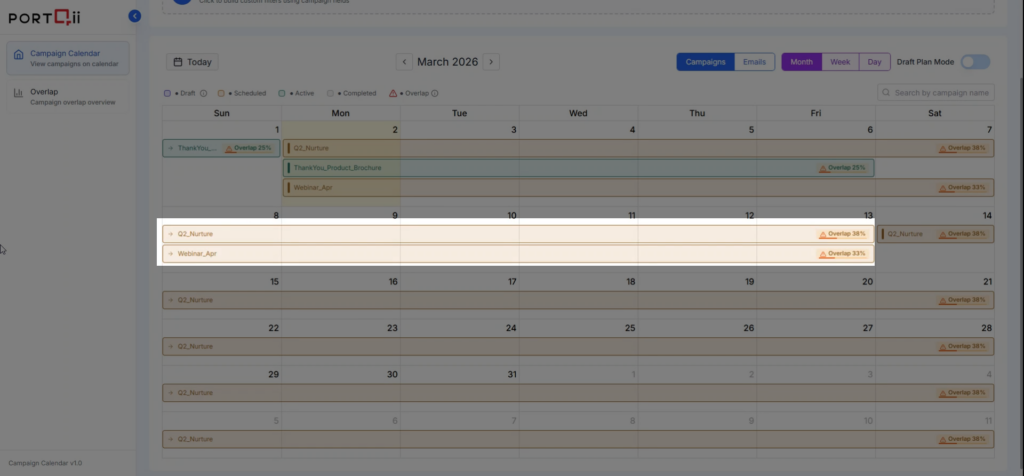
If common contacts exist between campaigns:Overlap percentage is calculated
Exclude Contacts
Contacts configured under Exclude Contacts are ignored during overlap evaluation. This helps prevent test contacts/Non-target contacts from affecting overlap calculations.
Changes made to Exclude Contacts in already synced campaigns are applied only after a new sync or campaign reschedule.
Draft Planning Mode
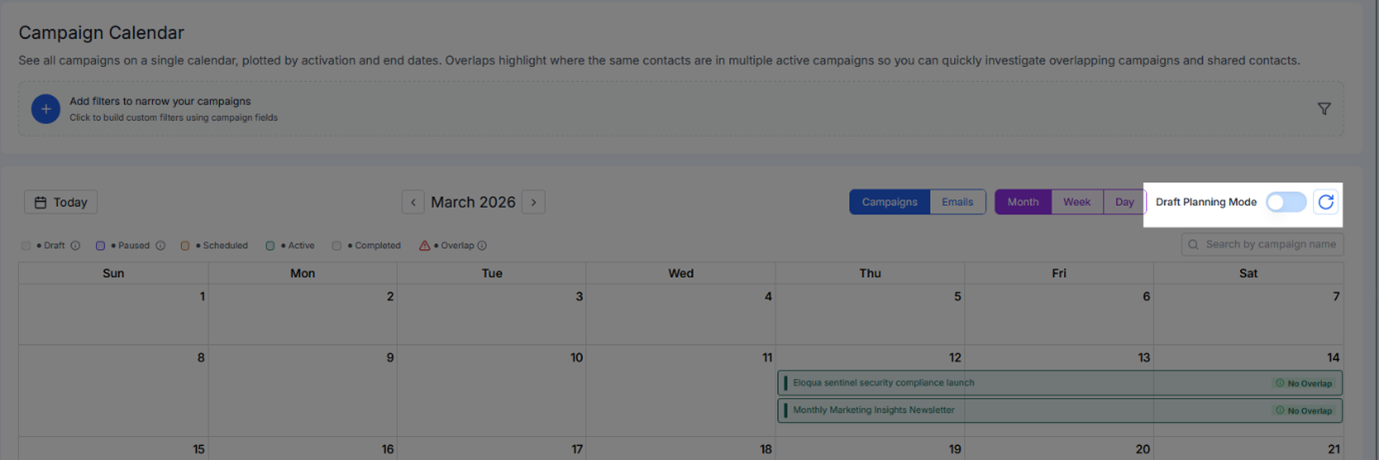
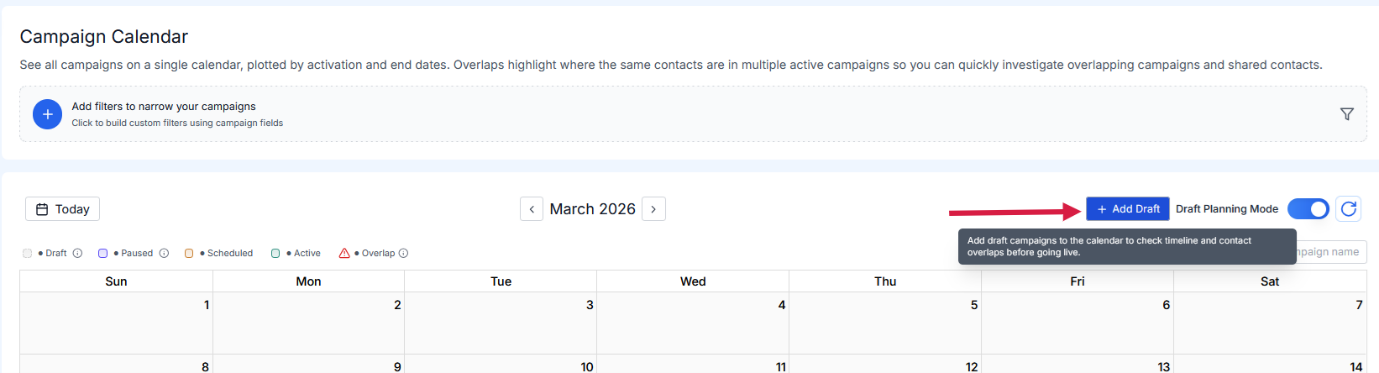
Campaign Calendar supports Draft Planning Mode to help users evaluate audience overlap before campaign activation. Draft campaigns can be added to the calendar for planning and governance analysis without activating the campaign.
Steps to Add a Draft Campaign to Calendar
- Toggle Draft Planning Mode: Enable Draft Planning Mode from the calendar to start planning draft campaigns.
- Click “Add Draft” : This opens the draft campaign selection panel.
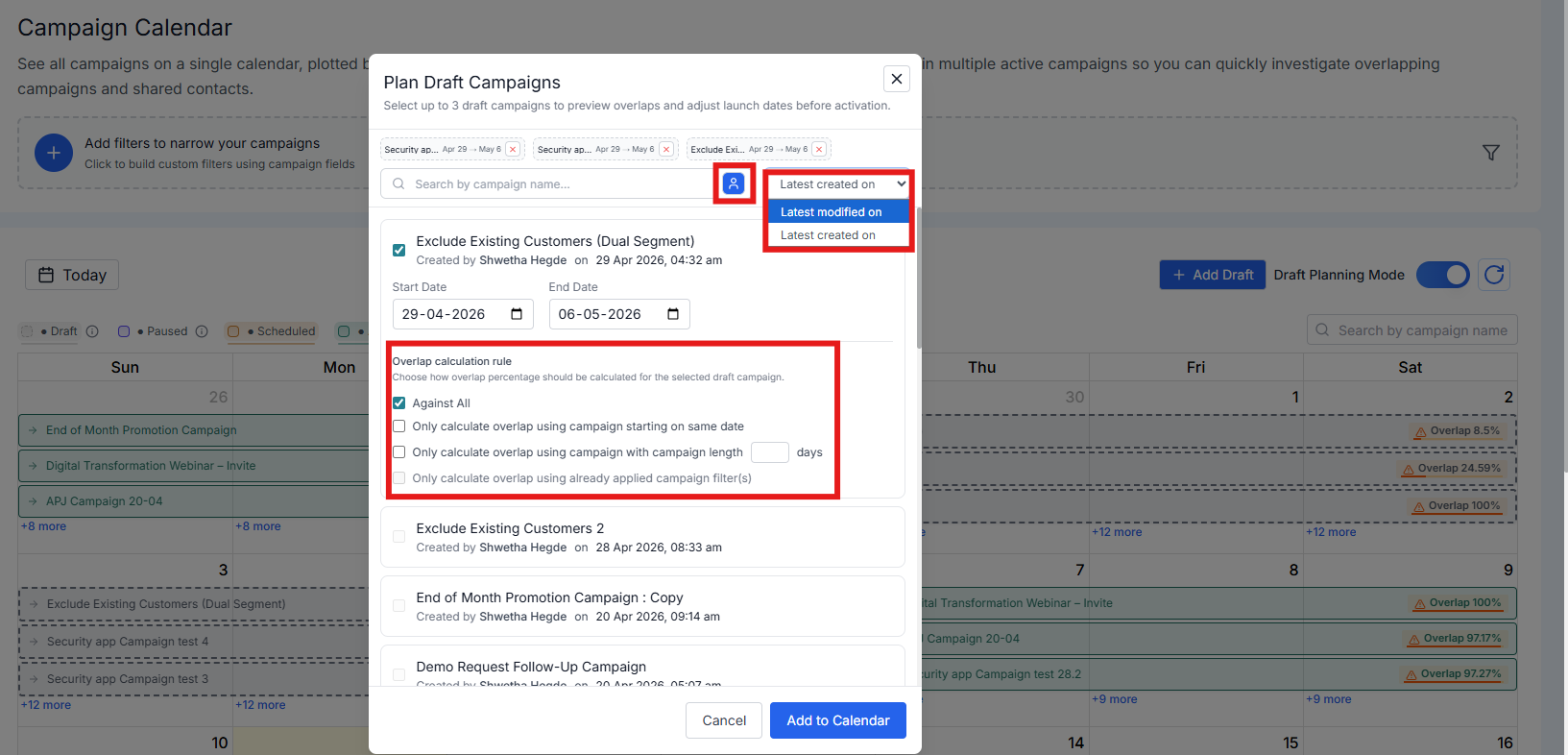
- Select Draft Campaigns : Users can add draft campaigns using the following
options:
- Suggestions: Select from system-recommended draft campaigns
- Search: Search by campaign name
- Filter: Filter campaigns based on Last Modified By (Me)
- Configure Campaign Schedule : Select the required Campaign start date and end date
- Configure Overlap Calculation Rule : Choose how overlap percentage should be calculated for the selected draft campaign.
- Against All
- Only calculate overlap using campaigns starting on same date
- Only calculate overlap using campaign with campaign length
- Only calculate overlap using already applied campaign filter(s)
- Click “Add to Calendar” : Click Add to Calendar to add the selected draft campaigns to the calendar view.
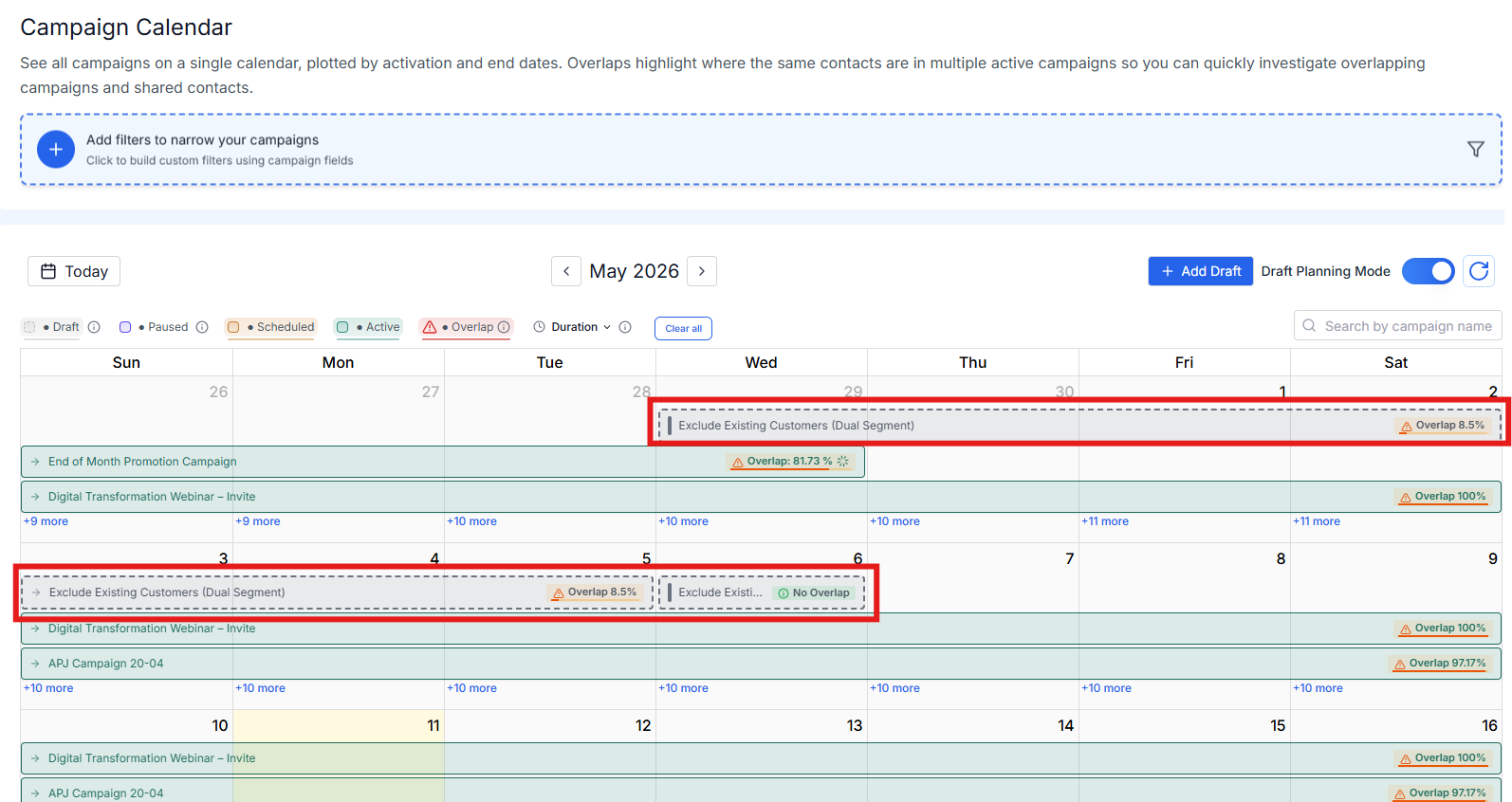
- View Draft Campaign
- On the calendar timeline based on the configured start and end dates
- In grey dotted colour indicating Draft status
Available overlap calculation rules:
The draft campaign appears:
Calendar Views
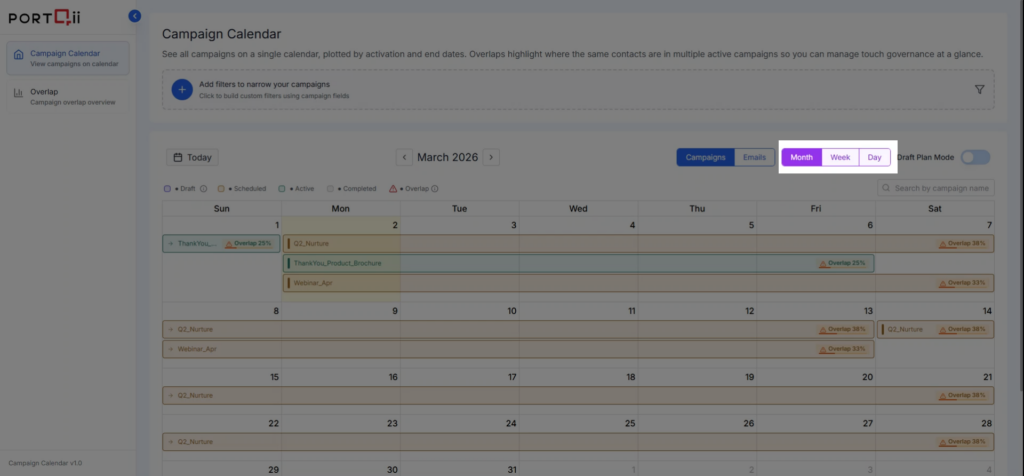
Switch between three view modes to match your planning needs:
- Month View
- Week View
- Day View
Use Month View for high-level planning or drill down to Day View for detailed scheduling review.
Filters
Filter campaigns by specific attributes to focus on what matters most. Build dynamic filters using campaign fields and logical conditions to narrow your view.
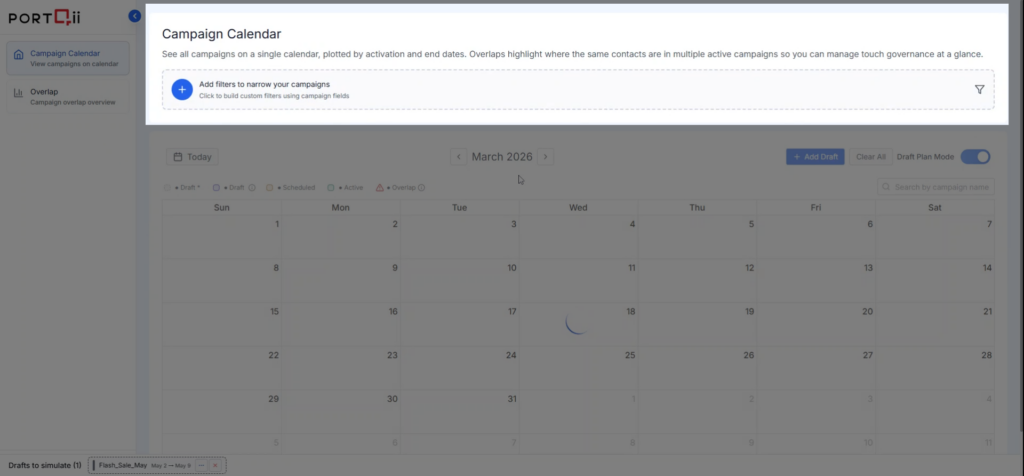
How to Add Filters
- Click the '+' icon to add a new filter
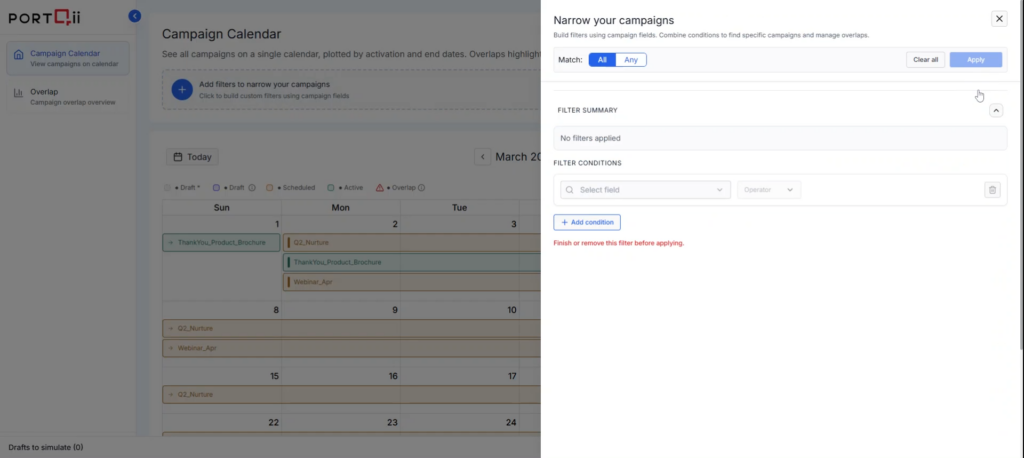
- Under Filter Conditions, select a Field from the available campaign fields
- Select an Operator (e.g., equals, contains)
- Enter the desired Value
- Click Add Condition to include additional filter conditions if needed
Multiple Conditions Logic
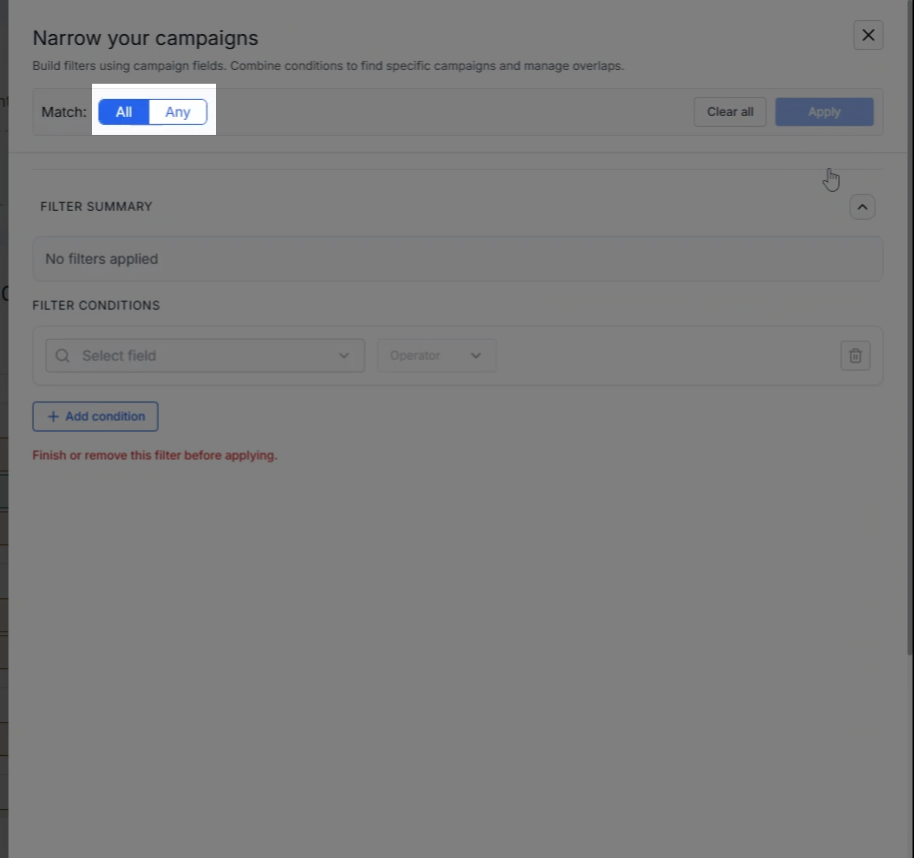
Add multiple filter conditions and control how they work together:
- Select 'All' to apply an AND condition between filters
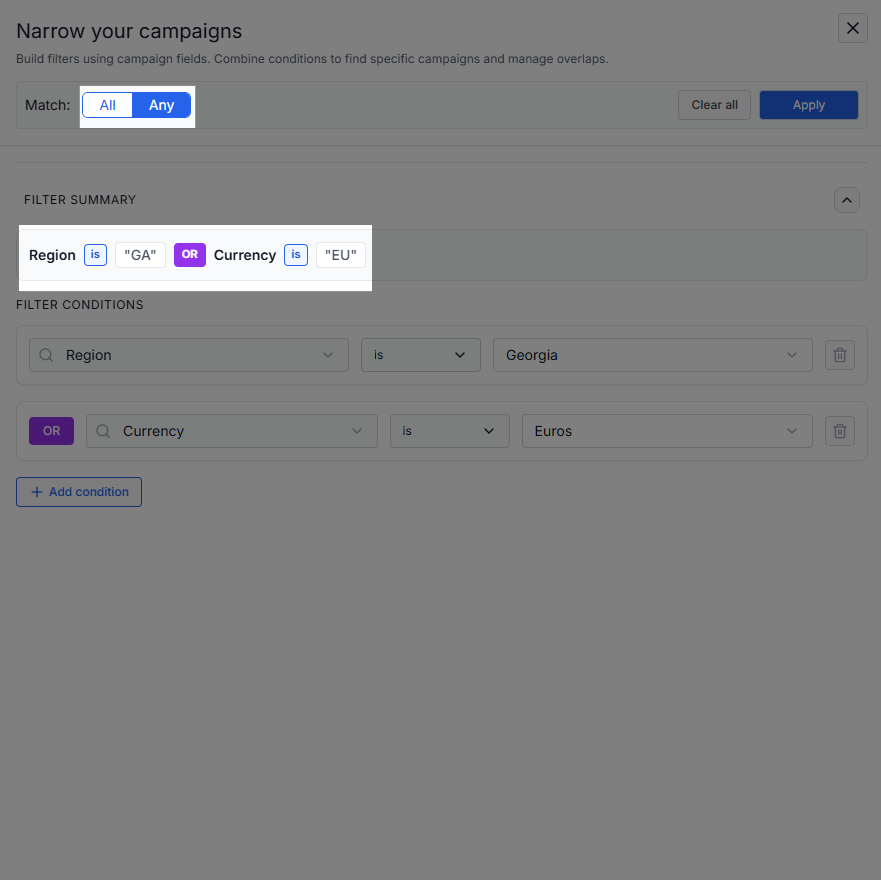
- Select 'Any' to apply an OR condition between filters
This flexible filtering system lets you create precise views tailored to your operational needs.