
Agentic AI Decisions
Segment and route contacts using data outside your MAP, without importing that data into Eloqua or Marketo.
Supported MAPEloquaMarketo
Open Agentic AI Decisions from Home or go to /agents/agentic-ai-decisions. You work in a chat + panel workspace: ask about Decisions in chat; the panel shows evaluation health and your Decision list.
A Decision is a Yes/No step on an Eloqua canvas or Marketo flow. It can look up data (for example in Salesforce) at evaluation time so marketers can branch without copying that data into the MAP first. Integration URLs and Marketo install credentials live in Agentic AI Decisions settings.
Platform setup. Connect Eloqua and/or Marketo under Connections. Use settings to copy AppCloud Decision URLs (Eloqua) or issue Marketo flow-step install credentials, then author a Decision and bind it on the canvas or flow.
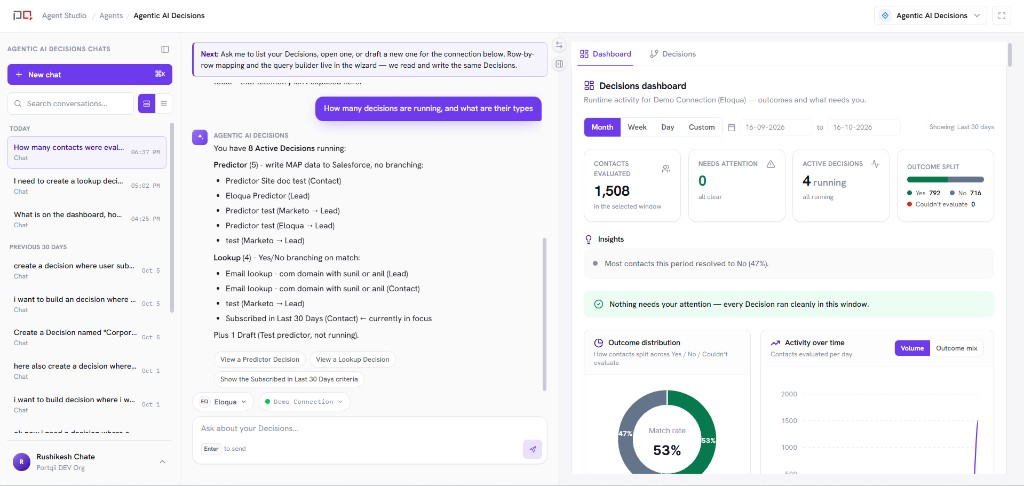
/images/agent-studio/agentic-ai-decisions/workspace-overview.pngAgentic AI Decisions workspace (/agents/agentic-ai-decisions) with an Eloqua connection selected in the switcher above the chat box and the Dashboard tab showing Yes and No volume. Use a demo instance.
Guided video needed: Agentic AI Decisions walkthrough.
Add the Supademo link for this agent (see ASSET-CHECKLIST.md in the docs repo).
Add the Supademo link for this agent (see ASSET-CHECKLIST.md in the docs repo).
Before you start
- An active Eloqua or Marketo connection (Salesforce lookup is chosen inside the Decision wizard when needed)
- Decision service registered for Eloqua AppCloud and/or Marketo flow step (from settings)
- Permission to create Decisions
Create and use a Decision
Open Agentic AI Decisions
From Home, choose Agentic AI Decisions, or open
/agents/agentic-ai-decisions. Select the Eloqua or Marketo connection in the connection switcher above the chat box.Create a Decision
On Decisions, add a new Decision. Walk the wizard: Details, Lookup (Salesforce connection and object), Mapping, Query (Eloqua Decisions can also require segment membership), Outcomes (Marketo only: the Custom Activity that records Yes/No), then Review. Choose Save draft or Save & Activate. Only an Active Decision can be selected in Eloqua or Marketo.
Bind on the canvas or flow
In Eloqua, place the Cloud Decision and select this Decision. In Marketo, use the flow step and bind the same Decision. Contacts that reach the step are evaluated and routed Yes or No.
Watch the dashboard
Use Dashboard for Yes/No volume and evaluation health across Decisions for the selected connection and time range.
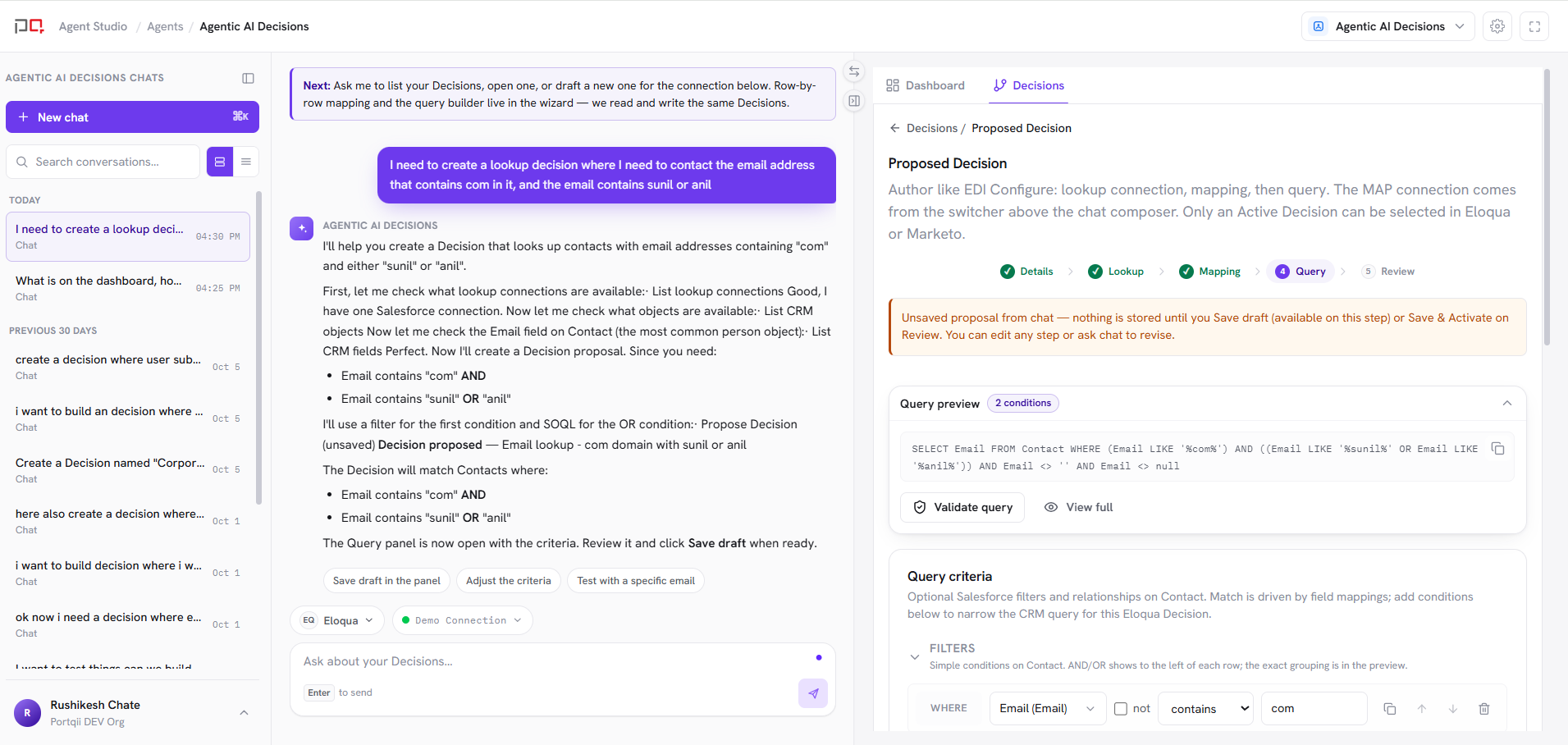
/images/agent-studio/agentic-ai-decisions/decision-wizard-query.pngThe new Decision wizard on the Query step for an Eloqua connection, showing the Salesforce lookup condition and the wizard steps Details, Lookup, Mapping, Query and Review across the top. Use a demo instance.
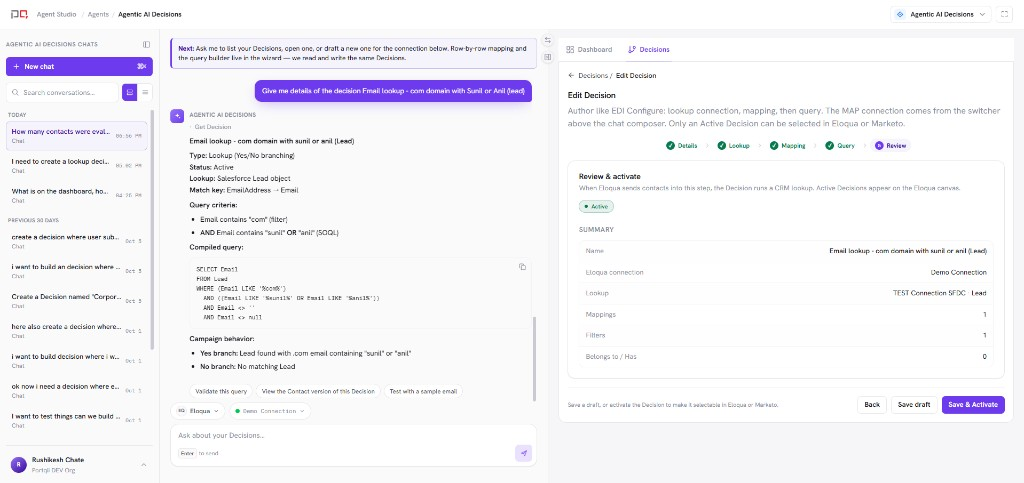
/images/agent-studio/agentic-ai-decisions/decision-review.pngThe Review step of the Decision wizard showing the summary of the Decision and the Save draft and Save & Activate buttons. Use a demo instance.
Panel tabs
| Tab | Use it to |
|---|---|
| Dashboard | See Yes/No outcomes and evaluation health over a time range. |
| Decisions | Create, search, open, and manage Decision configs for the selected MAP connection. |
Why not a native MAP decision? Native steps only see data already in Eloqua or Marketo. Agentic AI Decisions can evaluate against outside systems at runtime so you are not forced to sync that data into the MAP first.
Connection scope. Decisions are listed per MAP connection. Switch Eloqua or Marketo in the connection switcher above the chat box to see the right list and dashboard.
Related
Agentic AI Decisions settings
Connections
Agents