
Naming
Name and create on-convention MAP assets (campaigns, emails, landing pages, and more), then rename or add UTMs when you need to.
Supported MAPEloquaMarketo
Open the Naming agent from Home or go to /agents/naming. Like other Agent Studio agents, you work in a chat + panel workspace: describe the asset in chat, fill naming segments in the panel, preview the generated name, and confirm before anything is written to your MAP.
Names follow the convention configured for your connection. Admins maintain that convention in Naming settings.
Configuring conventions? Admins set assets, categories, rules, UTMs, and more under Naming settings (
/settings/agents/naming in the product).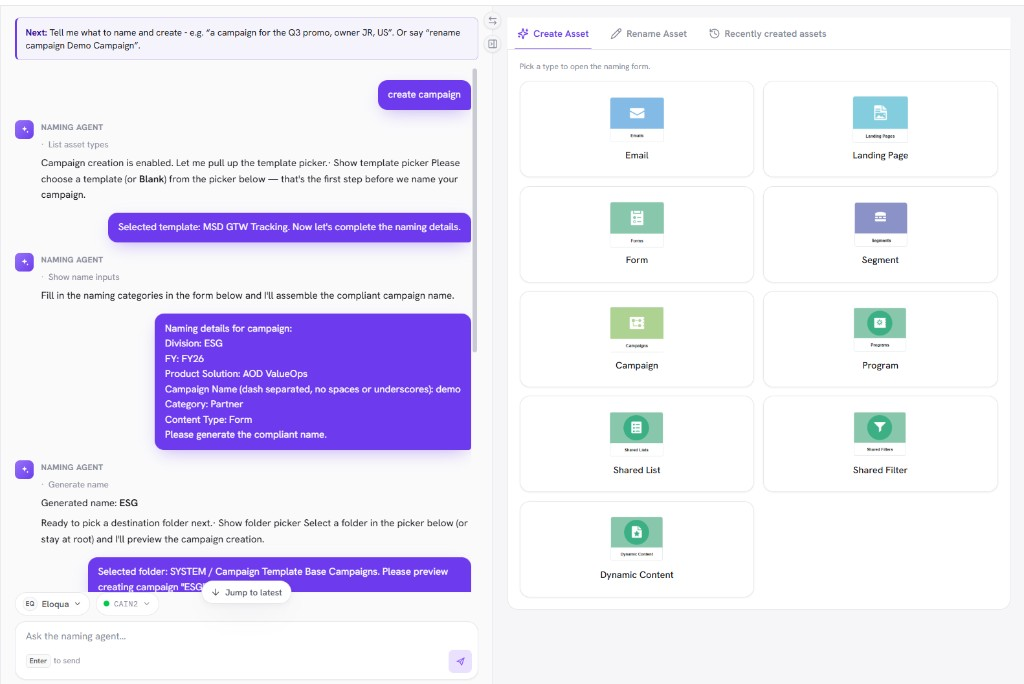
/images/agent-studio/naming/workspace-overview.pngNaming agent at /agents/naming with chat on the left and the Create Asset panel showing the asset type picker. Use a demo instance.
Before you start
- An active default MAP connection (Eloqua or Marketo)
- A naming convention already configured for that connection (see Naming settings)
- Permission to create or rename assets in the target folder or workspace
Create an asset on convention
Open Naming
From Home, choose Naming, or open
/agents/naming.Say what you want to create
In chat, ask for the asset type, for example “Create an email for the Q3 webinar” or “New landing page for product launch.”
Complete pre-create steps
Depending on your MAP, the agent may ask you to pick a workspace, program type/channel (Marketo programs), template, or folder before the naming form opens.
Fill naming segments
Enter picklist and textbox values in the panel. The agent builds a preview name from your convention (separator, append rules, length caps).
Confirm and create
Review the generated name, then confirm. Agent Studio writes the asset to the MAP only after that confirmation.
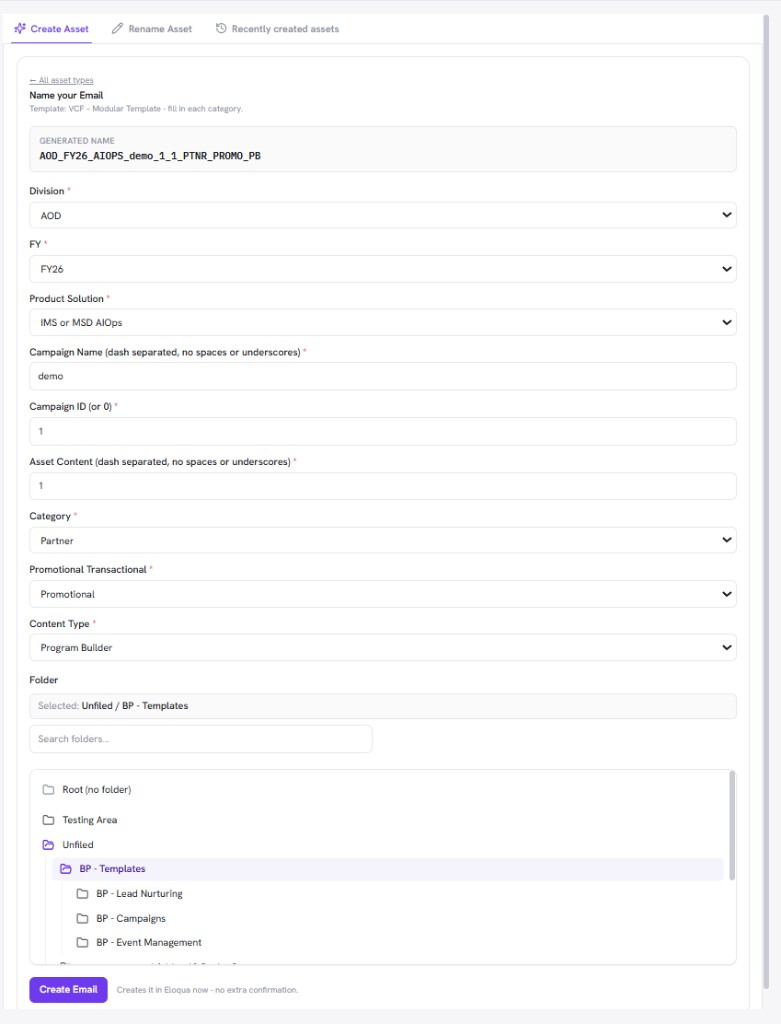
/images/agent-studio/naming/name-preview-confirm.pngNaming panel on Name your Email, with the generated name, filled segments, a selected folder, and Create Email. Use a demo instance.
What else Naming can do
| Job | How to start |
|---|---|
| Create | Ask to create a campaign, email, landing page, form, or other supported type on convention. |
| Rename | Ask to rename an existing asset; search or pick it, then fill segments for the new name. |
| Clone (where supported) | Ask to clone from a template or synced asset; complete wizard steps, then name the new copy. |
| Add UTM (Marketo) | When Add UTM is enabled in settings, ask to add tracking parameters to an asset. |
| Export (Marketo) | Ask for an asset creation report or a UTM tracking links export. |
Chat-first. Prefer describing the job in chat. Panel forms and pickers appear when the agent needs structured input. They are the same governed path as chat confirmations.
Names and convention pieces
| Piece | Role |
|---|---|
| Categories / segments | Building blocks of the name (picklists, textboxes, dates) defined in settings. |
| Rules | Separator, append options, and length cap: how segments combine into a final name. |
| Assets matrix | Which asset types are enabled and which categories apply to each. |
| Connection | Which MAP instance receives the create or rename. |
No convention yet? Naming cannot generate on-policy names until an admin configures the convention for your connection. See Naming settings and Connections.
Related
Naming settings
Connections
Agents