
Connections
Link Agent Studio to your Eloqua, Marketo, Salesforce, or Workfront account so agents can work there for you.
A connection is a saved link between Agent Studio and one of your marketing accounts (for example, your production Eloqua). You can rename it, see whether it is working, and choose which one is your default. Your login details are stored securely and are never shown again after you save them.
You can connect Oracle Eloqua (you sign in to Eloqua and approve access), Adobe Marketo Engage, Salesforce, and Adobe Workfront; HubSpot is listed as coming soon. You can keep multiple connections (for example production and sandbox); agents start on the connection marked default, and you can switch with the connection picker above the chat box.
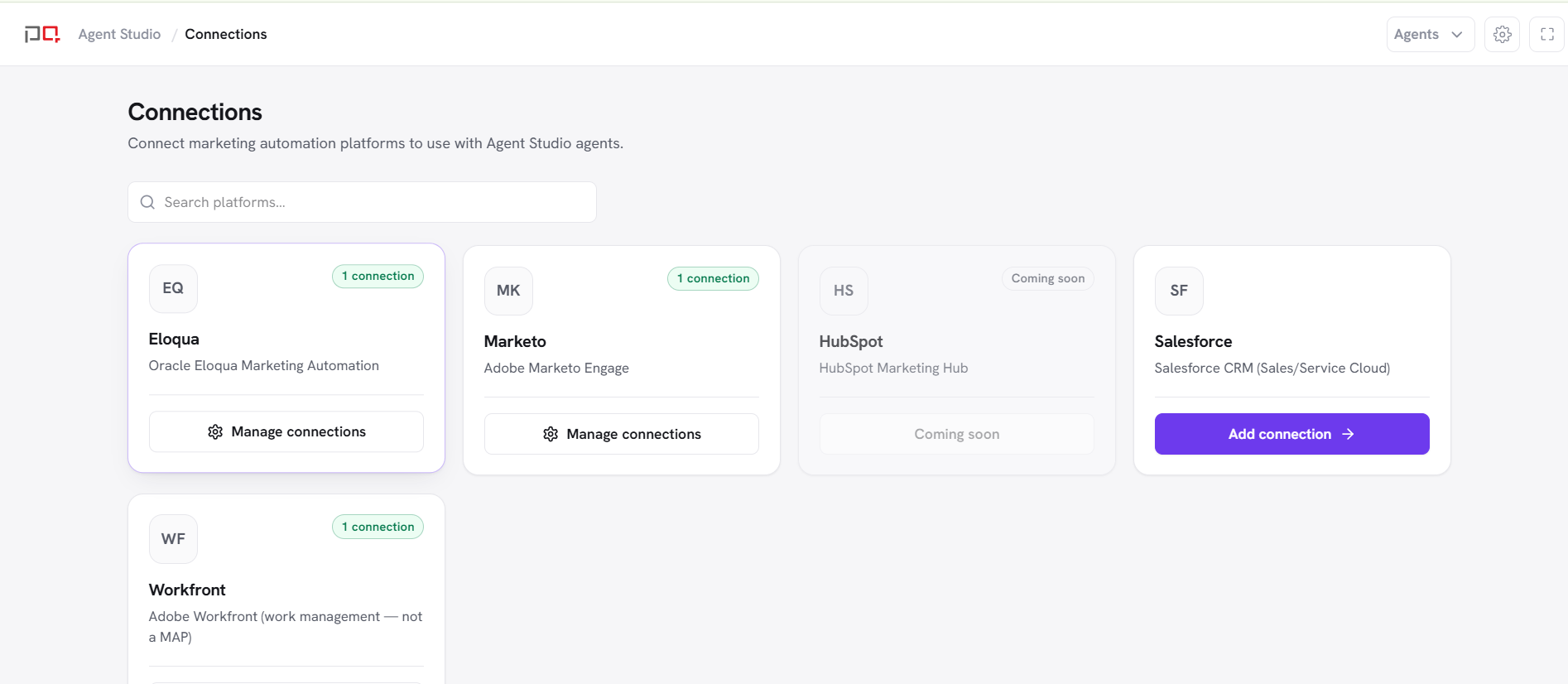
/images/agent-studio/connections/connections-overview.pngThe Connections page (/connections) showing the Eloqua, Marketo, Salesforce and Workfront cards with at least one Eloqua connection marked default and Connected. Use a demo instance.
Without an active default connection, agents that need Eloqua or Marketo cannot run. Home and the agent workspaces will show a message asking you to set up a connection first.
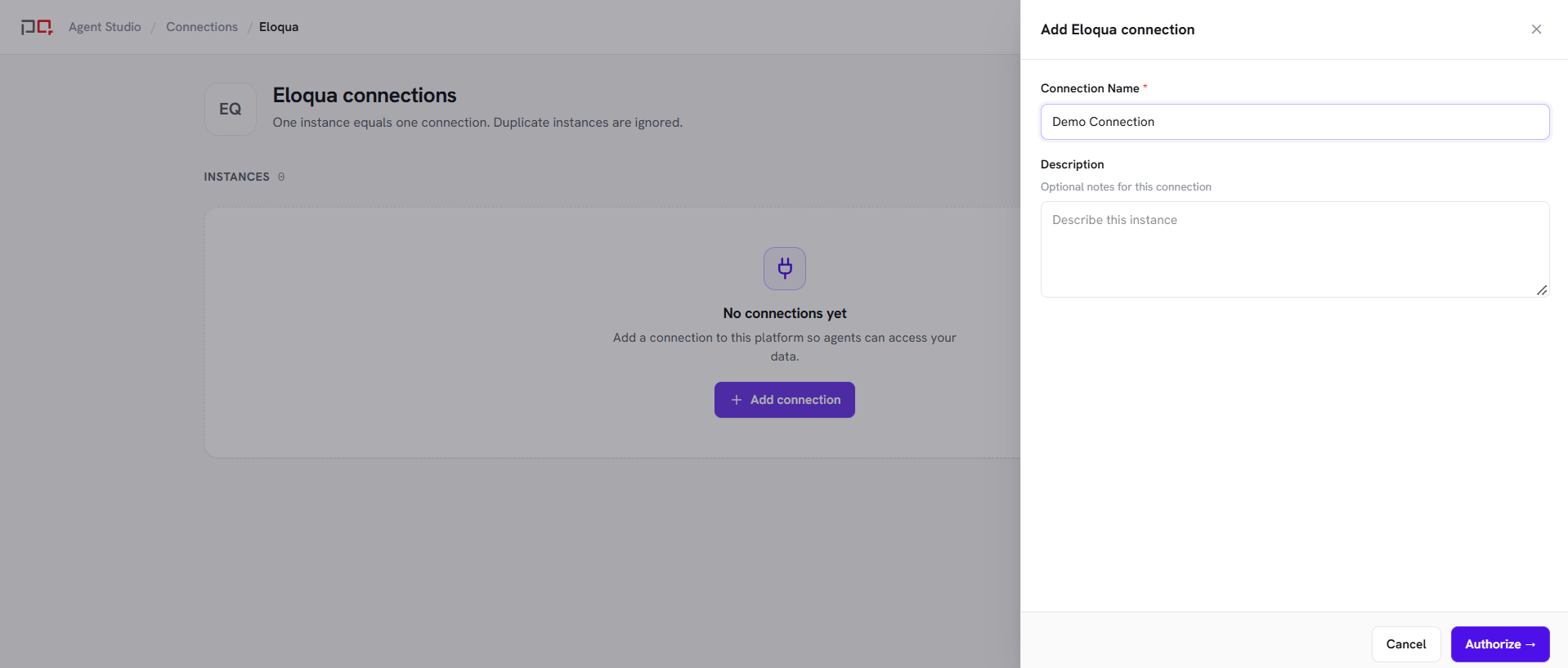
/images/agent-studio/connections/add-eloqua-connection.pngThe Add connection form with a connection name entered and the Authorize button visible. Use a demo instance.

/images/agent-studio/connections/eloqua-instances.pngThe Eloqua instances page after you approve access, listing a connection with status Connected and the default flag, with the actions menu open showing Set default, Reauthorize and Test. Use a demo instance.
Marketo, Salesforce, and Workfront use the same Add connection entry but ask you to enter connection details instead of signing in. For Marketo you need a Client ID and a Client Secret (like a username and password for the connection) and two web addresses, called the REST endpoint and the Identity endpoint. Your Marketo admin can give you all four. You can test the details before saving.
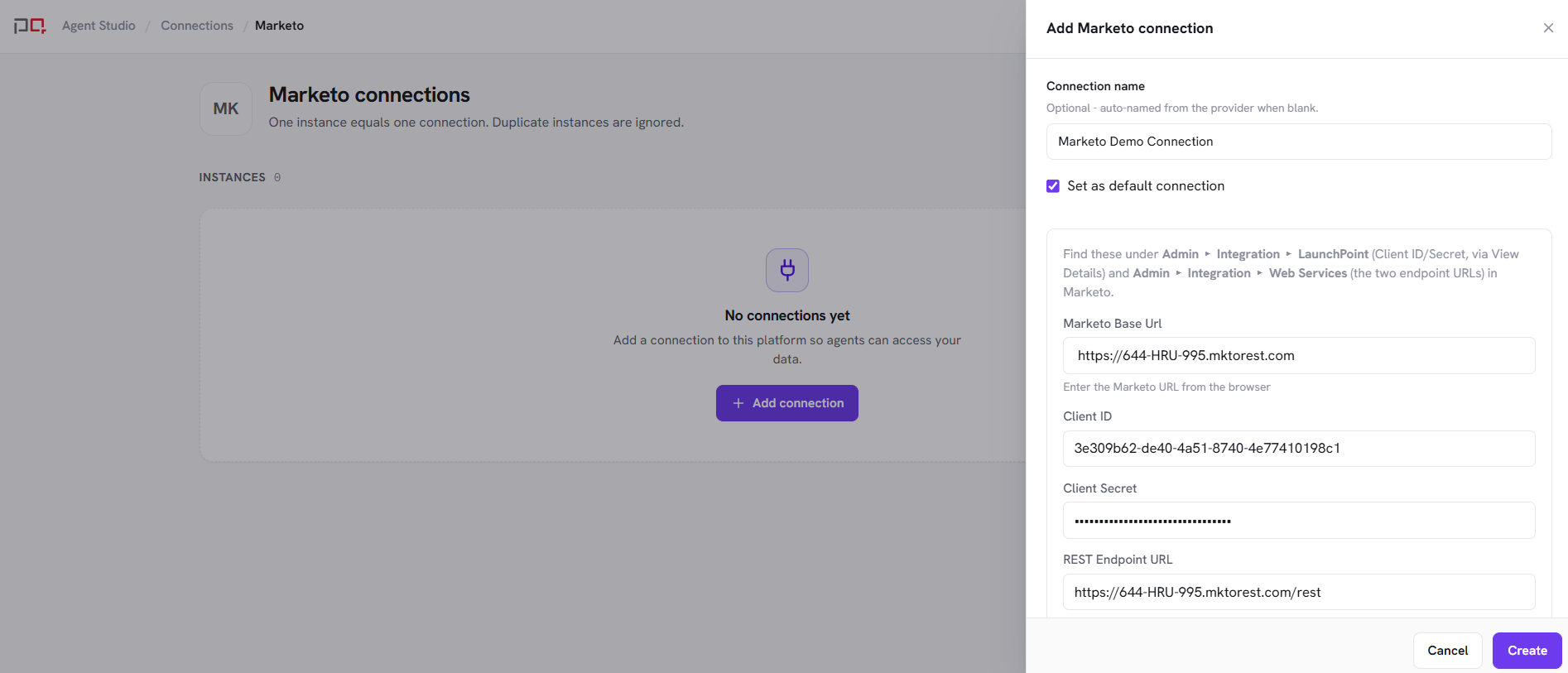
/images/agent-studio/connections/marketo-credentials-form.pngThe Marketo Add connection form with the Client ID, Client Secret, and endpoint fields. Mask the Client Secret and any real web addresses. Use a demo instance.
| Action | What it does |
|---|---|
| Edit | Update the display name for your team. |
| Set default | Makes this the connection agents use. Clears default on the previous one. |
| Reauthorize | Sign in again (or re-enter your connection details) when the connection stops working or someone removed its access. |
| Test | Checks right now that Agent Studio can reach the platform. You see Pass or Fail on the card. |
| Map users | Workfront only: match Workfront users to Agent Studio members. |
| Delete | Removes the connection and the login details saved for it. If it is the default and other active connections exist, set another default first. |
| Symptom | What to try |
|---|---|
| Agent asks you to set up a connection | Add a connection for the platform that agent uses, and make sure one is marked as default. |
| Eloqua shows an error when you sign in to approve access | Try Authorize again. Make sure the Eloqua user you sign in with is allowed to approve apps. |
| Test fails | Use Reauthorize, then Test again. Also check that you can open the Eloqua or Marketo account normally. |
| Add connection is disabled | Your plan has reached its connection limit. Upgrade from Plan & Usage to add more. |
| Cannot delete a connection | If it is default and others exist, set another default first, then delete. |

/images/agent-studio/connections/connection-limit-reached.pngThe Connections page with the Add connection button disabled because the plan limit was reached (optional). Use a demo instance.