
Marketing Calendar
See campaigns across time, find where audiences collide, and decide what to suppress before you over-message contacts.
Supported MAPEloquaMarketo
Open Marketing Calendar from Home or go to /agents/overlap. Like other Agent Studio agents, you work in a chat + panel workspace. The panel has two views: a calendar of campaigns and an overlap comparison of shared contacts.
Calendar data comes from your MAP connection(s). Admins control sync filters, excluded contacts, and weekly digest email in Marketing Calendar settings.
Configuring the calendar? Admins set default campaign filters, excluded contacts, weekly overlap email, and manual sync under Marketing Calendar settings (
/settings/agents/overlap in the product).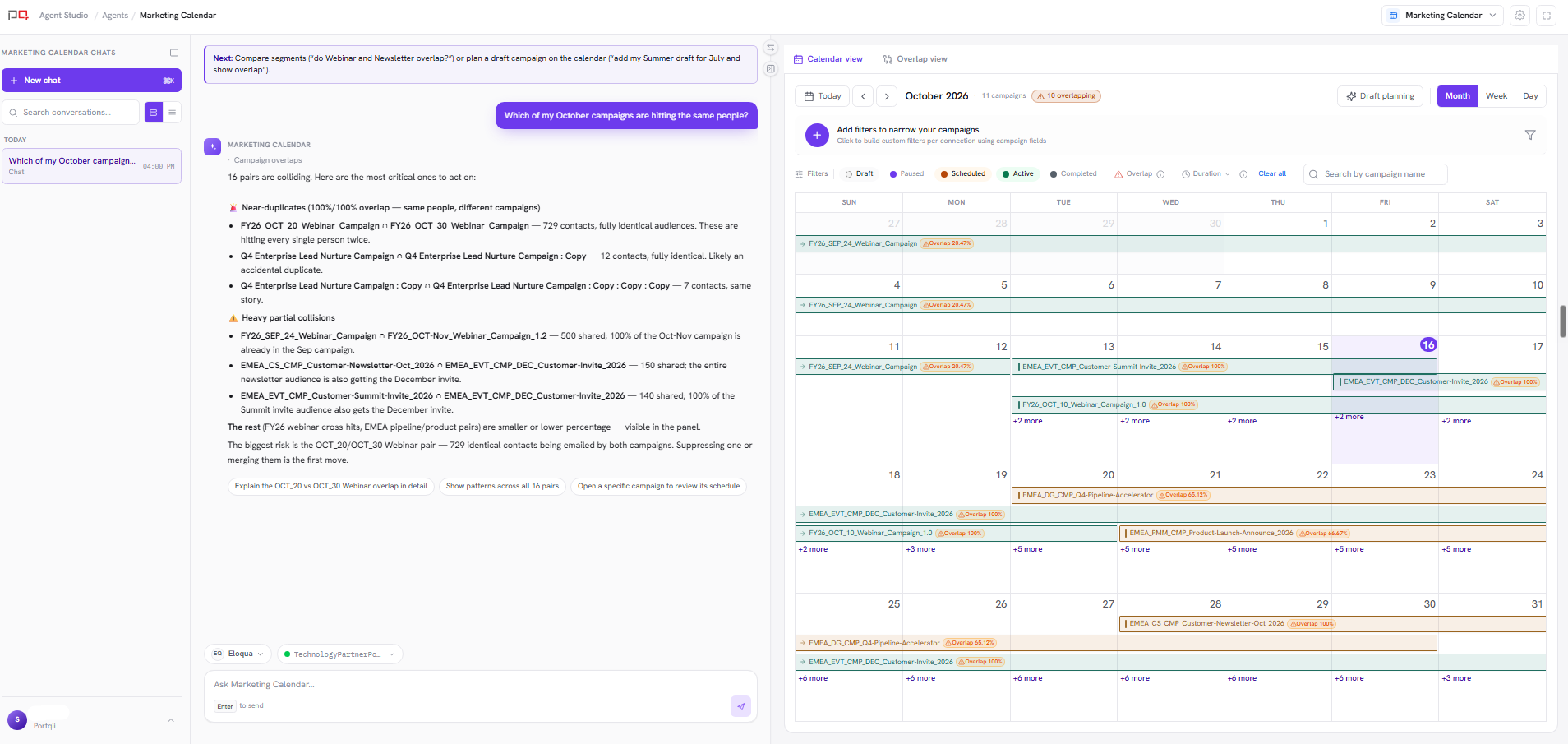
/images/agent-studio/marketing-calendar/workspace-overview.pngMarketing Calendar at /agents/overlap, chat on the left with one short exchange, panel on Calendar view in Month layout with several synced campaigns visible. Use a demo instance.
Before you start
- An active MAP connection (Eloqua or Marketo)
- Campaigns synced for that connection (admins can trigger sync from settings if the calendar looks empty)
- Optional: more than one connection checked when you need cross-instance views
Browse the calendar
Open Marketing Calendar
From Home, choose Marketing Calendar, or open
/agents/overlap.Open Calendar view
In the panel, select Calendar view. Campaigns appear on a Month, Week, or Day grid from the synced schedule.
Filter and inspect
Use the status chips (Active, Scheduled, Completed, Draft, Paused) and the duration filter to narrow what's visible. Toggle Overlap in the filter bar to show only campaigns that share contacts with another. Click any campaign to open its details drawer, where the overlap percentage and shared-contact count appear if collisions exist.
Ask in chat
Describe what you want, for example “Show overlaps next week” or “Compare these two campaigns.” The agent drives the panel to the right comparison.
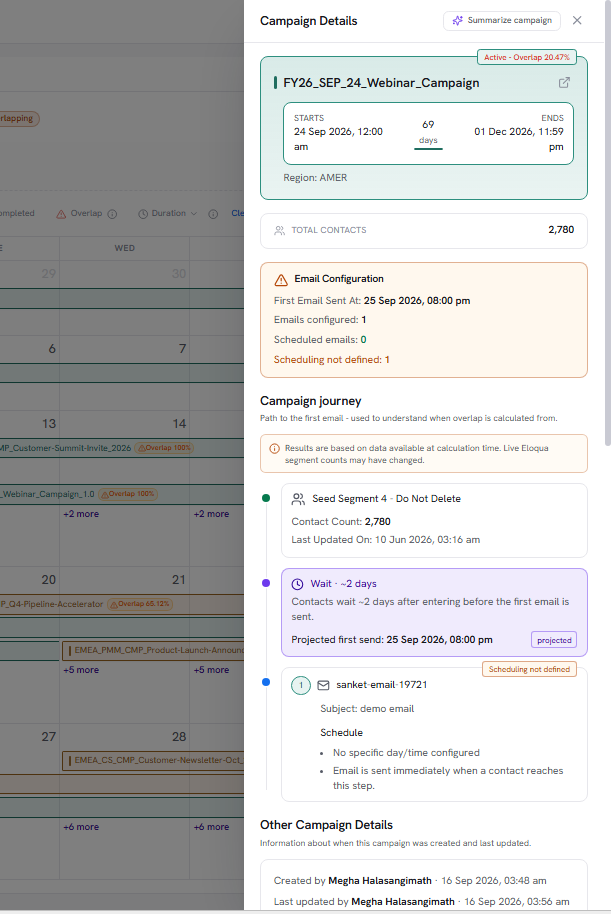
/images/agent-studio/marketing-calendar/calendar-campaign-drawer.pngCalendar view in Week layout, a campaign drawer open showing campaign details, with at least one overlap badge visible on the grid. Use a demo instance.
Run an overlap comparison
Switch to Overlap view
Select Overlap view in the panel, or ask chat to compare segments or campaigns.
Pick subjects
In the Overlap view, search for the segments (Eloqua) or smart lists (Marketo) you want to compare. Select 2 or more, up to 25, then choose Compare.
Review collisions
Results show shared-contact overlap with severity tiers (high → minimal). Use the narration in chat plus the matrix in the panel.
Decide what to suppress
Act on the findings in your MAP (or ask the agent for a recommended suppression approach). Exclusion segments may be available when enabled for your org.
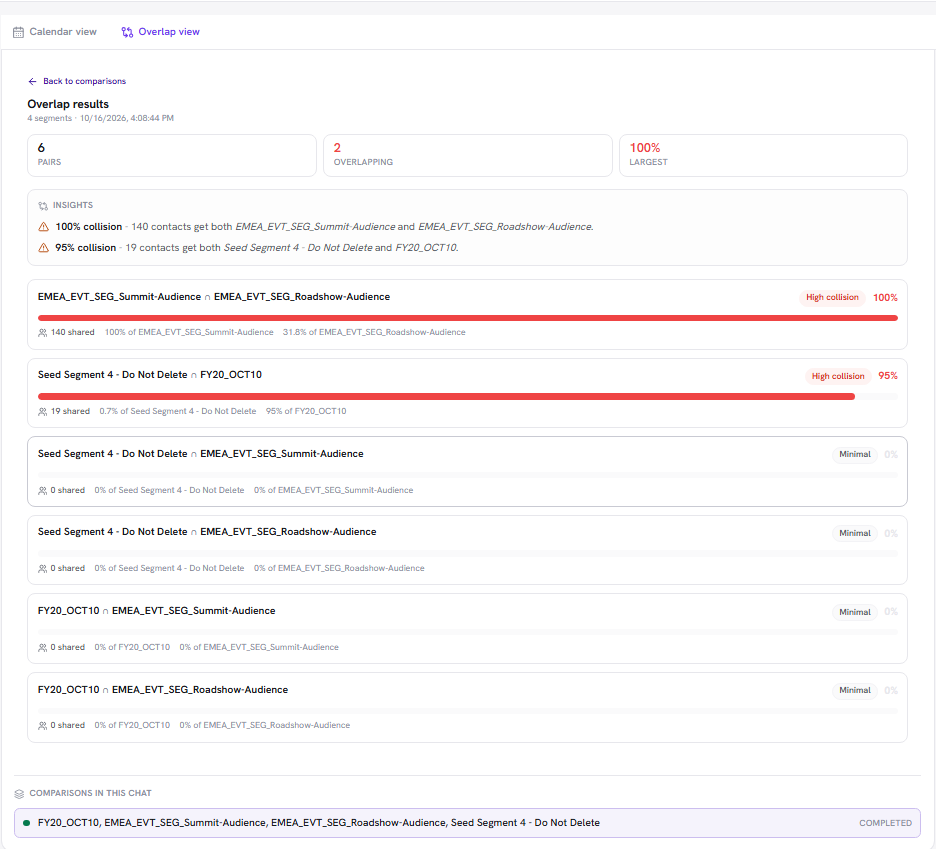
/images/agent-studio/marketing-calendar/overlap-comparison.pngOverlap view after comparing three or more campaigns, showing the overlap matrix with severity tiers and the matching chat narration. Use a demo instance.
Calendar vs overlap
| View | Use it to |
|---|---|
| Calendar view | See when campaigns run, spot crowded weeks, and open campaign details. |
| Overlap view | Compare audiences and quantify shared contacts between campaigns or segments. |
| Draft Planning | Place a draft campaign on the calendar and check for collisions before it launches. |
Plan a draft campaign
Draft Planning Mode lets you place a not-yet-launched campaign on the calendar to see where it would collide with live campaigns before committing to dates.
Turn on Draft Planning
Toggle Draft planning in the calendar toolbar. The calendar enters planning mode and shows the Add draft button.
Add a draft campaign
Choose Add draft, search for an existing draft campaign from your MAP, set its start and end dates, and save. The draft appears on the calendar as a dashed grey band.
Review collisions
Overlap badges appear on the draft event just as they do on live campaigns. Click the draft to open its details drawer and see which campaigns share contacts with it.
Adjust or remove
Drag the draft event on the calendar grid to reschedule it. Use the Draft planning dock at the bottom of the calendar to edit dates precisely or remove a draft when you are done.
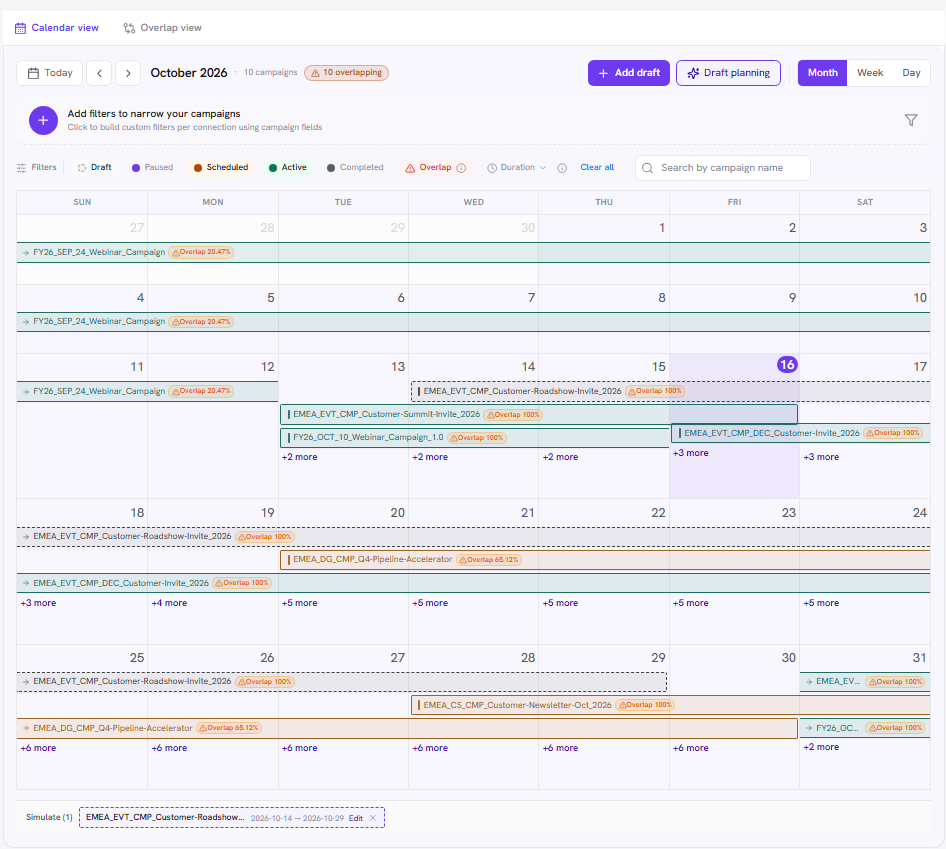
/images/agent-studio/marketing-calendar/draft-planning.pngCalendar with Draft Planning active, at least one draft event as a dashed grey band, and the Draft planning dock visible at the bottom. Use a demo instance.
Multi-connection. When your org links multiple instances, check the connections you want included. Chat and calendar target the checked set.
Empty calendar? Confirm the connection is active and campaigns have been synced. Admins can run Sync this connection now in settings.
Related
Marketing Calendar settings
Connections
Agents