Turn a campaign brief into a governed Marketo program: template clone, asset slots, and list imports, with your confirmation before every write.
Supported MAPMarketo
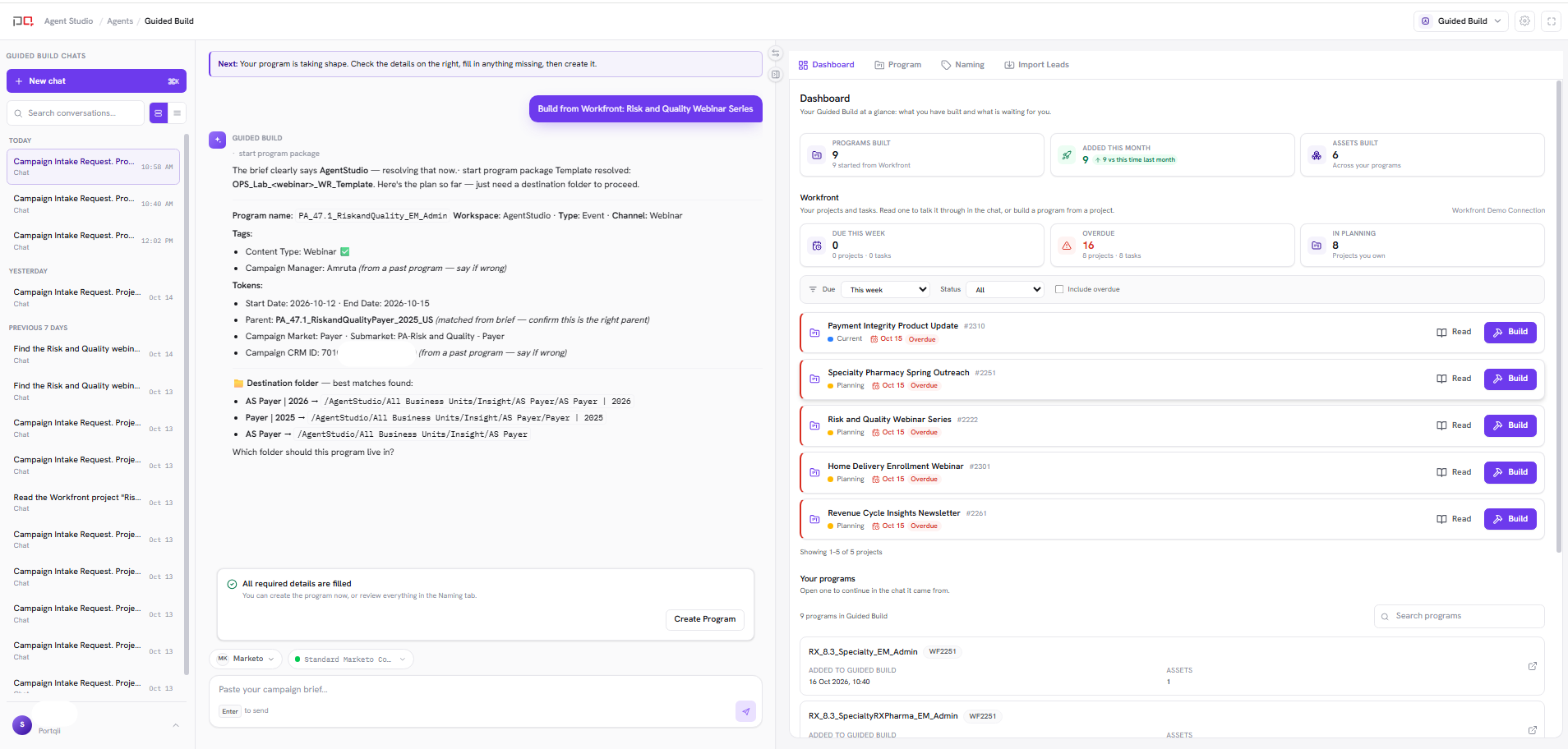
Open Guided Build from Home or go to /agents/campaign-strategist. You work in a chat + panel workspace: paste a campaign brief in chat, and the panel follows the program package Guided Build builds from it, from template choice to cloned program, assets, and lists.
Guided Build clones only from templates your admins have blessed, places programs with your folder rules, and names them with your Asset Naming convention on your Marketo connection.
Configuring Guided Build? Admins set up the template library, clone destinations, and workflow gates under Guided Build settings (/settings/agents/campaign-strategist in the product).
Screenshot needed:/images/agent-studio/guided-build/workspace-overview.png Guided Build at /agents/campaign-strategist with a campaign brief pasted in chat and the agent reply proposing a blessed template, panel open on the Program tab. Use a demo instance.
Guided video needed: Guided Build walkthrough. Add the Supademo link for this agent (see ASSET-CHECKLIST.md in the docs repo).
Before you start
An active Marketo connection (Guided Build builds Marketo programs today)
At least one blessed program template and clone destination folder rules for that connection. Admins set these up in Guided Build settings
An Asset Naming convention for the connection, so program and asset names follow your standard
Optional: a Workfront connection if you want to start from a Workfront project
Build a program
Open Guided Build
From Home, choose Guided Build, or open /agents/campaign-strategist.
Share your brief
Paste your campaign brief in chat. To start from Workfront instead, choose Start from a Workfront project instead, search a project by name or paste its URL, and the brief is prefilled in the message box for you to review before sending.
Review the template and plan
Guided Build works out the workspace, program type, and channel, then picks a blessed template. If more than one template fits, it asks you to choose. It fills naming segments, program tags, program tokens, and the destination folder from your brief, and asks for everything still missing in one combined form. Approve the plan using the Approve & build in Marketo chip in chat.
Create the program
The Naming tab opens Complete clone inputs. Values auto-filled from your brief are flagged so you can review them before submitting. Fill any required values and select a folder, then choose Create Program to clone the template into Marketo. To reuse a program you already have, ask to attach it and use Attach an existing program, which never changes anything in Marketo.
Fill the asset slots
Ask in chat to add assets. In Pick asset(s) to clone in, search Email, Email (new), Landing Page, Form, Smart Campaign, or List, check one or more, and clone them into the program. Each clone, create, or link is previewed and waits for your confirmation.
Add your audience
Open Import Leads and choose Add list. Name the list, upload a CSV, pick a folder and an optional cleanup skill, then review the mapping and confirm to create the list and import contacts.
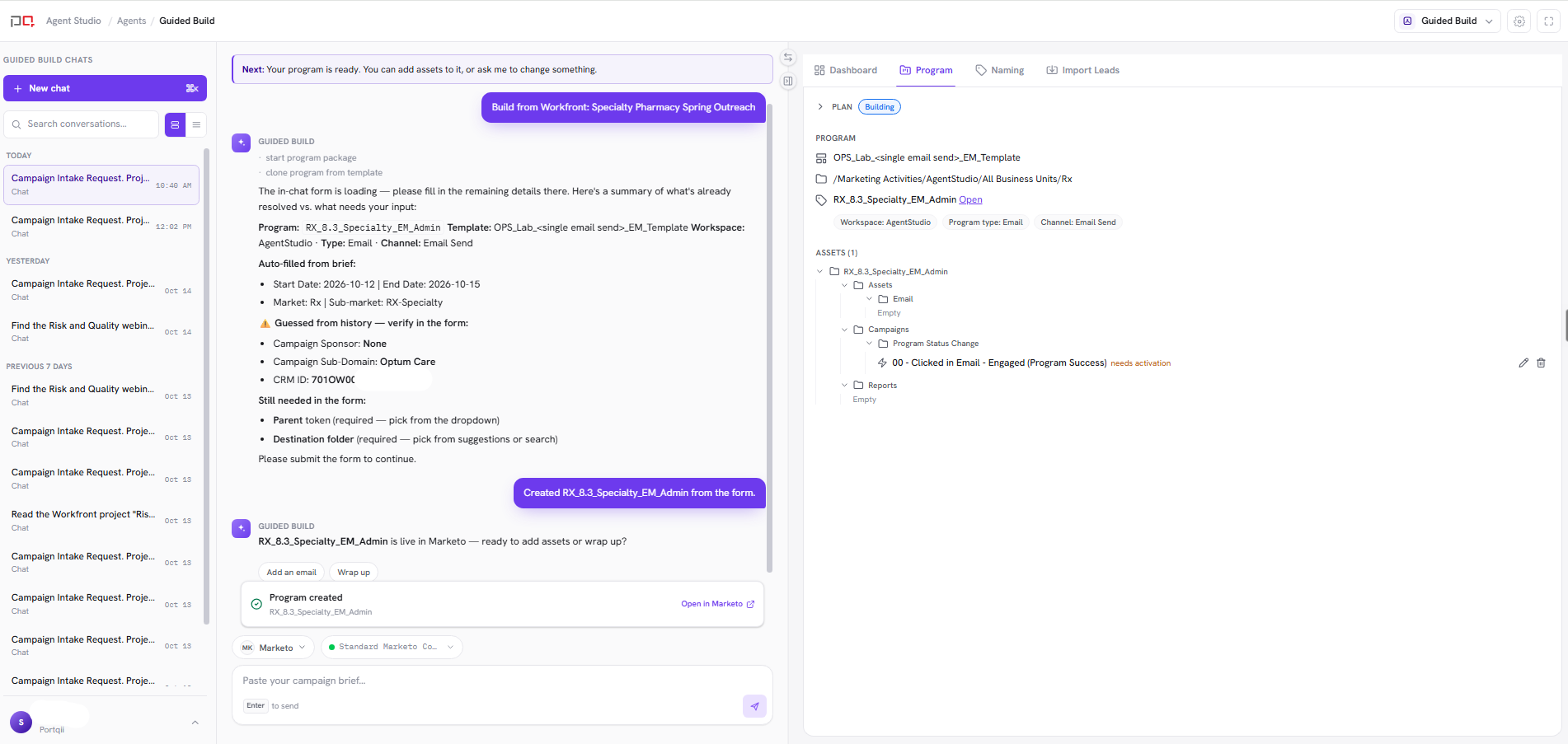
Screenshot needed:/images/agent-studio/guided-build/program-tab-built.png Guided Build panel, Program tab after a successful build, showing plan status, program folder, workspace, program type, channel, and the folder tree of created assets. Use a demo instance.
Panel tabs
Tab
Use it to
Dashboard
See KPI tiles for programs built, assets built, and programs added this month, plus Workfront items due this week. Open any past program to continue in its chat.
Program
Track the plan status (Drafting, Awaiting approval, Building, Ready for review, In review, Signed off), the program folder, workspace, program type, channel, and the folder tree of created assets. Use Edit or Remove on an asset.
Naming
Complete the clone inputs form, and see the naming segments taken from your brief.
Import Leads
Add lists to the program, rename them, and review each import: preview, mapping, and history.
Editing and removing assets
Edit renames an asset through your Asset Naming convention: you pick the category values and a compliant name is generated. Lists are the exception and take a free-text name in the Import Leads tab.
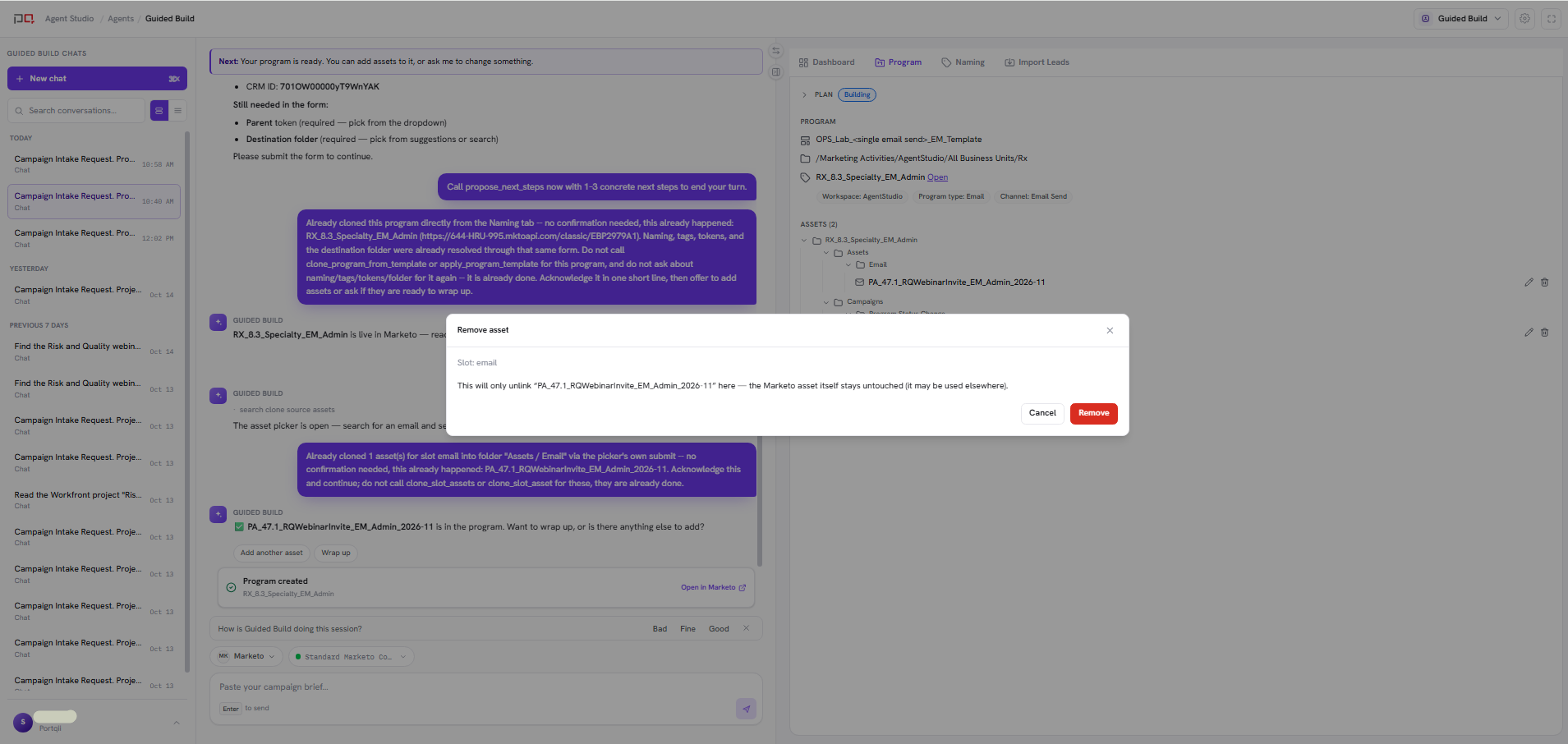
Remove first checks Marketo live and tells you what will happen: the asset is deleted when it exists only in this program, or only unlinked when it lives elsewhere and may be reused. Nothing changes until you confirm.
Screenshot needed:/images/agent-studio/guided-build/remove-asset-confirm.png Guided Build Program tab after choosing Remove on an asset, showing the live Marketo check result (delete or unlink) and the confirmation before anything changes. Use a demo instance.
Chat + history. Each chat in the Guided Build chats rail holds one program package, and the panel follows it. If you ask for a second program, Guided Build offers a new chat with your request already in the message box. You can also ask in chat what is due for you in Workfront, once you have mapped yourself to a Workfront user in the connection settings. When you build a program from a Workfront project, Guided Build writes the project status back to Workfront once the program is created.
Writes go to Marketo. By default a plan must be approved before Guided Build writes anything. Cloning, creating, linking, removing, and importing each require your explicit confirmation. Choosing Create Program creates the program right away, so check the form first.
Related
Guided Build settings
Templates, clone destinations, workflow gates
Naming
The convention Guided Build names programs and assets with