
QA
Run profiles against a campaign or program, review findings worst-first, apply governed fixes, and complete peer sign-off before send.
Supported MAPEloquaMarketo
Open the QA agent from Home or go to /agents/qa. Like other Agent Studio agents, you work in a chat + panel workspace: describe what to check in chat, and the panel shows the run, findings, and review state.
QA uses your org’s default connection and active Context rules (senders, compliance, suppression, brand) so checks match how your organization works.
Configuring QA? Admins set Skills and governance under QA settings (
/settings/agents/qa in the product).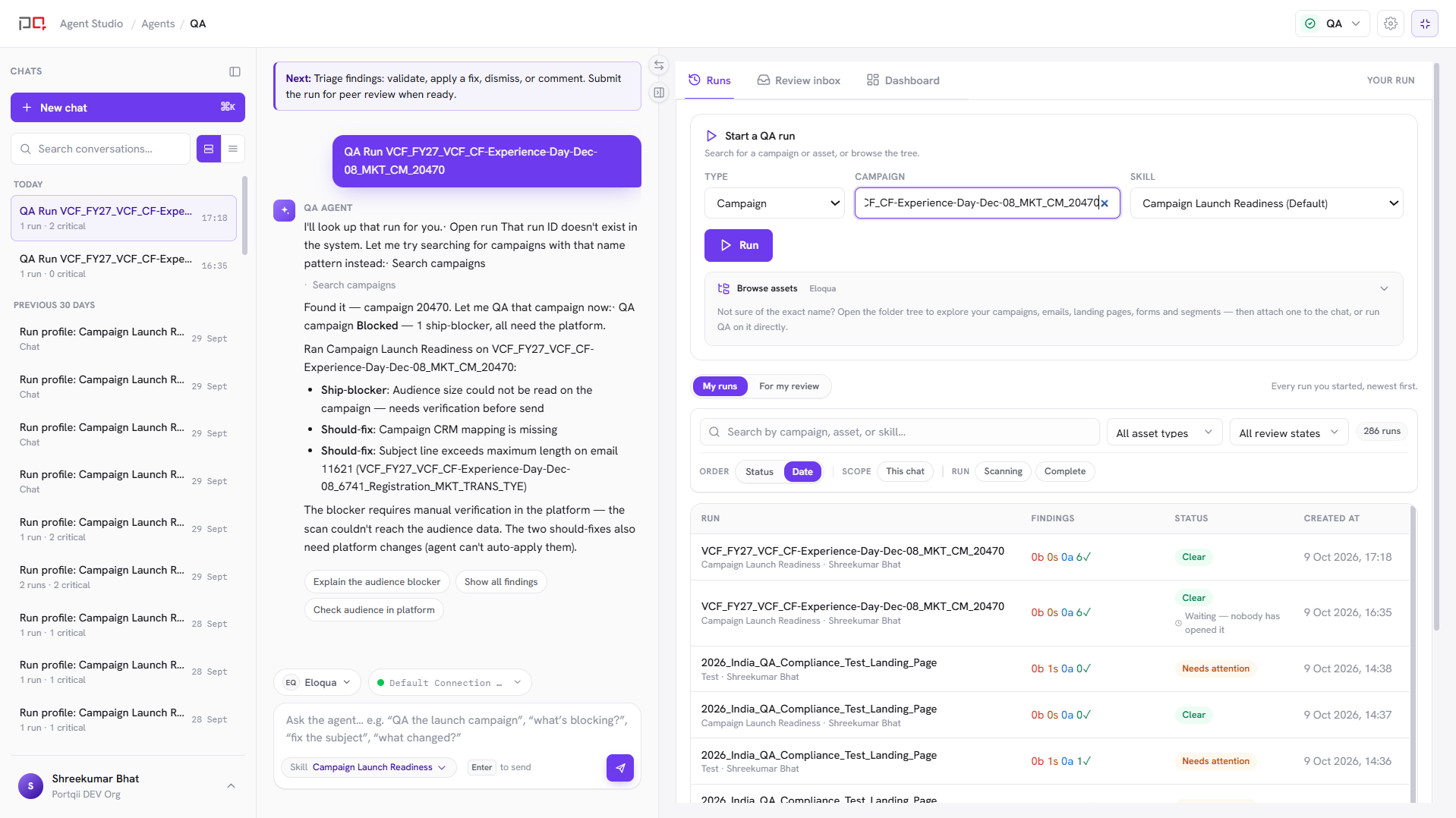
/images/agent-studio/qa/workspace-overview.pngQA agent at /agents/qa with a chat conversation asking to QA a campaign and the panel showing the selected profile and campaign before a run. Use a demo instance.
Before you start
- An active default MAP connection (Eloqua or Marketo)
- At least one QA Skill (profile) with the checks your team expects. Admins configure these in QA settings
- Optional but recommended: Context policies approved for production
Run a QA check
Open QA
From Home, choose QA, or open
/agents/qa.Pick a profile and campaign
Select a profile (bundle of checks) and the campaign or program to scan. You can also ask in chat, for example “QA this campaign before send.”
Run
Start the run from chat suggestions or the panel. Automated checks execute; results stream into the findings panel.
Triage findings
Findings are listed worst-first. Review evidence, dismiss noise with a reason, comment, or apply a fix when available.
Submit for peer review (when enabled)
When your org requires peer review, submit the run. A second person opens it from the review inbox, then approves and signs off or returns it to the author.
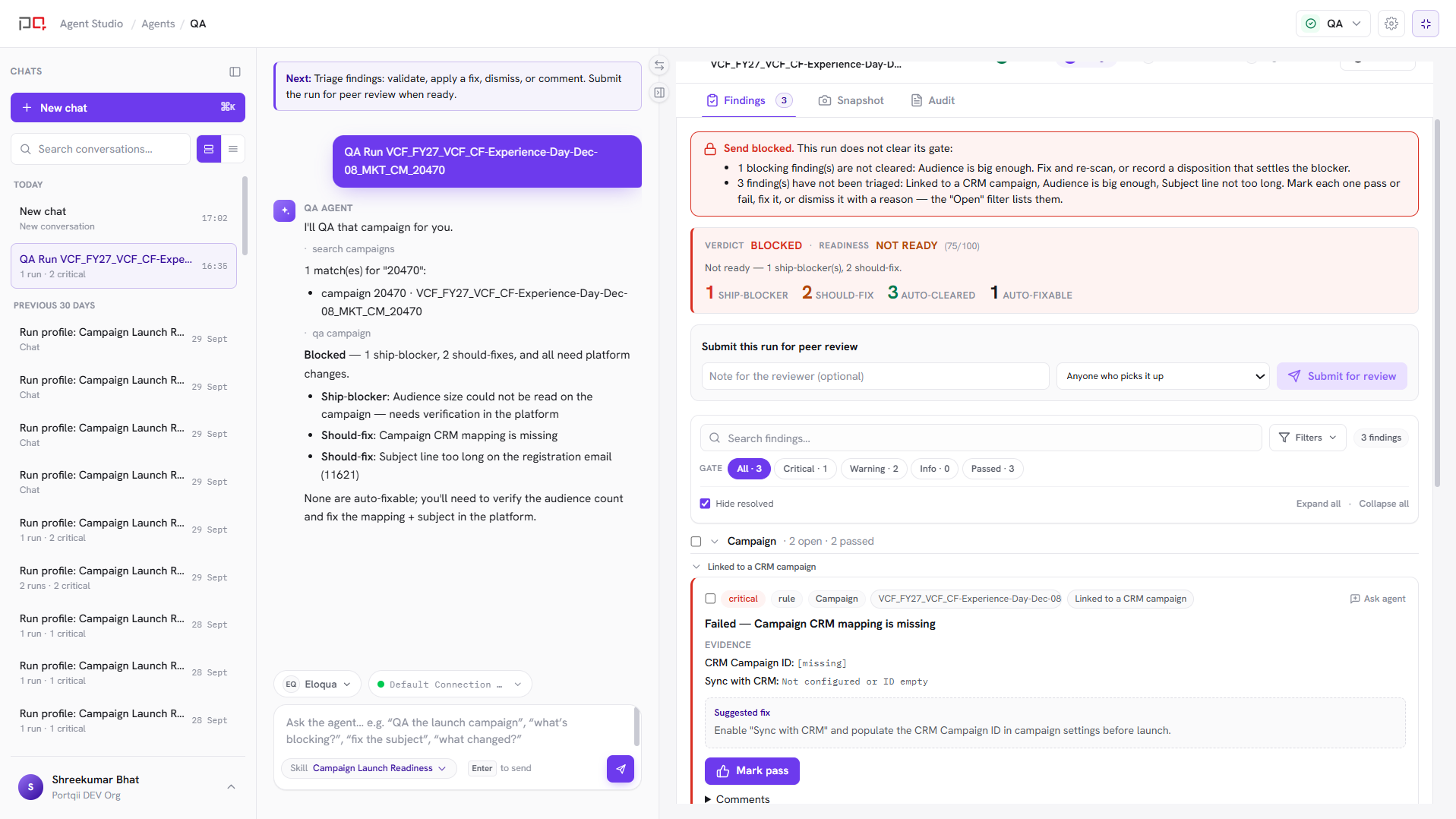
/images/agent-studio/qa/findings-after-run.pngQA panel after a completed run, findings listed worst-first with at least one ship-blocking finding expanded to show its evidence and recommended action. Use a demo instance.
Findings and fixes
| Concept | What it means |
|---|---|
| Finding | One concrete issue with evidence and a recommended action. |
| Severity / tier | How blocking the issue is (for example ship-blocker vs lower priority). Work worst-first. |
| Apply fix | When enabled, preview the write, confirm, then apply. Fixes are governed: nothing writes without confirmation. |
| Rollback | Where supported, undo a previously applied fix. |
| Re-run | Scan again after fixes to confirm the campaign is clean. |
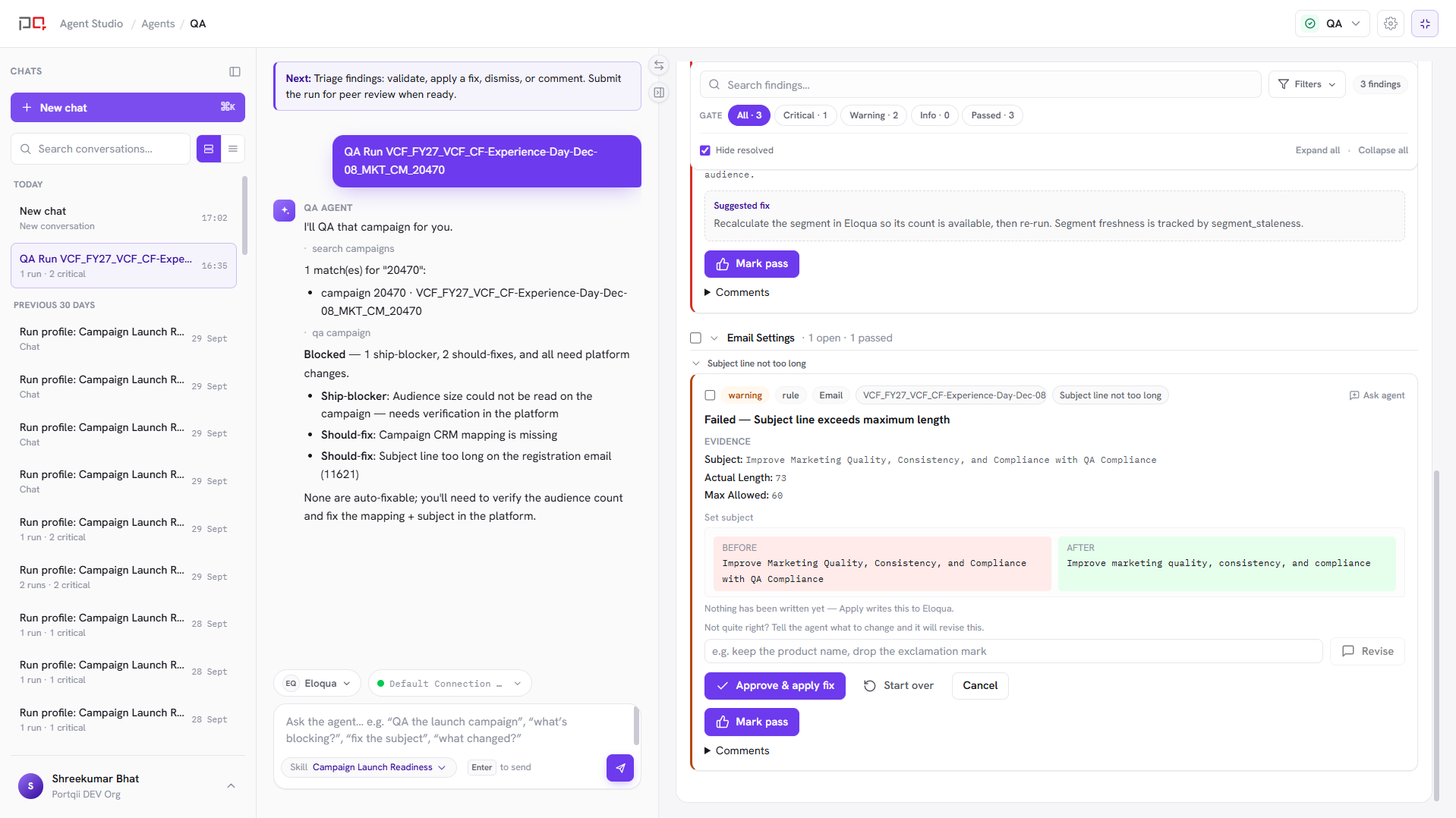
/images/agent-studio/qa/apply-fix-confirm.pngQA panel with Apply fix enabled: the write preview and confirmation dialog open for one finding, showing the before and after values before confirming. Use a demo instance.
Chat-first. Prefer asking the agent what to do next. Panel buttons (run, apply fix, submit, sign off) are available as a power-user path. They do the same governed actions.
Peer review and sign-off
When peer review is enabled for your org:
- The author triages findings, then submits for peer review.
- A peer opens the run from the Review inbox tab (or
/agents/qa/inbox), then works in the Peer Review tab. - The peer chooses Approve & sign off (with a reason), or Return to author.
- Signed-off runs are locked for audit. Re-run if you need to verify after more changes.
Separation of duties is enforced server-side by default: the author cannot sign off their own run. Admins can change this, and choose who may review, under Reviewer routing in QA settings.
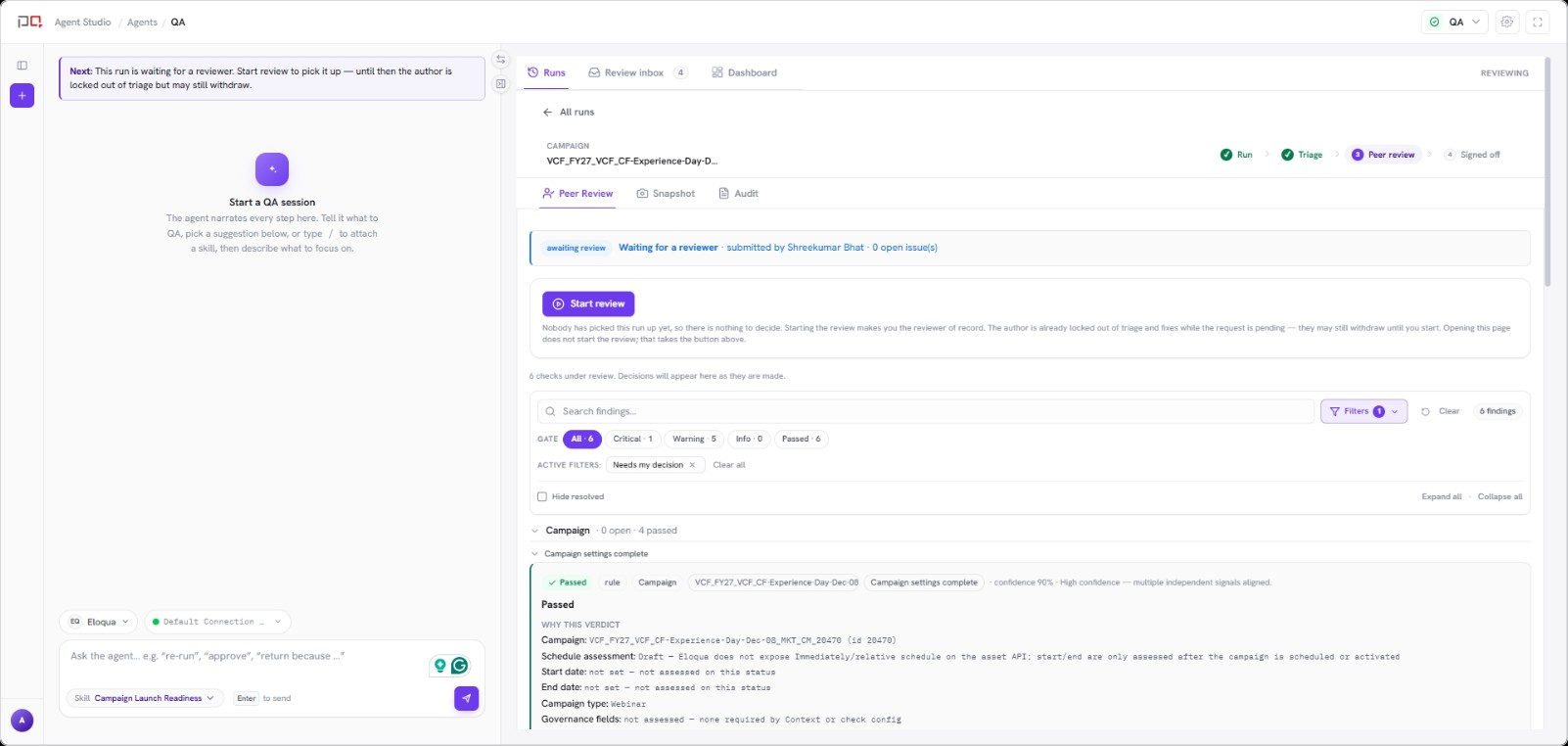
/images/agent-studio/qa/peer-review-tab.pngQA Peer Review tab opened by a second user from the Review inbox, showing the submitted run with the Approve & sign off and Return to author actions visible. Use a demo instance.
Profiles and Context
| Piece | Role |
|---|---|
| Skill / profile | Which checks run together for a given QA pass. Authored in QA settings. |
| Context | Your house rules (approved senders, footers, suppression patterns, brand voice) that overlay and inform checks. |
| Connection | Which MAP instance the run reads (and writes to, when fixes are applied). |
No connection? QA shows an empty state until you configure an active default connection. See Connections.
Related
QA settings
Getting Started
Connections
Context