
Getting Started
Sign in, connect Eloqua or Marketo, and run your first agent in Agent Studio.
Agent Studio lives at agentstudio.portqii.com. You work in a single workspace: pick an agent from Home, chat on the left, and watch results update in the panel on the right.

/images/agent-studio/getting-started/workspace-layout.pngAny agent open, for example QA, with a short chat on the left and the result panel on the right, with the connection picker above the chat box visible. Use a demo instance.
Before you begin
- An Agent Studio account for your organization
- Access to the Eloqua or Marketo instance you want to connect (an Eloqua user who can approve the connection, or the Marketo connection details from your admin)
- A clear first job (for example: run QA on a campaign, or import a small lead list)
Steps
Sign in
Open
agentstudio.portqii.com and sign in with your organization account. You land on Home, which lists the agents. The ones your plan and role include are ready to open, and any others appear locked. If you are setting up a new workspace, you first choose your platform (Oracle Eloqua or Adobe Marketo Engage) and connect it.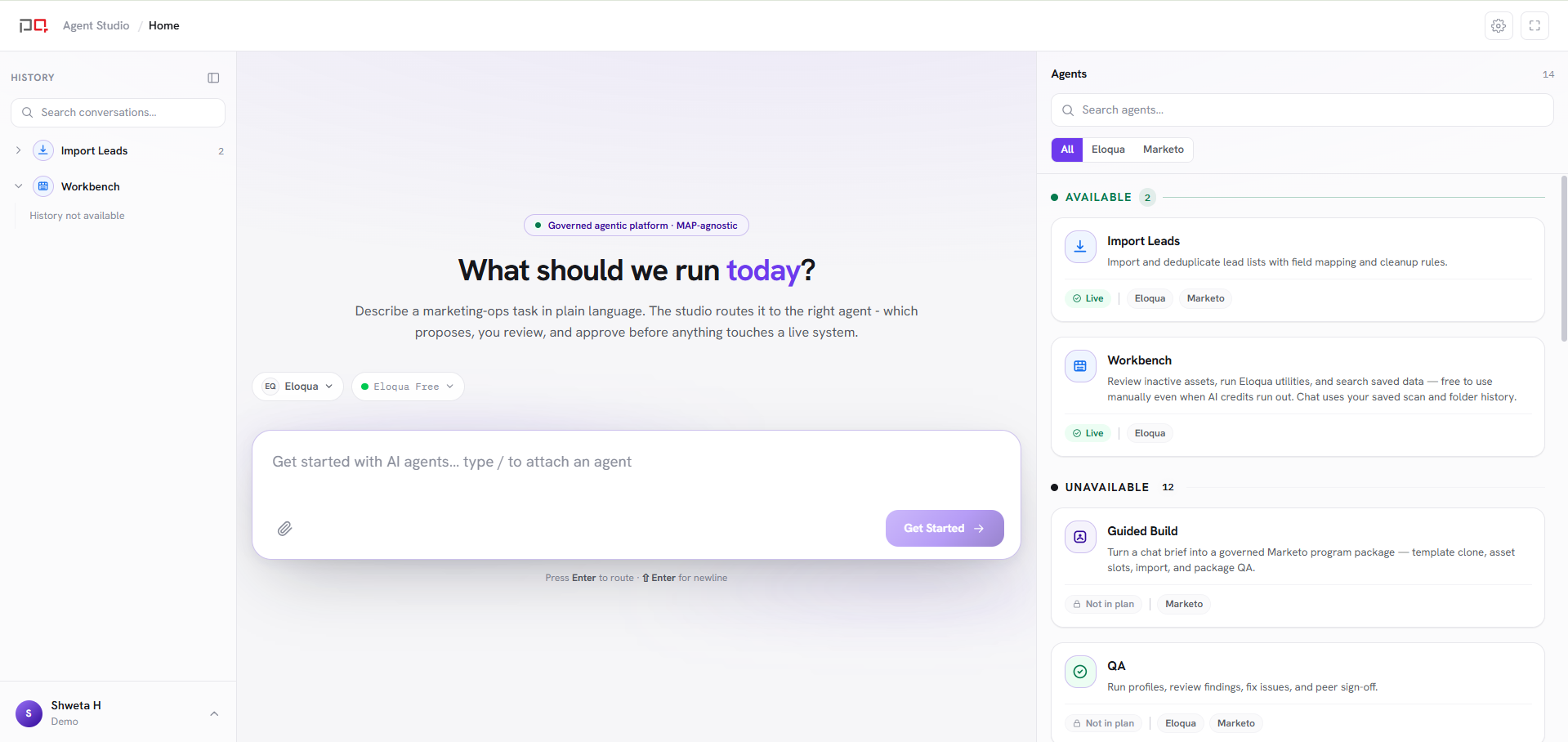
/images/agent-studio/getting-started/home-agents.pngAgent Studio Home right after sign in, ideally showing both available agents and locked ones (marked "Not in plan" or "No access"). Use a demo instance.
Add a connection
Go to Connections and add Eloqua (you sign in to Eloqua and approve access) or Marketo (you enter the connection details from your admin). Agents start on your organization’s default connection. You can switch to another one using the connection picker above the chat box. See Connections.
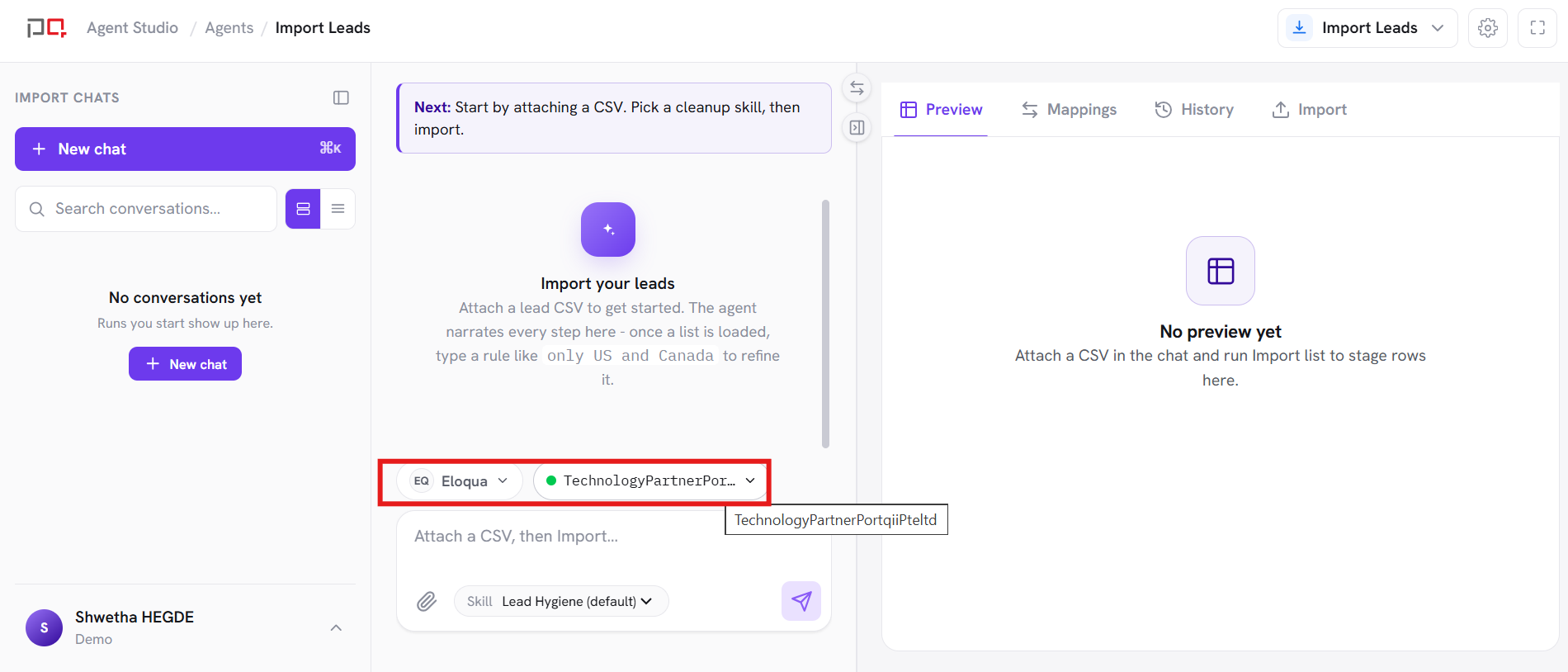
/images/agent-studio/getting-started/connection-picker.pngA close-up of the connection picker above the chat box, opened to show more than one connection. Use a demo instance.
Open an agent
From Home, choose an agent (QA, Naming, Marketing Calendar, Import Leads, and others). Each agent opens a chat + panel workspace.
Describe the task
Tell the agent what you need in plain language. Follow suggested next steps when they appear. Review the results in the panel before approving any change.
Confirm before changes are made
Anything that can’t be undone (imports, fixes that change your assets, deletes) shows a preview first. Confirm only when the changes look right. Everything you confirm is recorded.

/images/agent-studio/getting-started/choose-platform.pngThe "Which marketing platform do you use?" screen shown to new workspaces, with the Oracle Eloqua and Adobe Marketo Engage options. Use a demo instance.
No connection yet? Agents that need Eloqua or Marketo will show a message with a link to Connections. Add a connection and make it your default, then come back to the agent.

/images/agent-studio/getting-started/no-connection-empty-state.pngAn agent showing the "no connection yet" message with the link to Connections. Use a demo instance.
Under Settings, Plan & Usage shows your plan, connections, AI credit usage, and enabled agents. Context holds your organization’s standards (senders, brand, compliance; see Context), and What the agent learned lists patterns agents propose for you to approve.

/images/agent-studio/getting-started/settings-plan-usage.pngSettings, Plan & Usage, showing the plan, connections, AI credit usage, and enabled agents. Use a demo instance.
What to try first
| Goal | Start with |
|---|---|
| Validate a campaign before send | QA |
| Import a cleaned lead list | Import Leads |
| Create assets that follow your naming rules | Naming |
| Make sure campaigns are not hitting the same people at the same time | Marketing Calendar |