
Import Leads
Import and deduplicate lead lists with field mapping, cleanup rules, and a governed approve step before contacts land in your MAP.
Open Import Leads from Home or go to /agents/import-leads. Like other Agent Studio agents, you work in a chat + panel workspace: upload a CSV, map columns, apply cleanup, preview the effect, then approve the write.
Reusable cleanup lives in Import Leads settings as skills, rules, transforms, and do-not-import checks, scoped to your connection.
/settings/agents/import-leads in the product).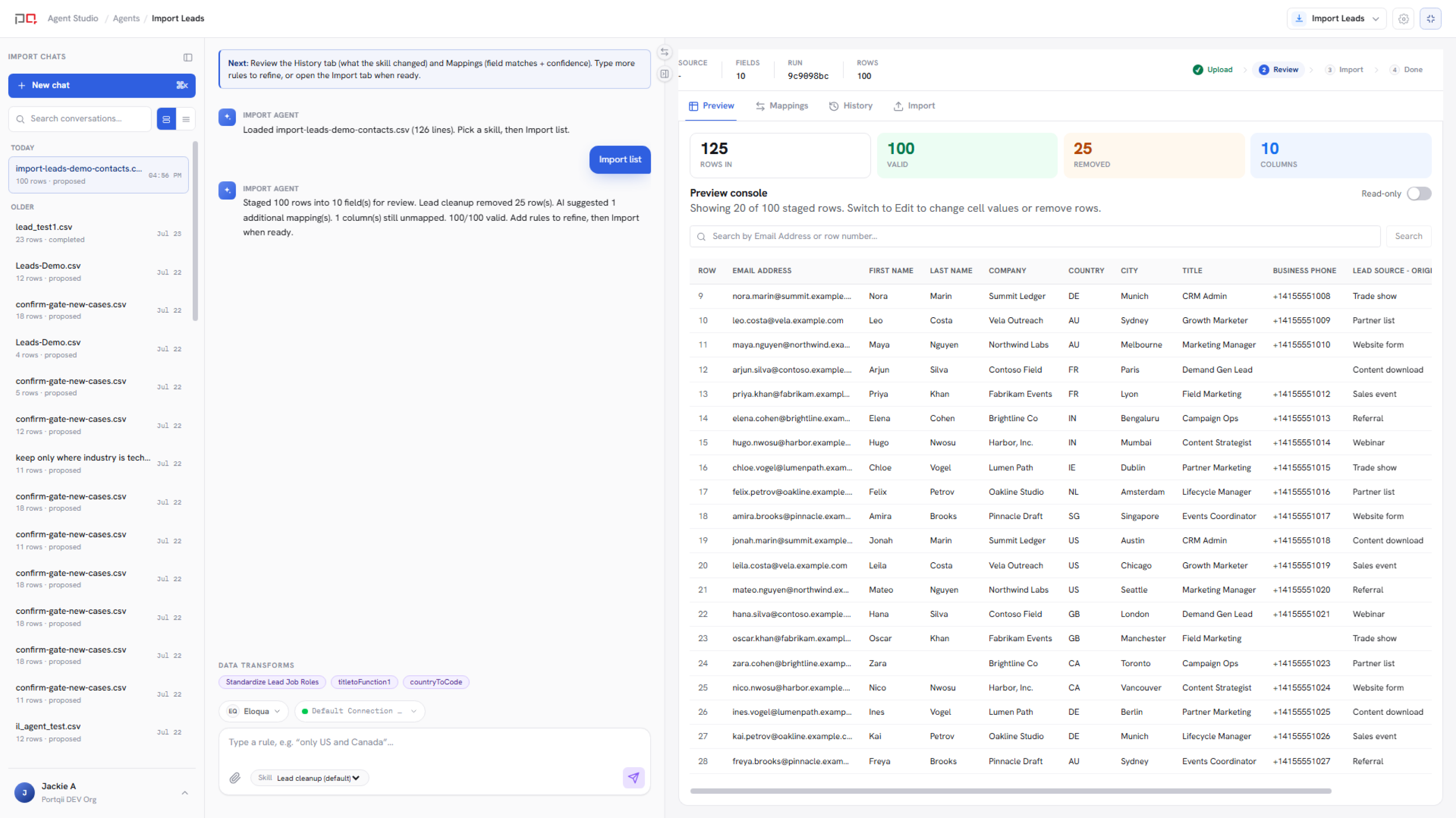
/images/agent-studio/import-leads/workspace-overview.pngImport Leads agent at /agents/import-leads after uploading a sample CSV in chat, with the agent proposing an import run and the panel open on the Preview tab showing staged rows and counts. Use a demo instance.
- An active default MAP connection
- A CSV lead list (header row required)
- Optional: a default skill (for example lead hygiene) already configured in settings
/agents/import-leads.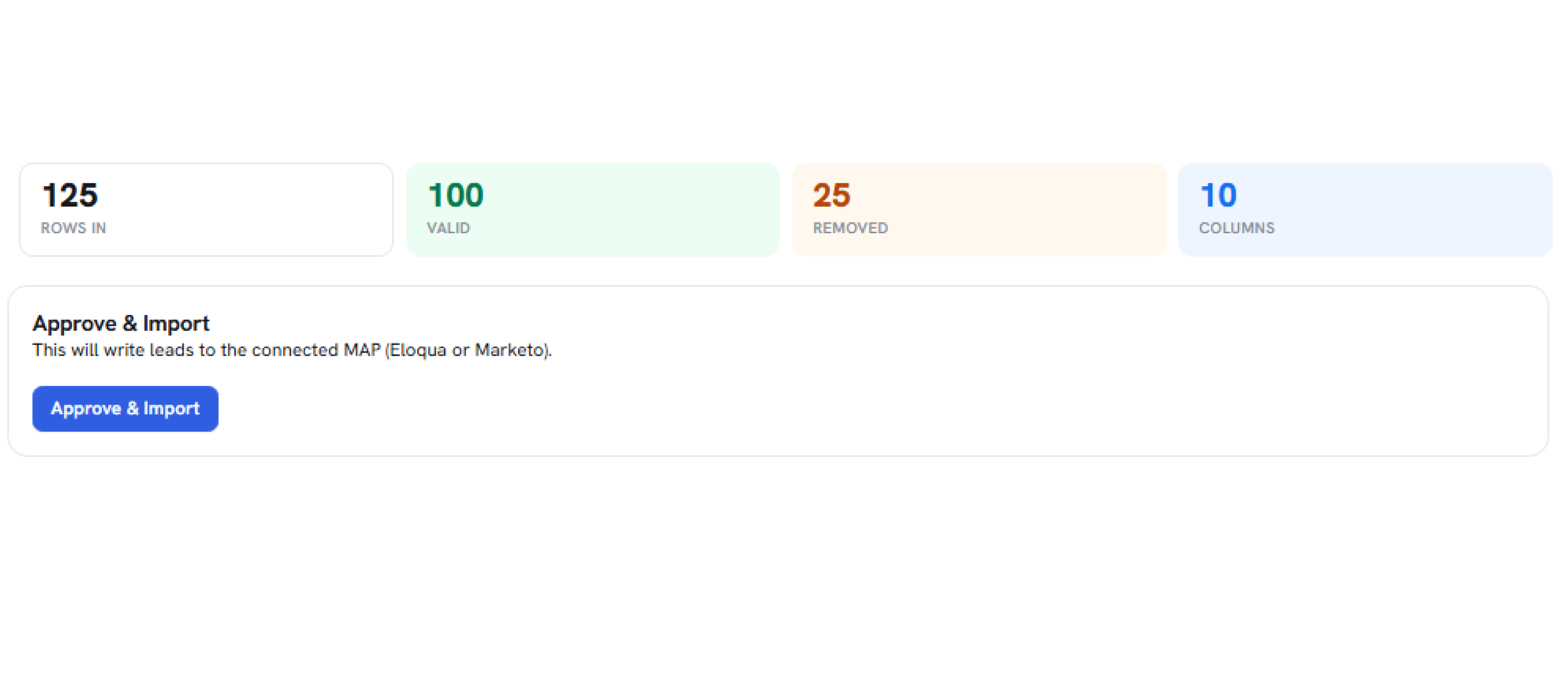
/images/agent-studio/import-leads/import-approve-consent.pngImport Leads panel, Import tab of a cleaned run, showing the final counts, the consent acknowledgement, and the Approve button before the write. Use a demo instance.
| Tab | Use it to |
|---|---|
| Preview | See staged rows, counts, cleanup impact, and validation issues. |
| Mappings | Map CSV columns to MAP fields and resolve suggestions. |
| History | See what changed on this run: rows removed and values changed, grouped by the rule or cleanup that caused them. Past runs are listed in the history rail. |
| Import | Final approve step with consent before the write. |
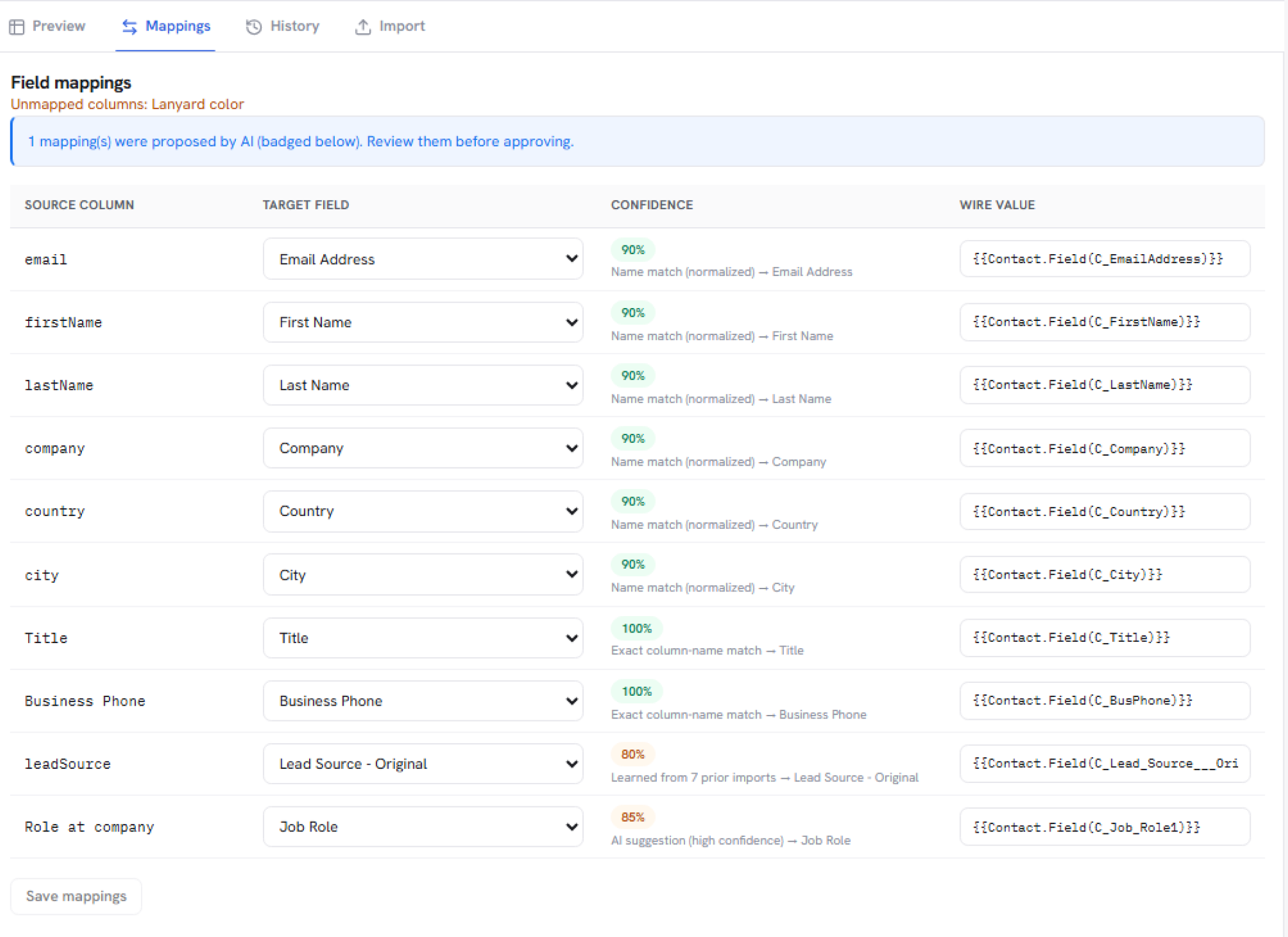
/images/agent-studio/import-leads/mappings-tab.pngImport Leads panel, Mappings tab, showing CSV columns matched to MAP fields with at least one AI suggestion and one unmapped column visible. Use a demo instance.
During a run you can apply ad-hoc cleanup (remove duplicates, drop free-email domains, require email, and more) or a saved skill that bundles rules and transforms. Skills are authored in settings; applying one on propose can hide redundant chips when that hygiene is already covered.
Do-not-import checks (presence) can drop rows that match contacts you must not import. Configure those lists in settings, then apply them on the run.