
Asset Version Control
Look back at earlier versions of Eloqua assets and restore one when you need to.
Supported MAPEloqua
Open Asset Version Control from Home or go to /agents/version-control. You work in a chat + panel workspace: ask about recent saves or a specific asset in chat; the panel shows the dashboard, asset search, version timeline, and preview.
You can also open it from an Eloqua asset for a focused history view on that asset. Commit mode, tracked asset types, and Full Backup are configured in Asset Version Control settings for your Eloqua connection.
Configuring versioning? Admins set Auto or Manual commit, which asset types to track, and Full Backup under Asset Version Control settings (
/settings/agents/version-control in the product).Guided walkthrough
Before you start
- An active Eloqua connection
- Commit mode and tracked asset types set so saves you care about are stored (see settings)
- Optional: Full Backup if you want child assets recoverable when rolling a parent back
Find and restore a version
Open Asset Version Control
From Home, choose Asset Version Control, or open
/agents/version-control. From Eloqua, open it on the asset you are editing for a focused history.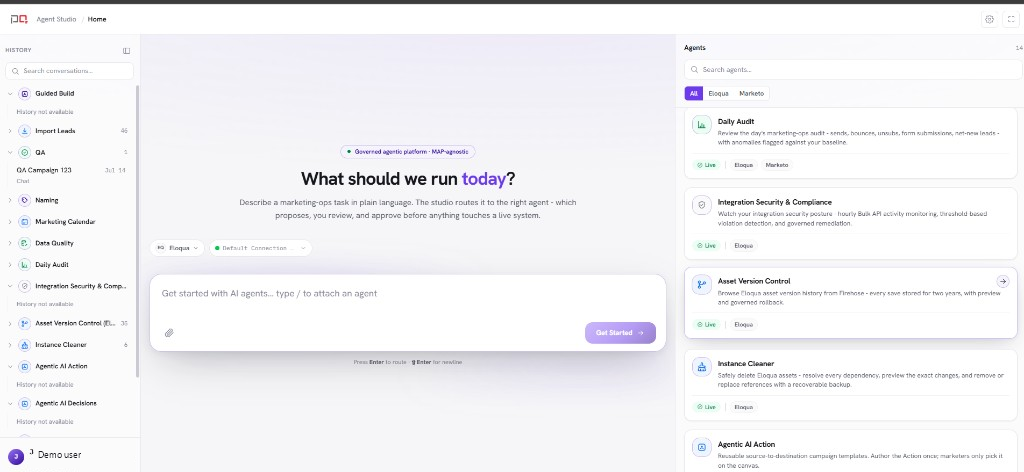
/images/agent-studio/asset-version-control/open-from-home.pngAgent Studio Home with the Agents list open and Asset Version Control visible. Use a demo instance.
Scan the dashboard
Start on Dashboard for recent version activity, then drill into an asset type, asset, or version.
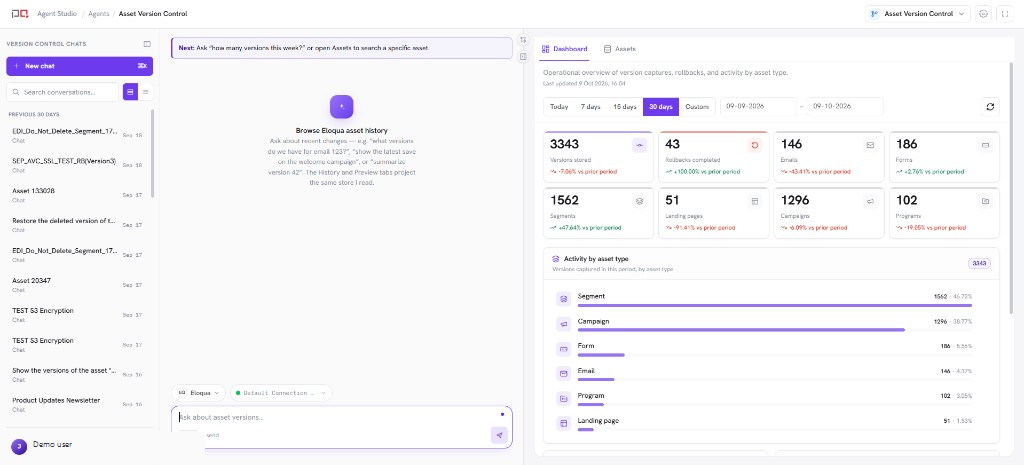
/images/agent-studio/asset-version-control/workspace-overview.pngAsset Version Control at /agents/version-control, chat on the left, panel on the Dashboard tab showing recent version activity. Use a demo instance.
Find the asset
Open Assets. Filter by type (email, form, landing page, and more), or search by name or ID. Pick the asset to see its version timeline.
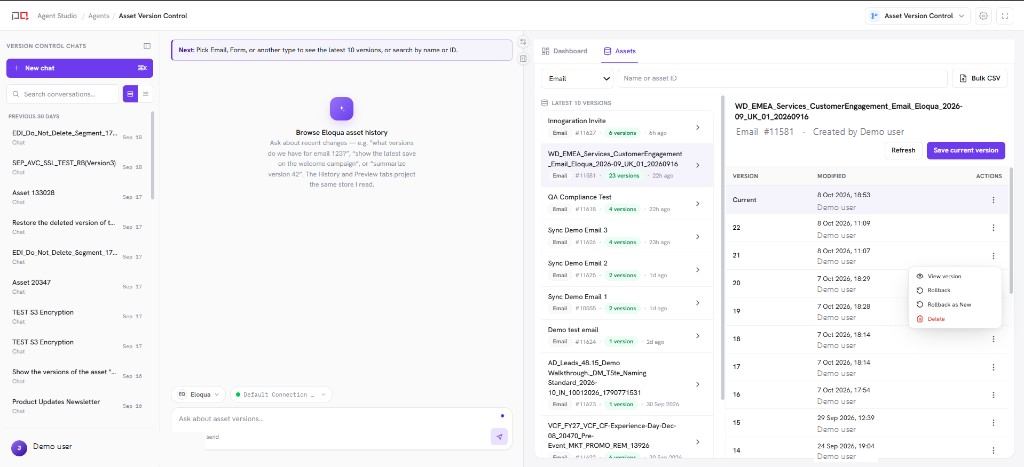
/images/agent-studio/asset-version-control/version-timeline-preview.pngAssets tab filtered to Email, one email selected with its version timeline, an earlier version previewed and View version, Rollback and Rollback as New visible. Use a demo instance.
Preview a version
Select a version to preview what was saved. Use View version when you want a temporary draft of that version in Eloqua without restoring yet.
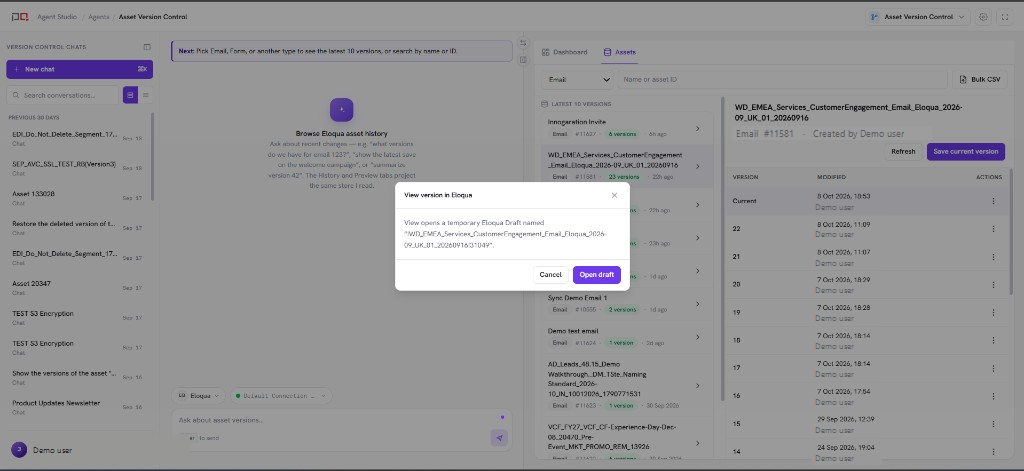
/images/agent-studio/asset-version-control/view-version-dialog.pngView version dialog open for an email, with Cancel and Open draft. Do not open the draft.
Restore or create as new
Choose Rollback to put that version back on the live asset, or Rollback as New to create a separate Eloqua asset. Confirm in the dialog before anything writes to Eloqua.
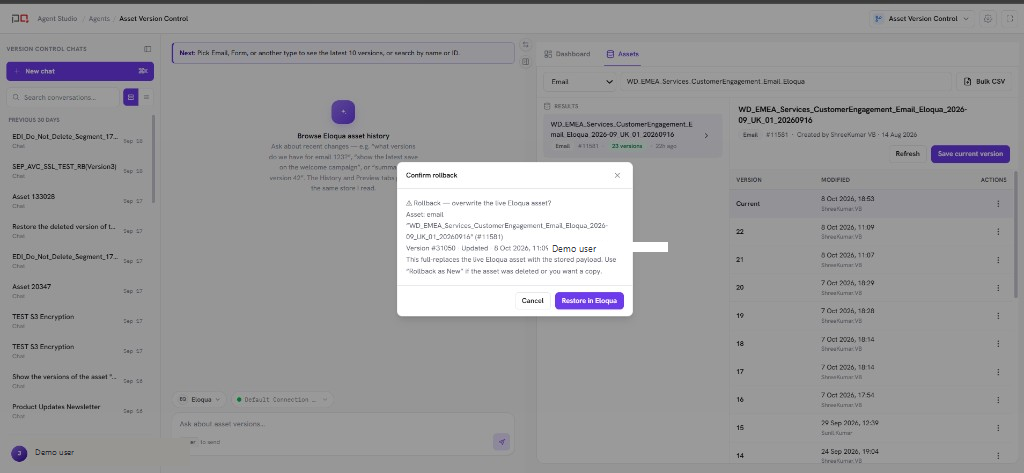
/images/agent-studio/asset-version-control/rollback-confirm-dialog.pngThe Rollback confirmation dialog open for an email version, showing the asset and version being restored. Do not confirm. Use a demo instance.
Panel tabs
| Tab | Use it to |
|---|---|
| Dashboard | See recent version activity and jump into an asset type, asset, or version. |
| Assets | Search or browse by type, open the version timeline, preview, view a draft, restore, or delete a saved version. |
Chat + history. Ask about an asset or recent saves in chat; the panel focuses the same version store. Asking never restores an asset by itself.
Restore writes to Eloqua. Rollback always asks for confirmation. Manual commit mode only stores a version when you save one in Asset Version Control (Version now or Save current version).
Related
Asset Version Control settings
Connections
Agents