
Context
Tell Agent Studio how your marketing team works (brand, who you send as, compliance, and who you exclude) so agents check work against your rules, not generic ones.
Open Context at Settings → Organization → Context. You set your rules once, and every agent follows them each time it runs.
Context does not change anything in Eloqua or Marketo, and it does not build campaigns. Approving a rule only changes what Agent Studio checks for.
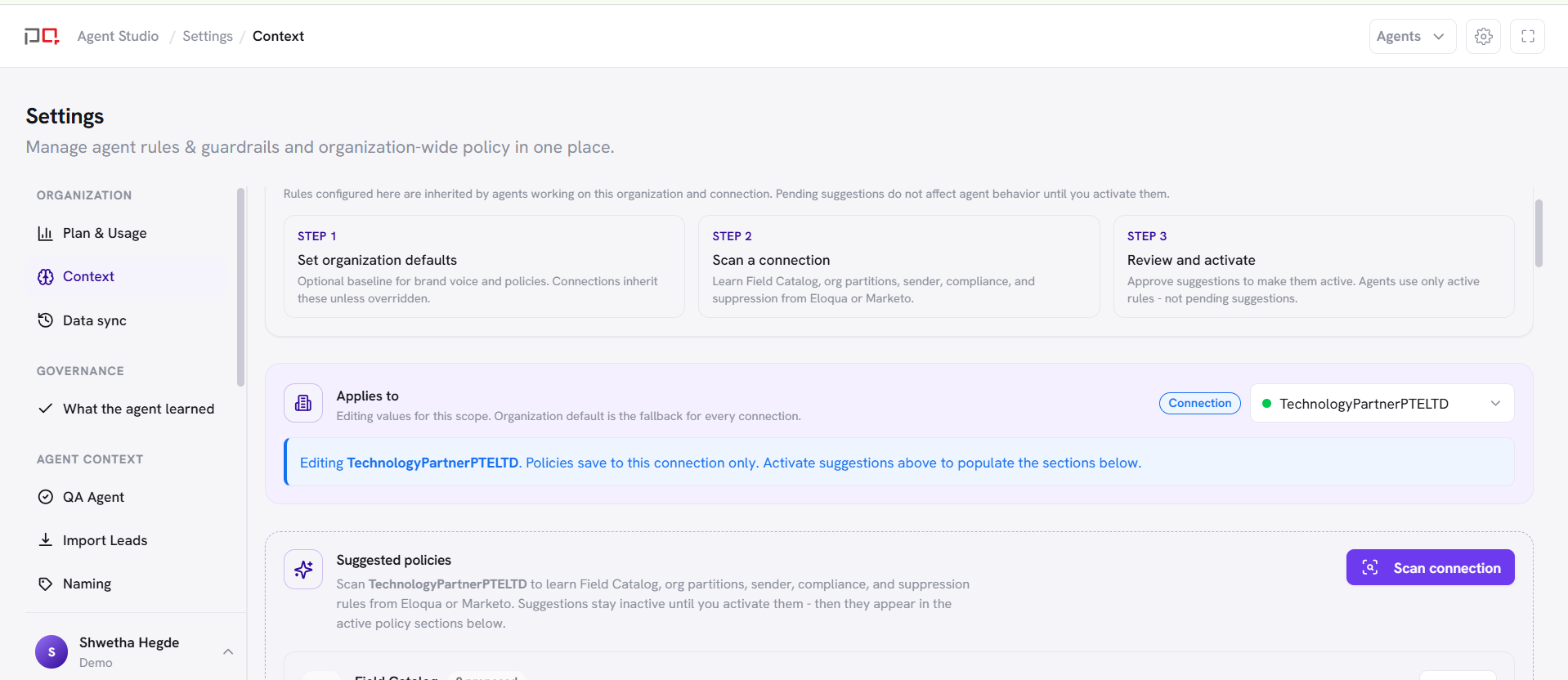
/images/agent-studio/context/context-overview.pngSettings, Organization, Context (/settings/organization/context) showing the organization defaults, the connection selector with an Eloqua connection selected and the Scan connection button. Use a demo instance.
Why it matters
| Without Context | With Context |
|---|---|
| QA and other agents feel generic | Agents use your approved senders, footers, and exclusion lists |
| Rules live in Slack and people’s heads | Rules live in one place agents actually read |
| New instance means starting from zero | Company-wide defaults, plus an optional scan that you review and approve |
How the screen works
Set organization defaults
Your company-wide rules, such as brand voice, that apply everywhere.
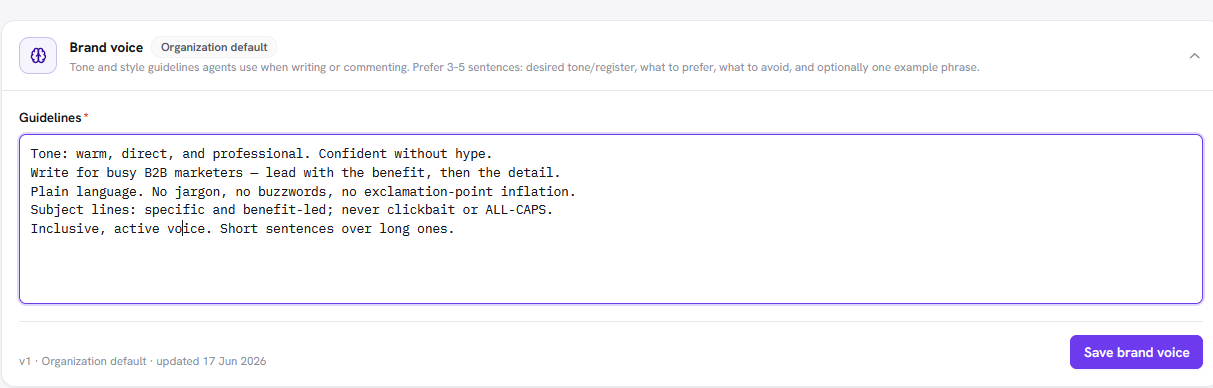
/images/brand-voice.pngThe Brand voice section open, with example guidelines typed in and the Save brand voice button visible. Use a demo instance.
Select a connection
Choose the Eloqua or Marketo account when it has its own senders, footers, or lists.
Scan (optional)
Choose Scan connection to look through your Eloqua or Marketo account (your contact fields, how it is divided up, who you send emails from, compliance footers, and exclusion lists) and suggest rules based on what it finds. Scan never changes your account and never turns a rule on by itself.
Review proposals
Activate, Edit first, or Dismiss each suggestion. Pending suggestions do not affect agents.
Active policies
Only saved or approved rules become active. Agents then check work against those rules.
Organization vs connection. Organization = company handbook. Connection = extra rules for one Eloqua or Marketo account. When both exist, the connection’s rules win for that account, and everything else uses the organization’s rules.
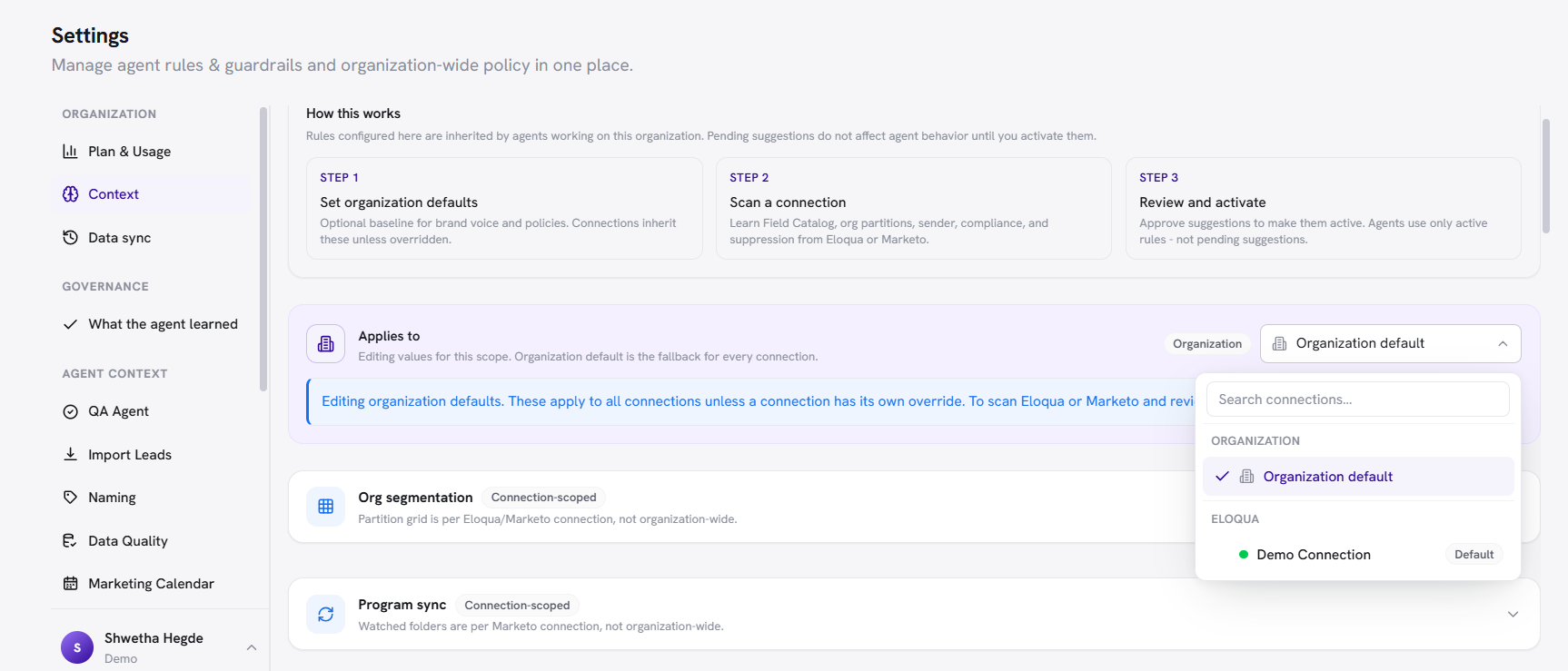
/images/agent-studio/context/org-vs-connection.pngThe Context page showing the organization rules, then a connection selected with its own override, side by side. Use a demo instance.
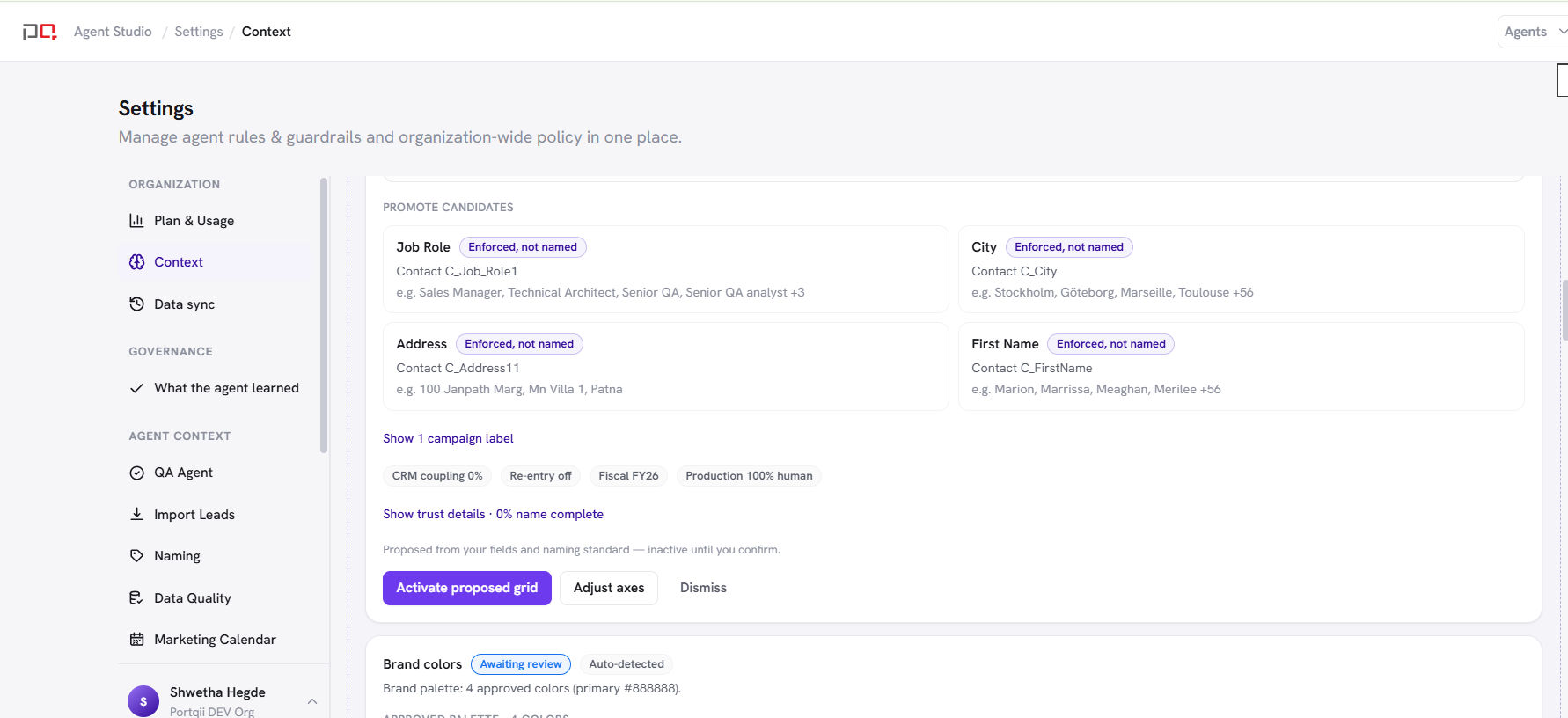
/images/agent-studio/context/scan-proposals.pngThe Review proposals list after Scan connection completes, showing several suggested policies (for example Sender & domains) each with Activate, Edit first and Dismiss. Use a demo instance.
Policy sections
| Section | Question it answers |
|---|---|
| Brand voice | How should we sound? |
| Brand colors | Which colors are approved? QA checks colors in emails and landing pages against this palette. |
| Sender & domains | Who may we send as? |
| Suppression keywords | Which words in list names mean “leave these people out” (or “include them”)? |
| Compliance & deliverability | What must every email and landing page include (footer, consent, unsubscribe)? |
| Program governance | How should programs be labeled and set up? (only if your team uses this) |
| Org segmentation (per connection) | How is this account divided up (for example by region or business unit)? Agent Studio suggests this from your naming, segments, and contact fields, and you confirm it. |
| Program sync (Marketo connections) | Which Marketo folders should Agent Studio check once a day, turning new programs into reusable Guided Build templates? |
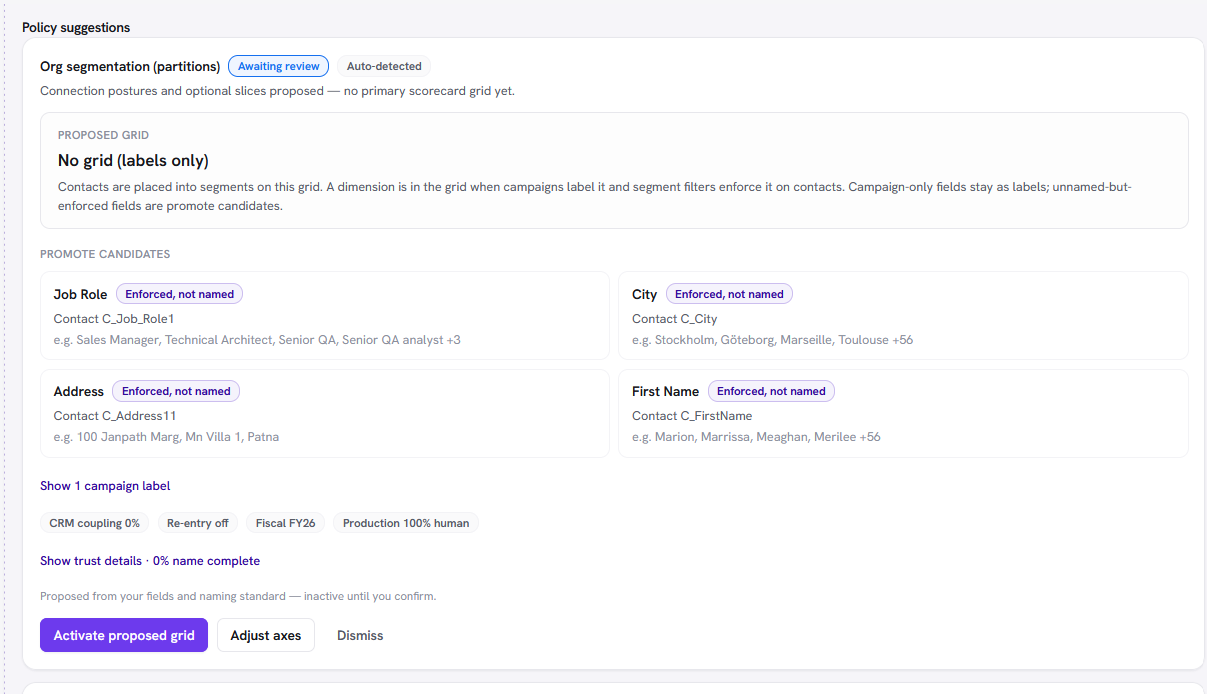
/images/agent-studio/context/policy-sections.pngThe Context page scrolled to the policy sections (brand voice, brand colors, sender and domains, suppression, compliance). Use a demo instance.
Scan, approve, reject
| Action | Meaning |
|---|---|
| Scan | Looks through your account and suggests draft rules. You decide what to keep. |
| Activate | Turn the draft (or your edited version) into a live rule, for your organization or the selected connection. |
| Edit first | Fix a mostly-right proposal, then go live. |
| Dismiss | Throw away suggestions you don’t need (test senders, sandbox leftovers). Safe: nothing changes in Eloqua or Marketo. |
| Manual save | Type rules yourself. Scan is optional. |
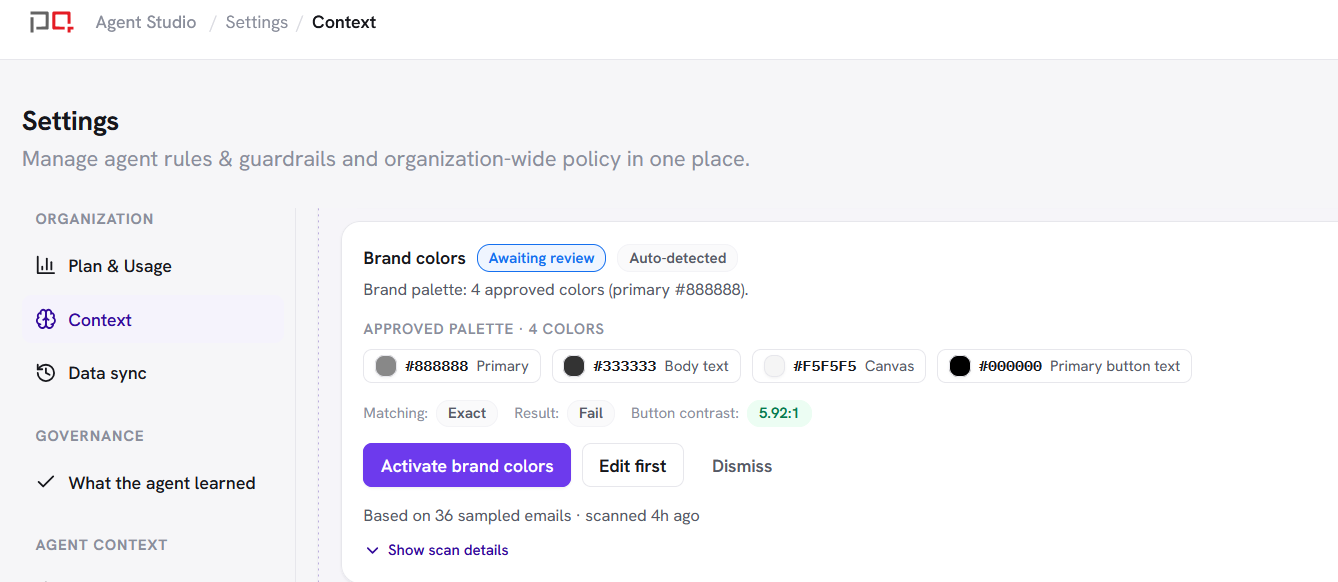
/images/agent-studio/context/brand-colors-editor.pngThe brand colors editor with a few approved colors added. Use a demo instance.
Approving a rule does not change Eloqua or Marketo. It only changes what Agent Studio checks for. Scan your production account (not a messy sandbox) so the suggested senders and footers are the real ones.
Recommended rhythm
- Set organization brand voice and company-wide baselines.
- Select the production Eloqua or Marketo connection.
- Run a scan and review the suggestions.
- Activate suggestions that are right, dismiss the ones you do not need, and edit any that are close.
- Run one QA check on a known campaign. Findings should reflect your rules.
- Scan again only after big changes to your Eloqua or Marketo account (not after every campaign).