
Asset Version Control settings
Choose how versions are saved, which Eloqua asset types to track, and whether Full Backup can recover child assets on rollback.
Supported MAPEloqua
These settings live under Settings → Agent context → Asset Version Control in the product (/settings/agents/version-control). They are specific to this agent, separate from org Context.
Open settings
Open Settings
In Agent Studio, go to Settings, then Agent context → Asset Version Control (
/settings/agents/version-control).Select a connection
The screen is gated until an Eloqua connection is selected. Commit mode, tracking, and Full Backup are stored per connection.
Configure and save
Set commit mode, choose which parent asset types to track, and enable Full Backup if you need child recovery on parent rollback.
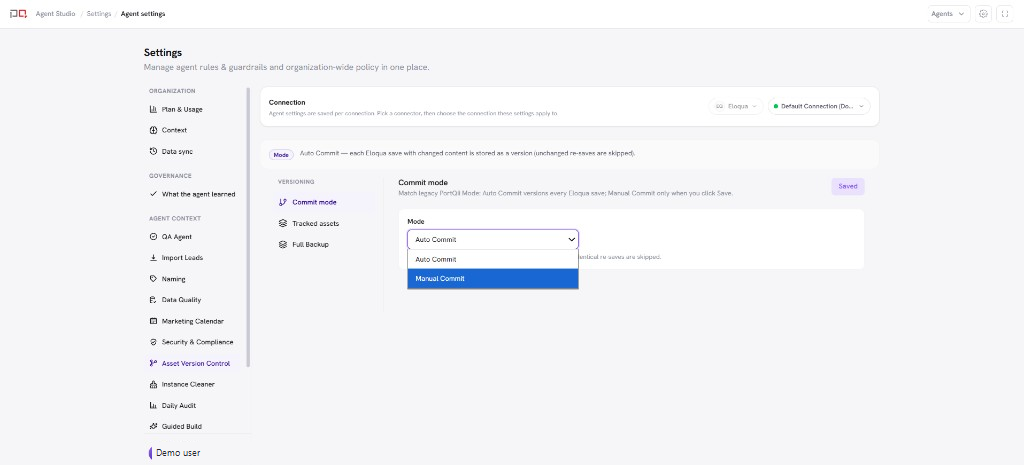
/images/agent-studio/asset-version-control/settings-overview.pngSettings, Agent context, Asset Version Control (/settings/agents/version-control) with an Eloqua connection selected, Auto Commit chosen, tracked asset type toggles and the Full Backup switch visible. Use a demo instance.
Sections
| Section | What you configure |
|---|---|
| Commit mode | Auto Commit stores a version on each Eloqua save with new content (identical re-saves are skipped). Manual Commit only stores a version when you save one in Asset Version Control. |
| Tracked assets | Which parent types Auto Commit stores: Email, Landing page, Form, Campaign, Program, and Segment. At least one type must stay on. |
| Full Backup | When on, child assets are backed up on a schedule so deleted children can be recreated when you roll a parent back. If a needed child has no backup, rollback fails closed. |
Connection scope. Always confirm which Eloqua connection is selected before changing mode or tracking. Each connection has its own settings.
Related
Asset Version Control
Connections
Context