
Agent Feeder
Send a Salesforce or Snowflake audience into an Eloqua campaign or program on a schedule. You map the fields, preview who is included, and approve before any contact is sent.
Open Agent Feeder from Home or go to /agents/feeder. Like other Agent Studio agents, you work in a chat + panel workspace: describe who should enter, then review the source, field map, audience, and schedule in the panel.
Contacts go to the Eloqua connection selected above the chat. The audience is read from a Salesforce or Snowflake connection. Suppression criteria, when your administrator has saved it, lives on that source connection and is applied with the audience.
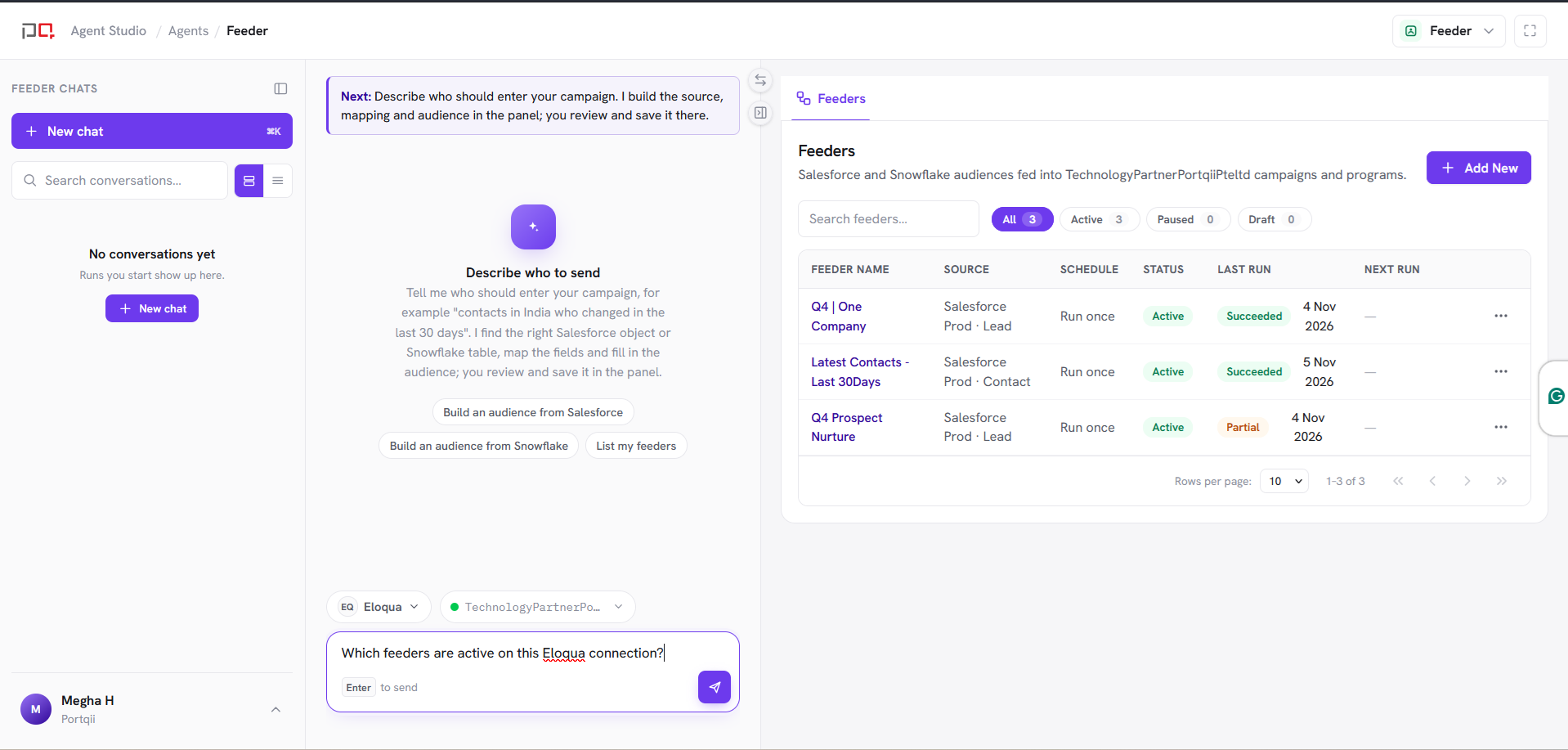
/images/agent-studio/agent-feeder/workspace-overview.pngAgent Feeder at /agents/feeder with an Eloqua connection selected above the chat, a short chat on the left, and the panel on the Feeders tab showing the list. Use a demo instance.
Add the Supademo link for this agent (see ASSET-CHECKLIST.md in the docs repo).
- An active Eloqua connection, selected above the chat
- A Salesforce or Snowflake connection to read the audience from
- An Eloqua campaign or program that is saved, with a Feeder step
- Optional: suppression criteria already saved on the source connection
/agents/feeder. Select the Eloqua connection above the chat. The Feeders list shows feeders for that connection.
/images/agent-studio/agent-feeder/connection-selected.pngThe connection switcher above the chat opened, with an Eloqua connection selected, and the Feeders list scoped to that connection. Use a demo instance.
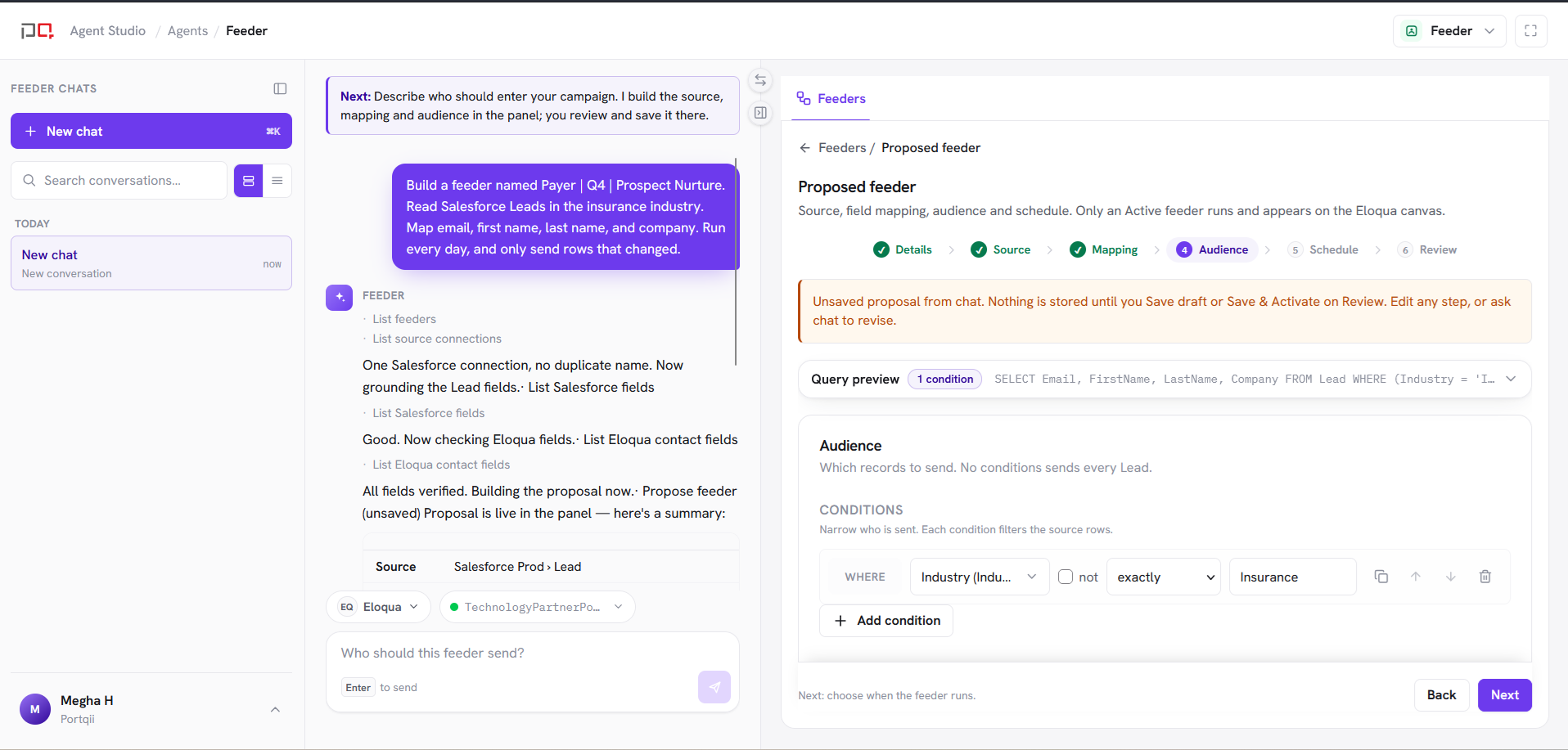
/images/agent-studio/agent-feeder/chat-proposal.pngAgent Feeder after a chat request to build a feeder, with the unsaved-proposal notice and the wizard open on Audience. Use a demo instance.
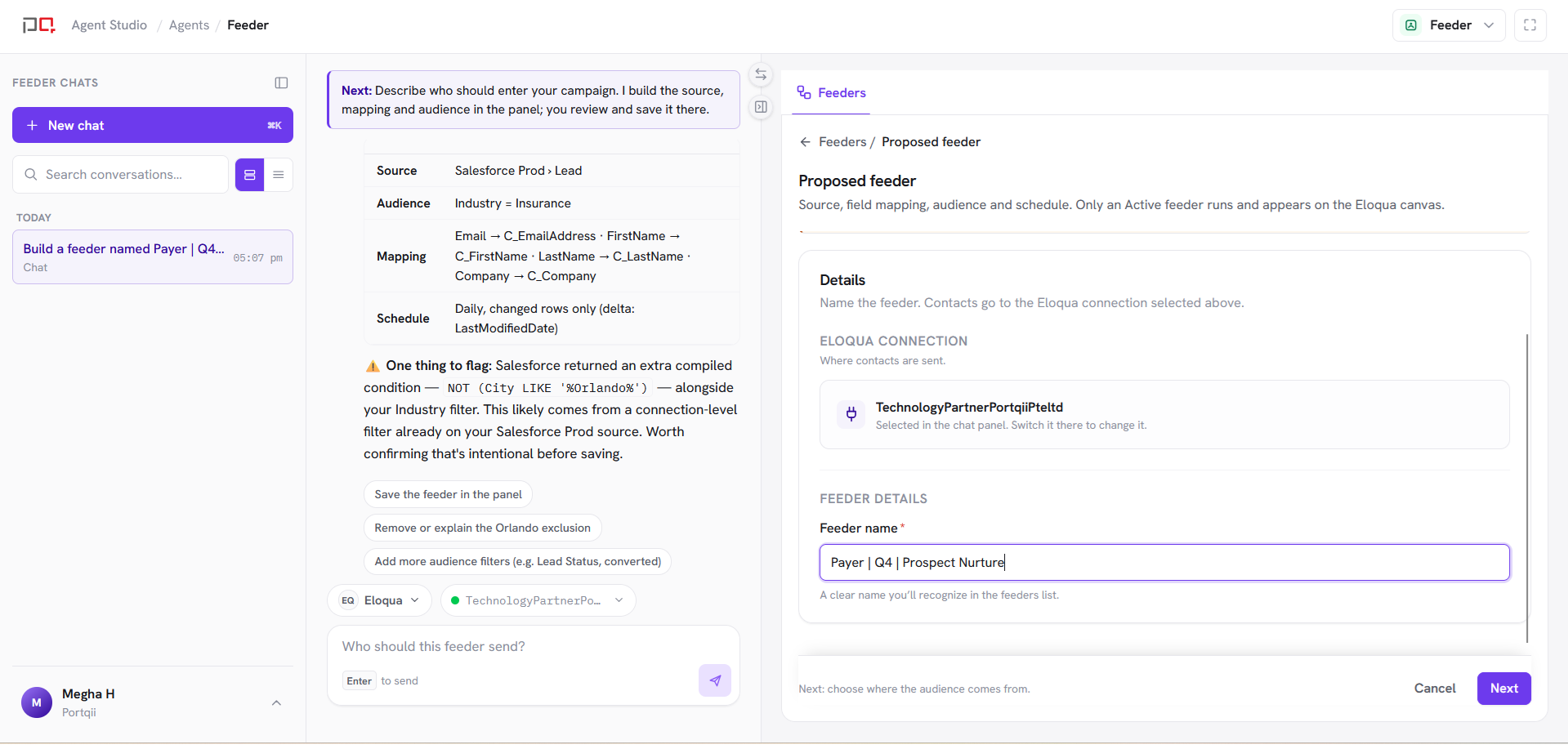
/images/agent-studio/agent-feeder/wizard-details.pngThe feeder wizard on Details, with the Eloqua connection named and a feeder name filled in, and the steps Details, Source, Mapping, Audience, Schedule, and Review across the top. Use a demo instance.
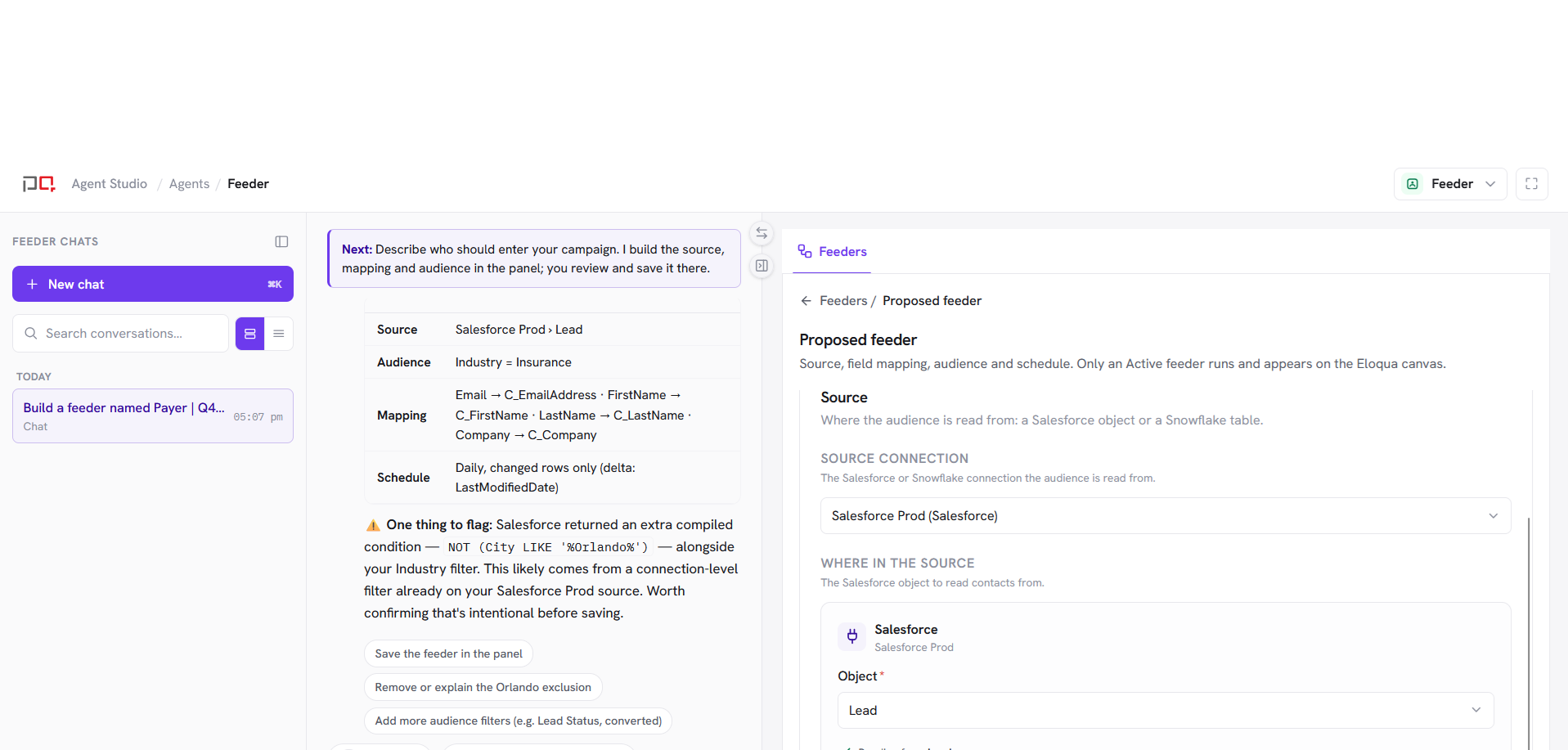
/images/agent-studio/agent-feeder/wizard-source.pngThe Source step with a Salesforce connection selected and an object chosen, showing Reading from that object. Use a demo instance.
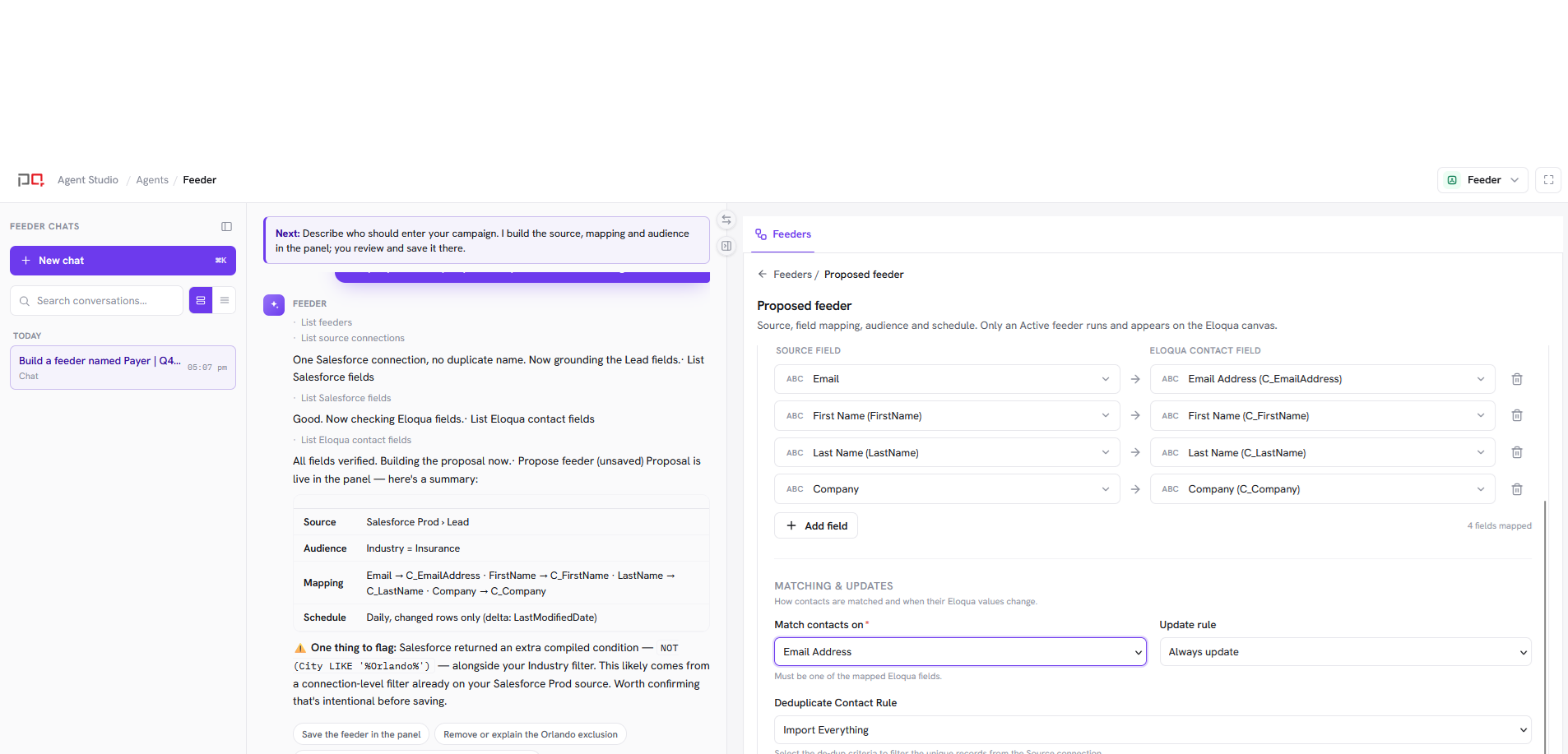
/images/agent-studio/agent-feeder/wizard-mapping.pngMapping with Email, First Name, Last Name, and Company mapped, Match contacts on set to Email Address, Update rule set to Update if new value is not blank, and Deduplicate Contact Rule visible. Use a demo instance.
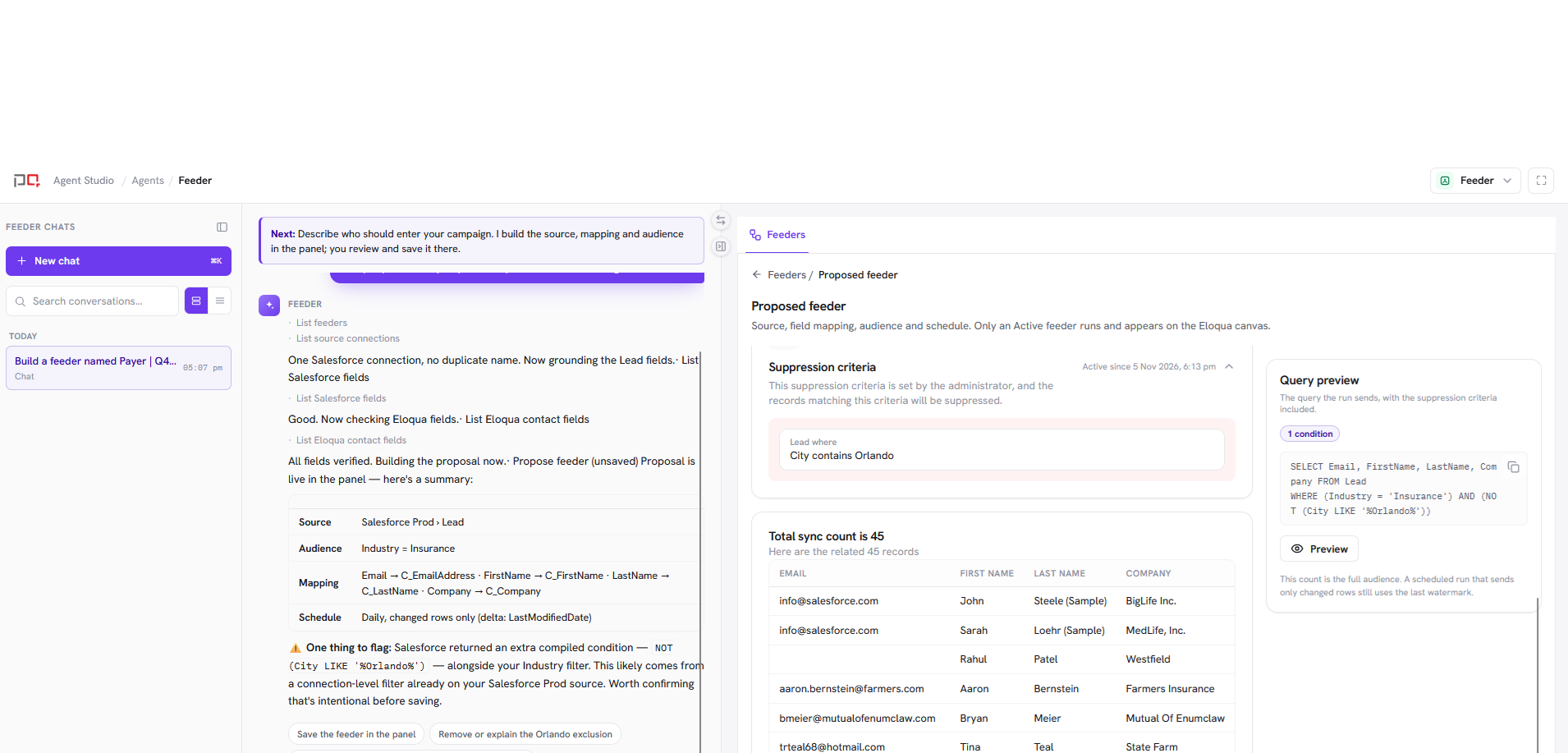
/images/agent-studio/agent-feeder/wizard-audience.pngAudience with one filter, the read-only Suppression criteria panel, and Preview showing sample rows and a count. Use a demo instance.
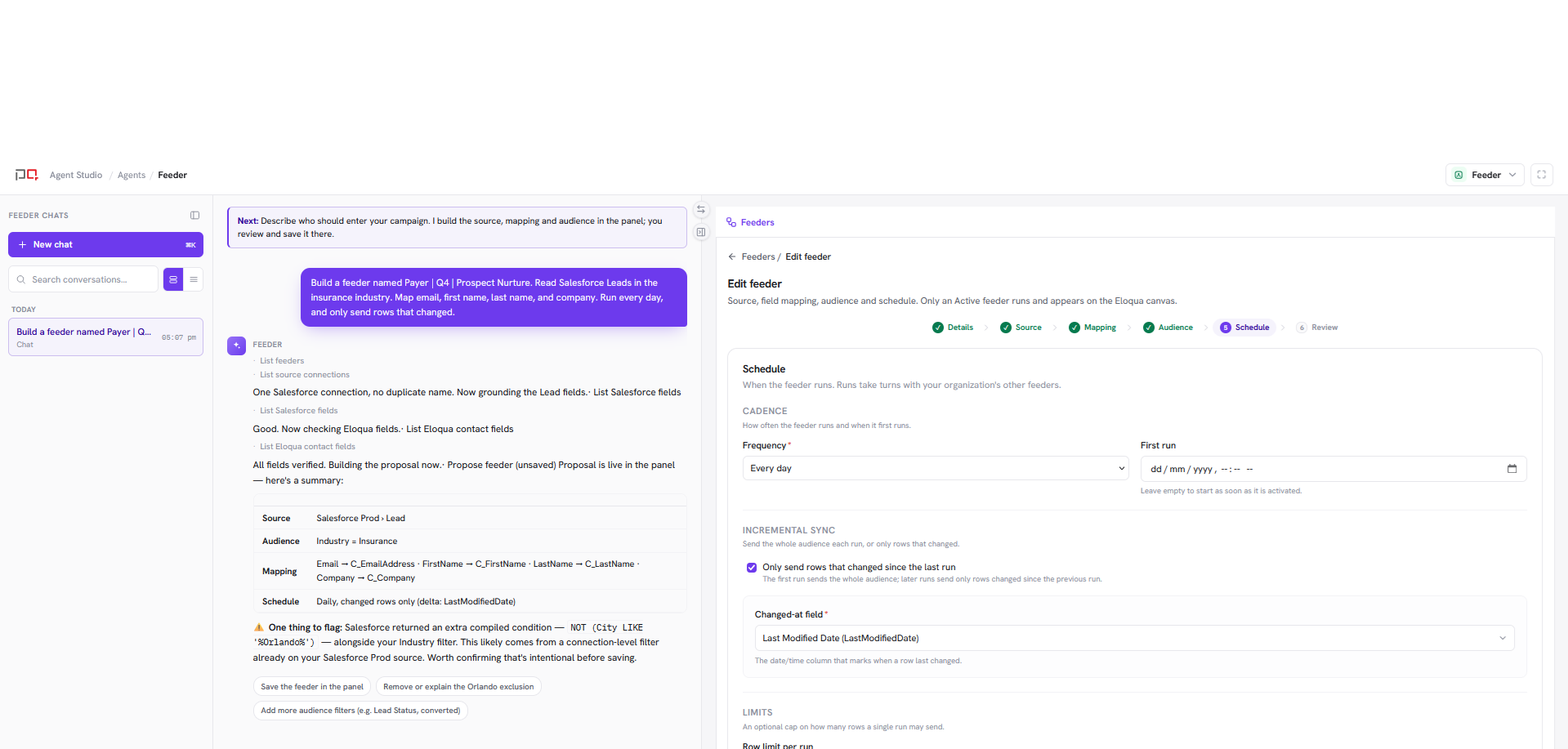
/images/agent-studio/agent-feeder/wizard-schedule.pngSchedule with Frequency set to Every day, First run empty, Only send rows that changed since the last run turned on, and a changed-at field selected. Use a demo instance.
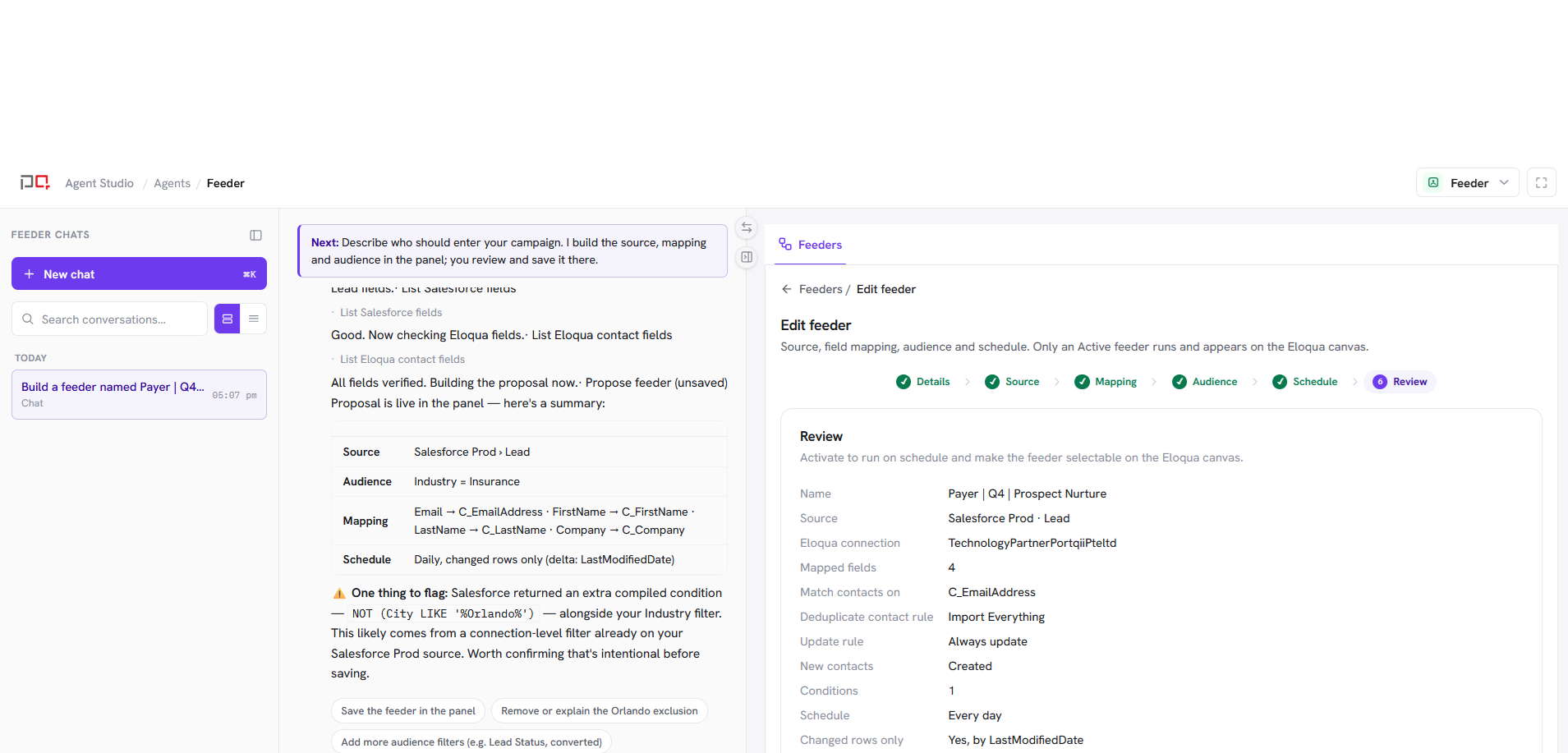
/images/agent-studio/agent-feeder/wizard-review.pngReview showing the feeder summary and the Save draft and Save & Activate buttons, with no Before activating warnings. Use a demo instance.
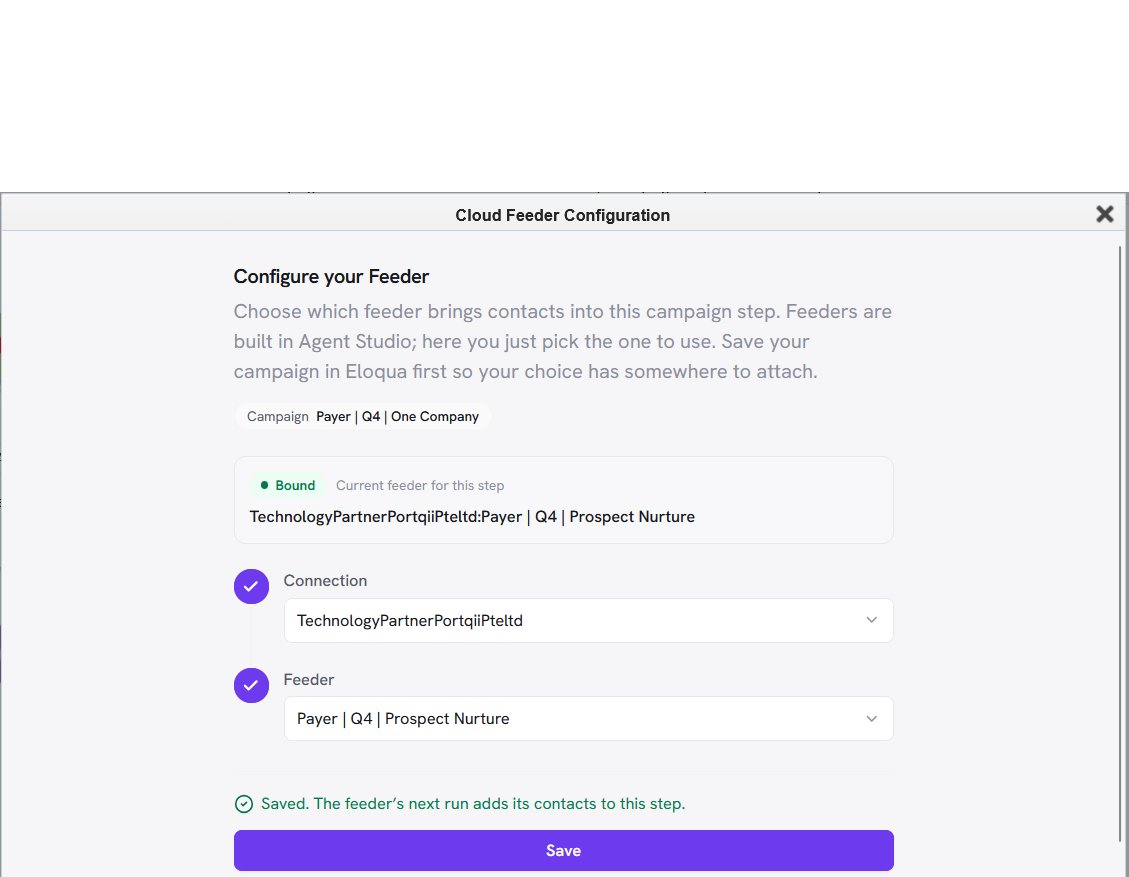
/images/agent-studio/agent-feeder/eloqua-configure.pngConfigure your Feeder on an Eloqua campaign step, with the connection and an Active feeder selected and Save visible. Use a demo instance.
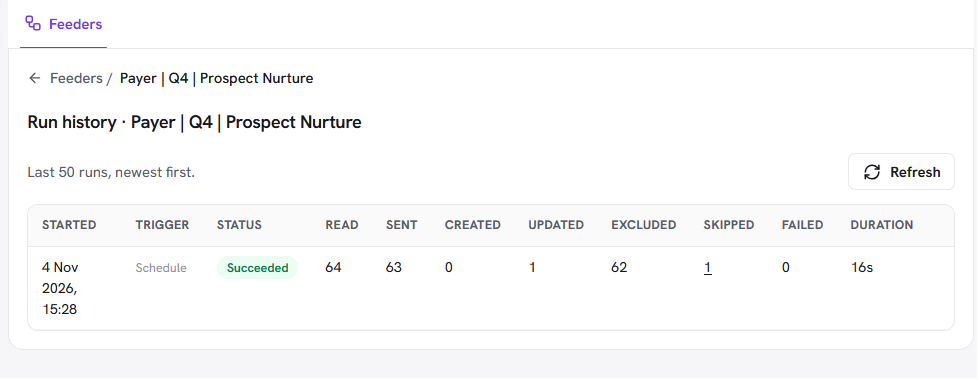
/images/agent-studio/agent-feeder/run-history.pngRun history for one feeder after Run now, showing a Succeeded run with Read, Sent, Created, Updated, Excluded, Skipped, and Failed counts. Use a demo instance.
| Step | Use it to |
|---|---|
| Details | Name the feeder. Contacts go to the Eloqua connection selected above the chat. |
| Source | Pick the Salesforce or Snowflake connection, then the object or the database, schema, and table. |
| Mapping | Map source fields to Eloqua contact fields, and set how contacts match, update, and deduplicate. |
| Audience | Add conditions for who is included, review suppression criteria, and preview the audience. |
| Schedule | Choose how often it runs, whether later runs send only changed rows, and an optional row limit. |
| Review | Check the summary, then Save draft or Save & Activate. |
The list shows the feeder name, source, schedule, status (Draft, Active, or Paused), last run, and next run. Filter by status or search by name. Only an Active feeder runs on its schedule and can be chosen on the Eloqua step.
The row menu also has Edit, Edit Query (opens Audience), Pause or Activate, and Delete. Run now is available once the feeder is no longer a draft. Last run shows Never until the first run, or a status such as Queued, Running, Succeeded, Partial, Failed, Cancelled, or Skipped. Run history keeps the last 50 runs, newest first, and labels each one Run now or Schedule. You can cancel a run while it is queued or running.
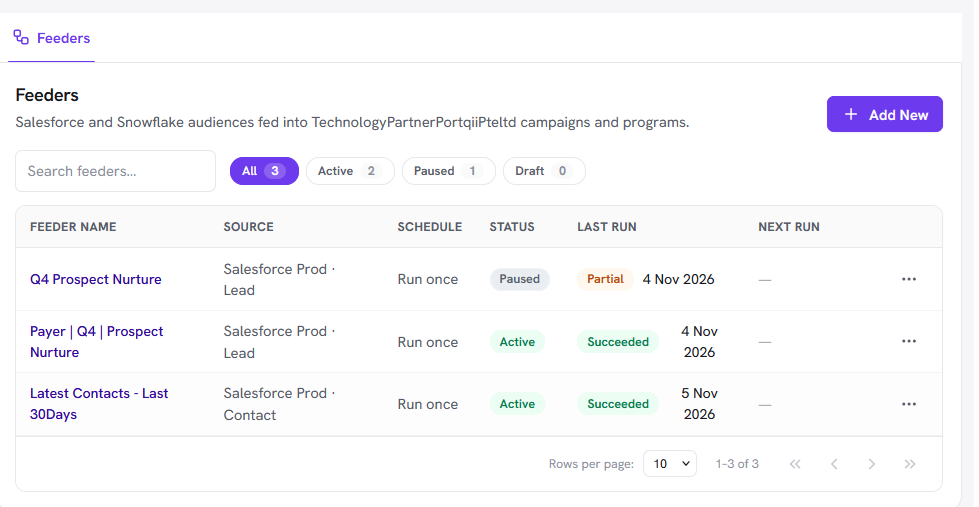
/images/agent-studio/agent-feeder/feeders-list.pngThe Feeders list with Active, Paused, and Draft filters, one Active feeder whose last run is Succeeded, and the row menu open showing Run now, Pause, and Run history. Use a demo instance.