
A Connection is a configured link between Security Compliance and an external platform such as Oracle Eloqua or Salesforce. Each connection tells the app which instance to monitor, which credentials to use, and where to collect integration activity from. You can create more than one connection and switch between them at any time.
Supported platforms
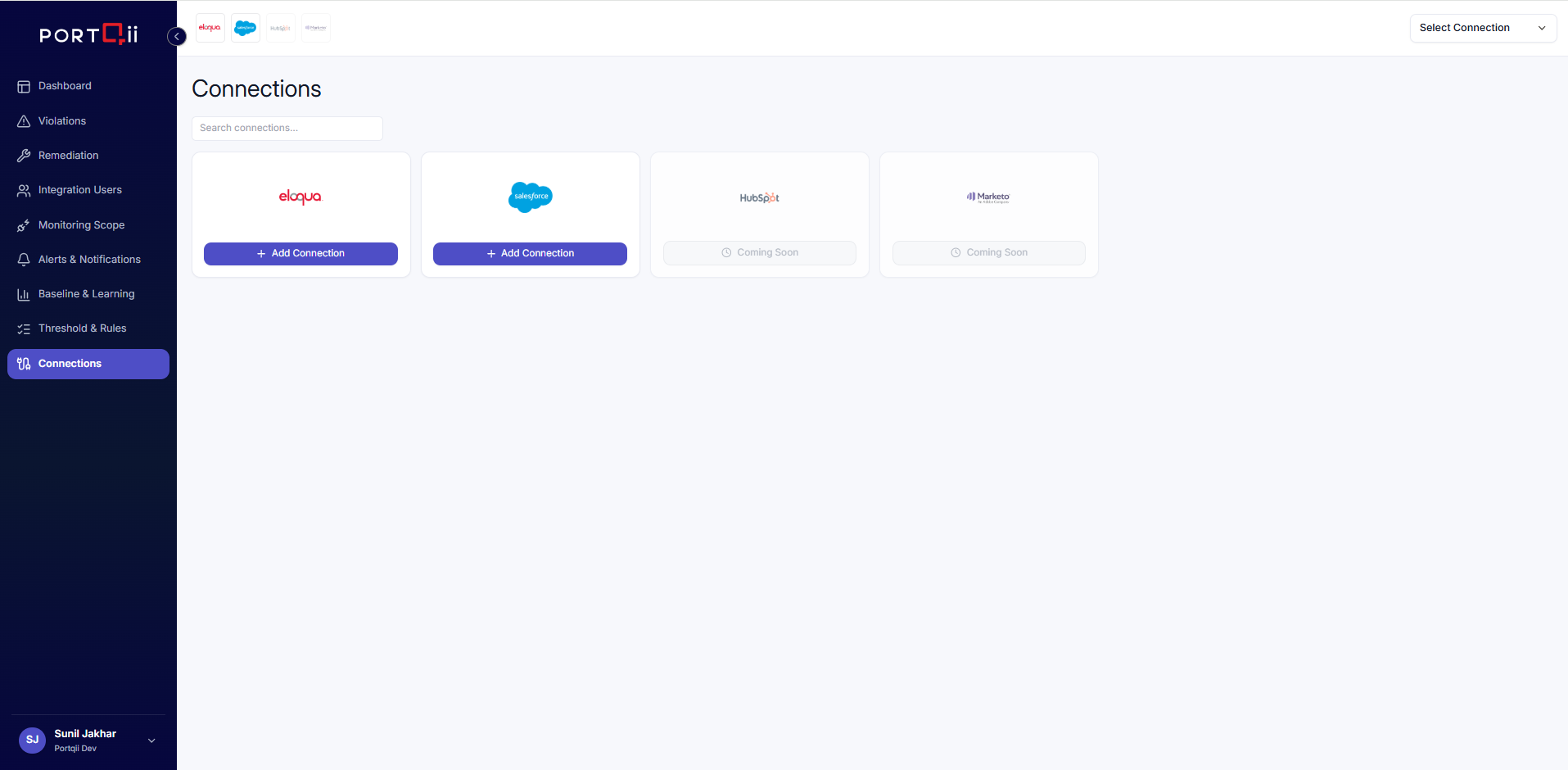
Security Compliance currently supports the following platforms. Additional platforms are marked Coming Soon and cannot be selected yet.
- Oracle Eloqua — monitor integration users, bulk API usage, and sync activity.
- Salesforce — monitor Bulk API query jobs, export activity, and connected app behaviour.
Creating a connection
Open the Connections page from the sidebar, choose a platform, and select Add Connection. The form fields depend on the platform you choose. Required fields are marked with an asterisk.
Eloqua
- Connection name (required) — a label you choose to identify this connection.
- Description (optional) — a short note describing the instance or its purpose.
- Credentials — the company, username, and authentication details required by Eloqua.
Salesforce
- Connection name (required) — a label you choose for the connection.
- Description (optional) — a short note about the org.
- Source System Type (required) — select the Salesforce environment (for example, Production or Sandbox).
- Source System Base URL — auto-populated based on the selected system type.
- Org credentials — the authentication details required to connect to the Salesforce org.
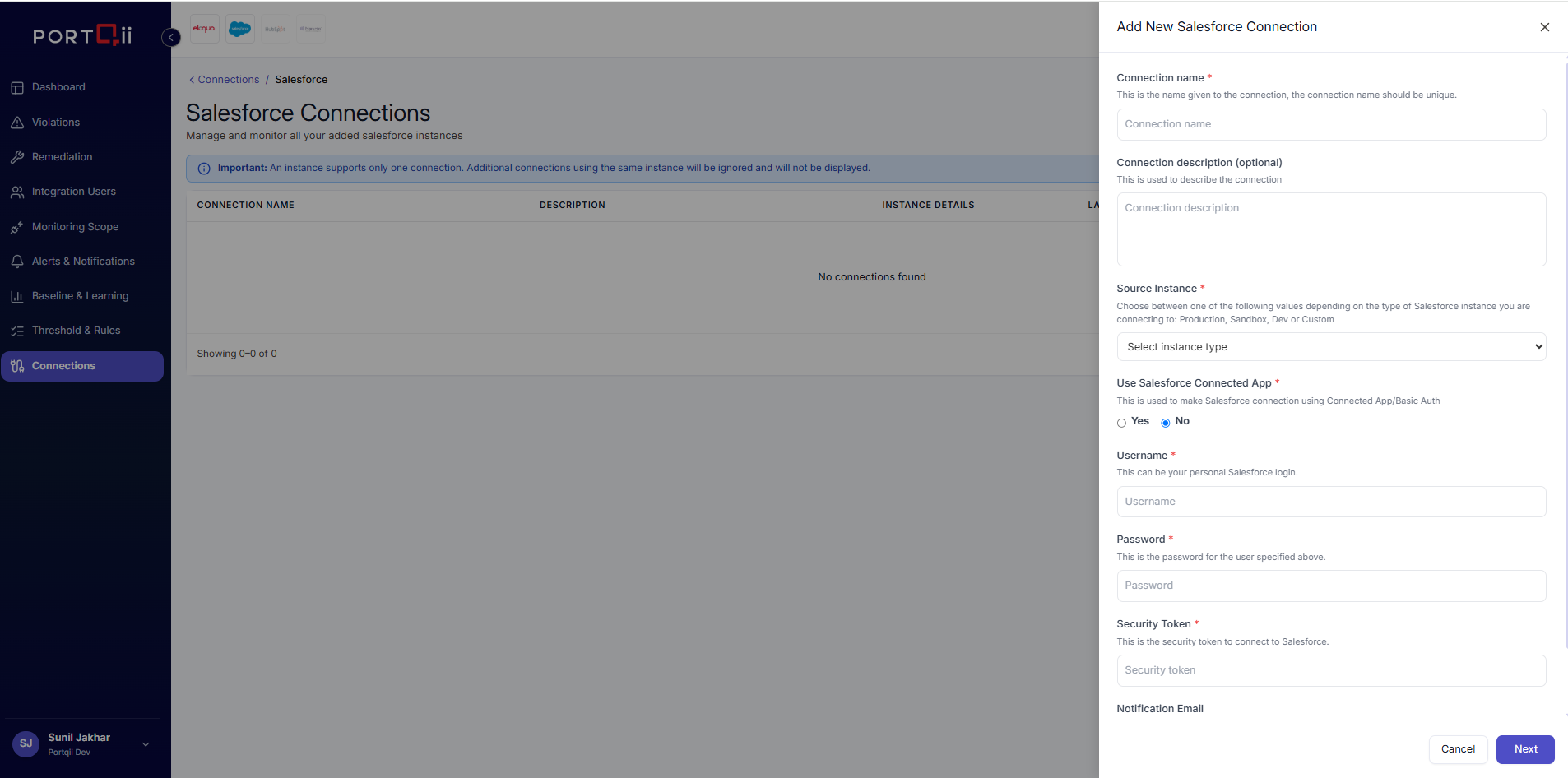
Use Test Connection to verify the credentials before saving. When the test succeeds, save the connection to make it available for monitoring.
Switching connections
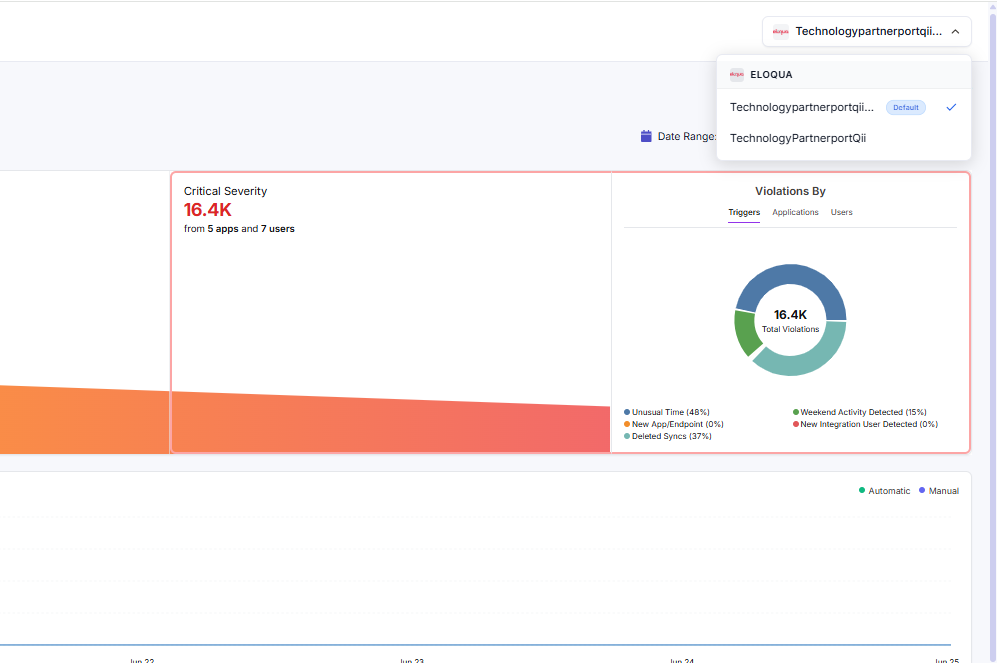
The active connection is shown in the connection selector in the top bar. Open the selector to see every connection grouped by platform. From here you can:
- Select a different connection to switch monitoring to that instance.
- See which connection is currently active (shown with a check mark).
- Set a connection as the default, so it is selected automatically when the app loads.
Managing connections
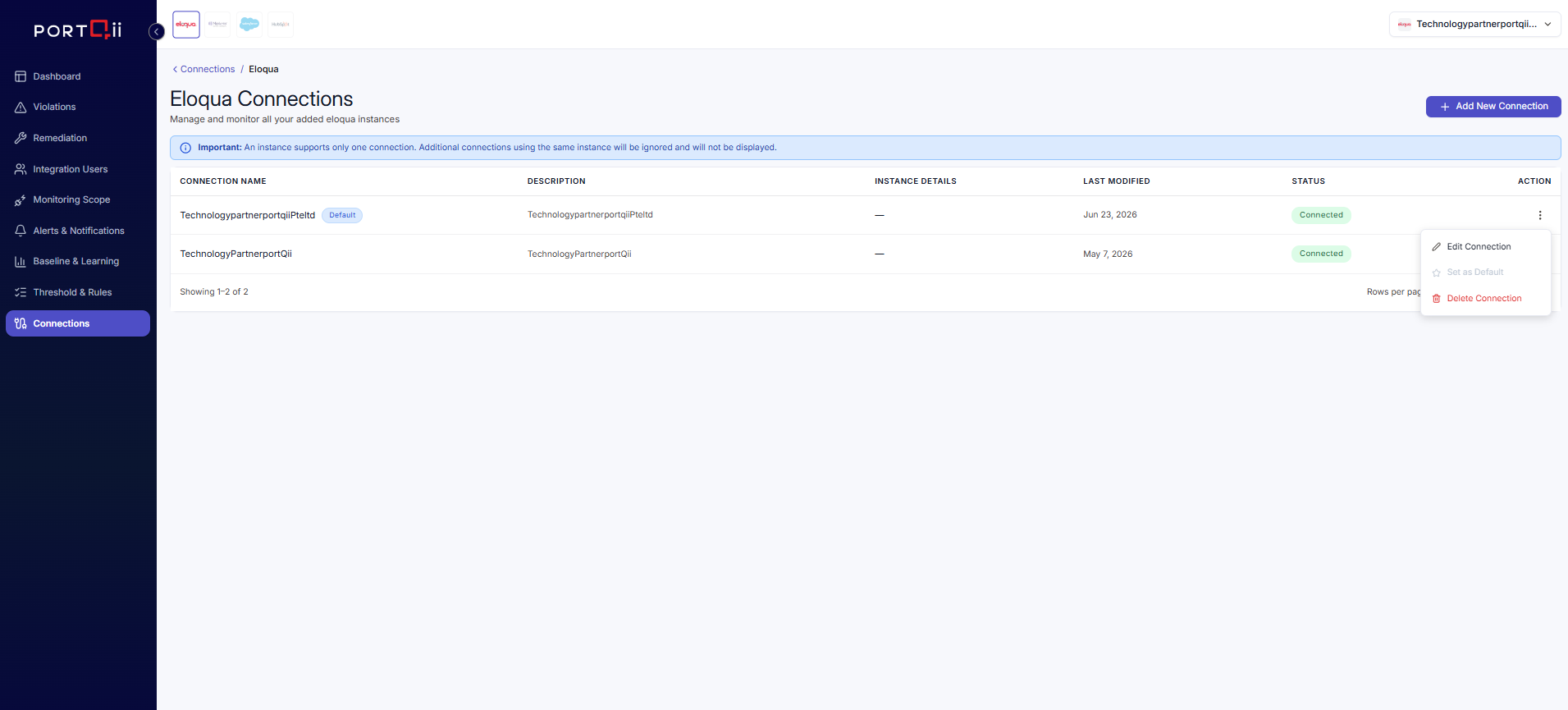
From the connection list for each platform you can review and maintain every connection you have created:
- View connection name, description, instance details, last-modified date, and status.
- Edit a connection to update its credentials or details.
- Set as default so it loads automatically.
- Delete a connection permanently (a confirmation is required).
Reconnecting a lost connection
A connection can stop working for several reasons — credentials were rotated or expired, a password or client secret changed, an OAuth token was revoked, or the source system URL changed. When this happens the connection's status will show that it is no longer healthy, and monitoring for that instance pauses until it is restored.
To reconnect:
- Open the Connections page and find the affected connection in its platform list.
- Select Edit to open the connection form.
- Re-enter or update the credentials — for example the username, password, client secret, or authentication details required by the platform. For Salesforce, confirm the Source System Type and Base URL are still correct.
- Select Test Connection to verify the new details. Wait for the test to succeed.
- Save the connection. Monitoring resumes automatically once the connection is healthy again.