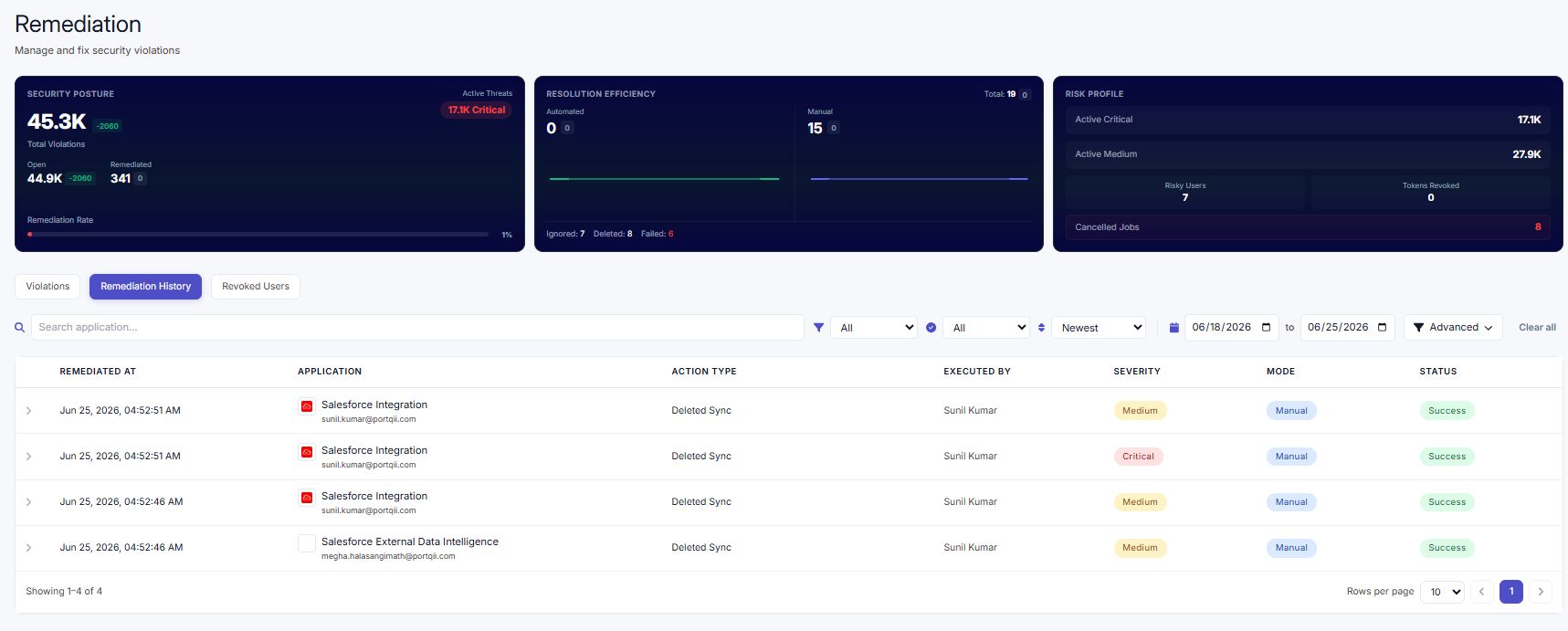
Remediation is the process of responding to a violation to stop further data exposure or disruption. The Remediation page lets you act on violations, review what has already been done, and see which users have been revoked.
Remediation metrics
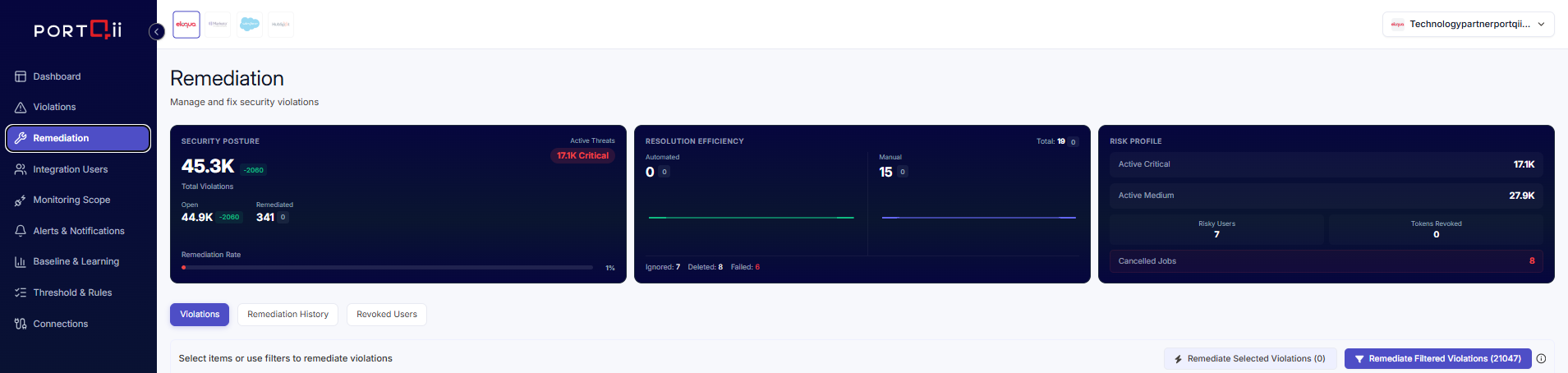
The metrics across the top summarise your security posture and response activity:
- Security posture — total violations, open violations, remediated violations, and the overall remediation rate.
- Active threats — count of Critical-severity violations.
- Resolution efficiency — automated vs. manual remediations, plus deleted syncs, ignored violations, and failed attempts.
- Risk profile — active critical and medium threats, high-risk users, tokens revoked, and cancelled jobs.
Remediation actions
The page is organised into tabs — Violations, Remediation History, and Revoked Users. From the Violations tab you can apply one of the following actions:
| Action | What it does |
|---|---|
| Delete Syncs / Delete Query Job | Permanently removes the affected data sync (Eloqua) or Salesforce Bulk API query job to stop the data transfer. |
| Revoke Token | Suspends the user's credentials so the integration can no longer access the platform. |
| Ignore | Marks the violation as ignored; no further action is taken. |
| Enable User | Re-activates a user whose token was previously revoked. |
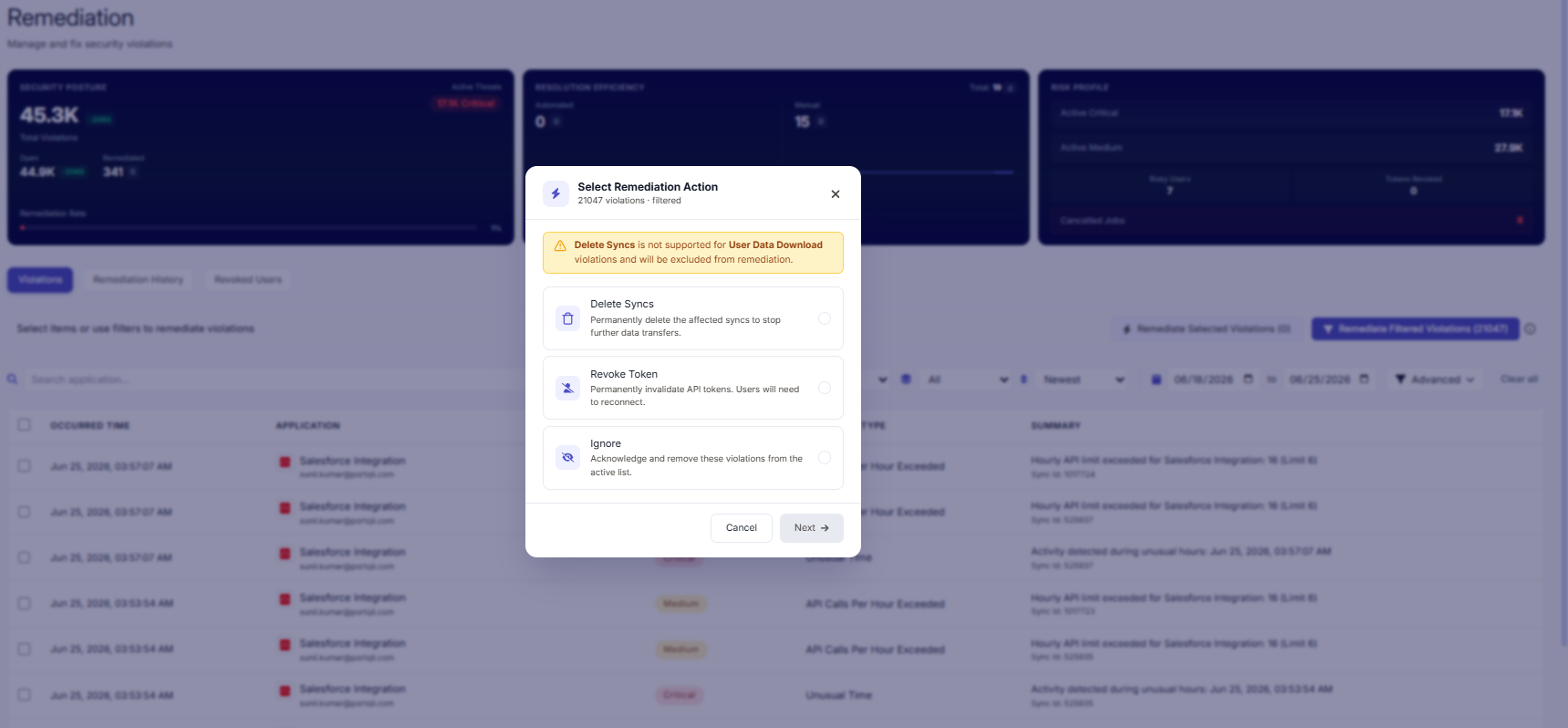
Actions can be applied individually to a selected violation, or in bulk across every violation that matches the current filters.
Manual vs. automatic
- Automatic remediation runs without intervention when a violation is detected, based on the response actions configured for each severity in Threshold & Rules.
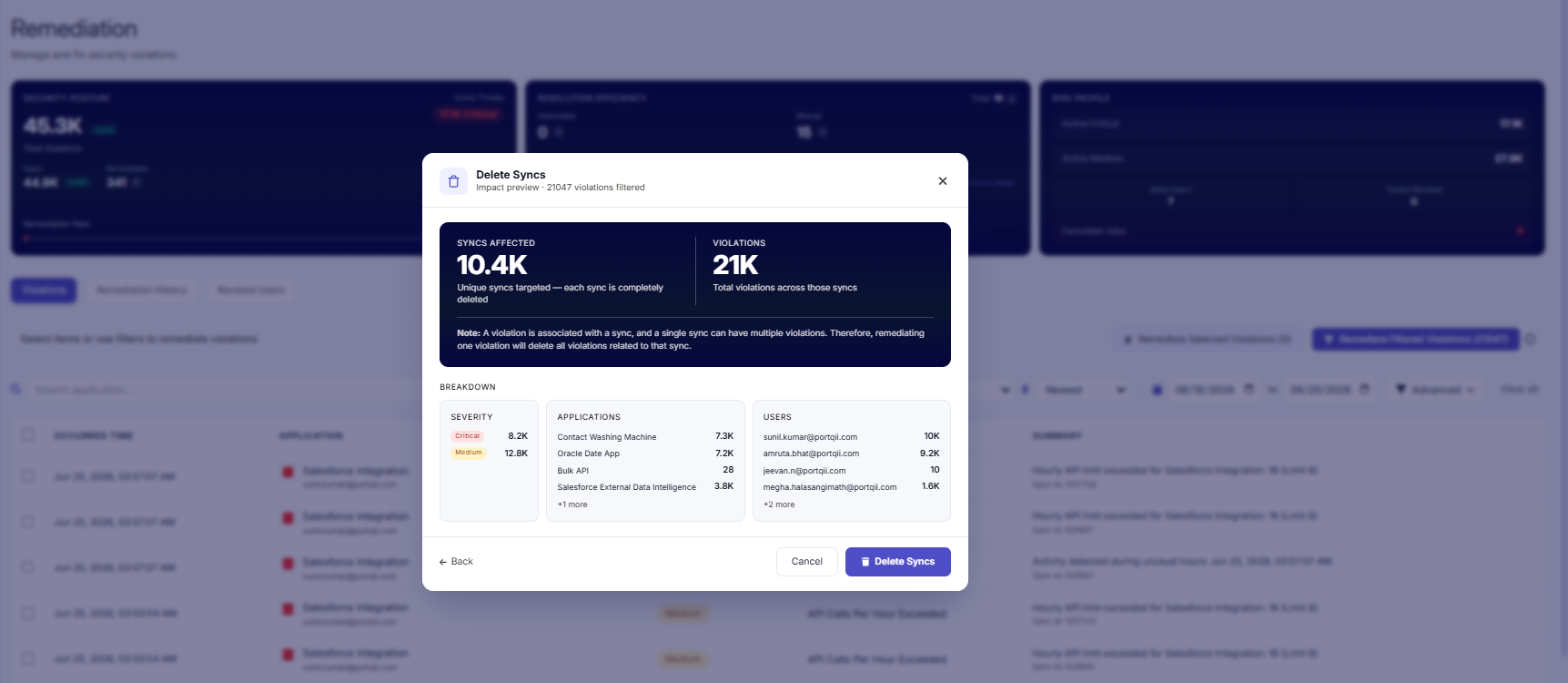
- Manual remediation is started by an administrator. Before a manual action runs, an impact preview shows the affected syncs, violations, and users so you can confirm the scope.
Both modes are tracked separately in the metrics and history.
History & trends
The Remediation History tab logs every action with its timestamp, application, action type, execution mode (auto or manual), who executed it, and the result (success or failed). Opening a history entry shows the original violation context and the platform's API response. A trend chart compares automated and manual remediation activity over time, and user-level history shows recent actions for an individual user.