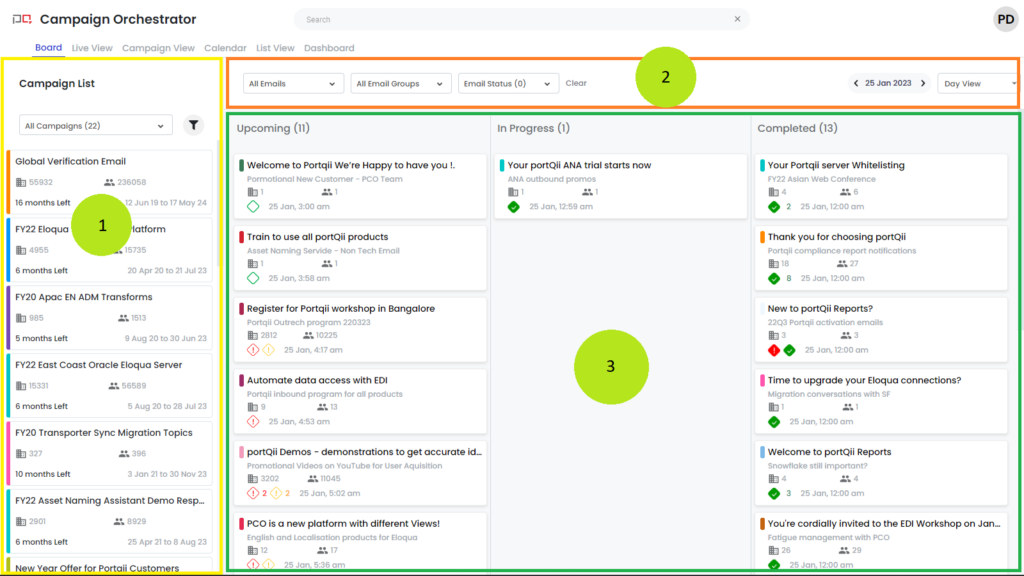
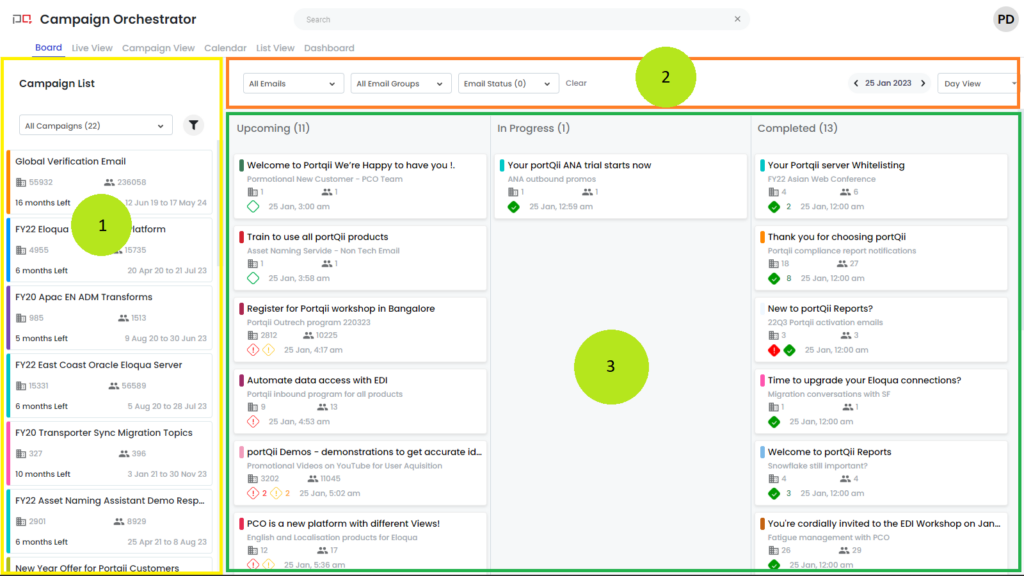
The Board View displays your email operations in a clear, organized Kanban-style layout with three main sections:
- The Campaign section on the left
- The Email filtering section at the top
- The Emails section on the right with three columns:
- Upcoming
- In Progress
- Completed
Key Features
- Email cards (instances) are displayed in a Kanban board format
- Upcoming: Cards appear here when the email batch isn't due for more than an hour
- Completed: Cards appear here when the batch completed more than an hour ago
- In Progress: Cards are actively sending emails, completed within the last hour, or will start within the next hour
Benefits
- Clear categorization of upcoming, processing, and completed emails
- Account and contact counts displayed on each email card
- Immediate visibility into touch governance rule violations upon page load
Campaign Section (Left Panel)
This section lists campaigns that are active today — any campaign scheduled to send emails today will appear here. If a campaign isn't listed, it has no emails scheduled for the current day.
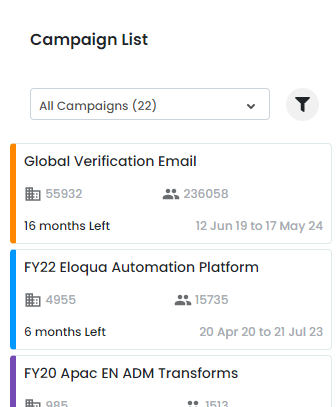
Campaign Filter
Use this filter to focus on specific campaigns:
Campaign Cards
Each campaign displays as a card with five key data points:
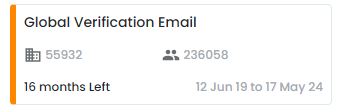
- Campaign name
- Number of accounts/organizations (4915 in the example)
- Number of contacts (15587 in the example)
- Time remaining until campaign ends (6 months left)
- Campaign start and end dates (20 Apr 20 to 21 Jul 23)
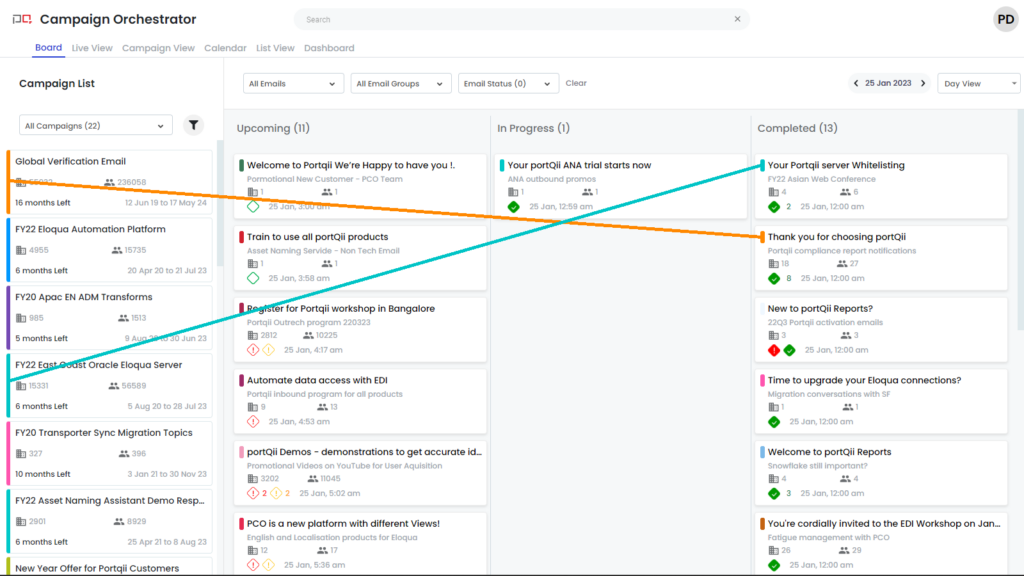
Color Mapping
Each campaign has an assigned color. Email cards from that campaign use the same color, making it easy to identify which email belongs to which campaign.
Email Section (Right Panel)
This section displays all email instances for the current day.
Note: Eloqua deploys emails in batches that can span hours when the volume is large. PCO aggregates these email sends into hourly chunks called email instances. Each email card represents one email instance.
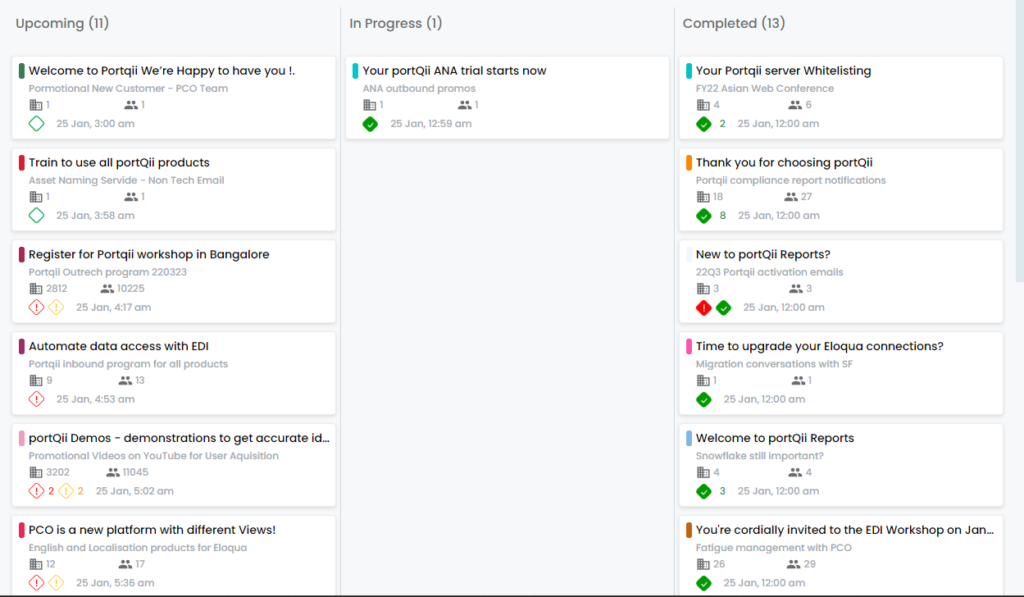
The section contains three columns:
- Upcoming
- In Progress
- Completed
Click any card to open a detailed view showing all batches created for that email:
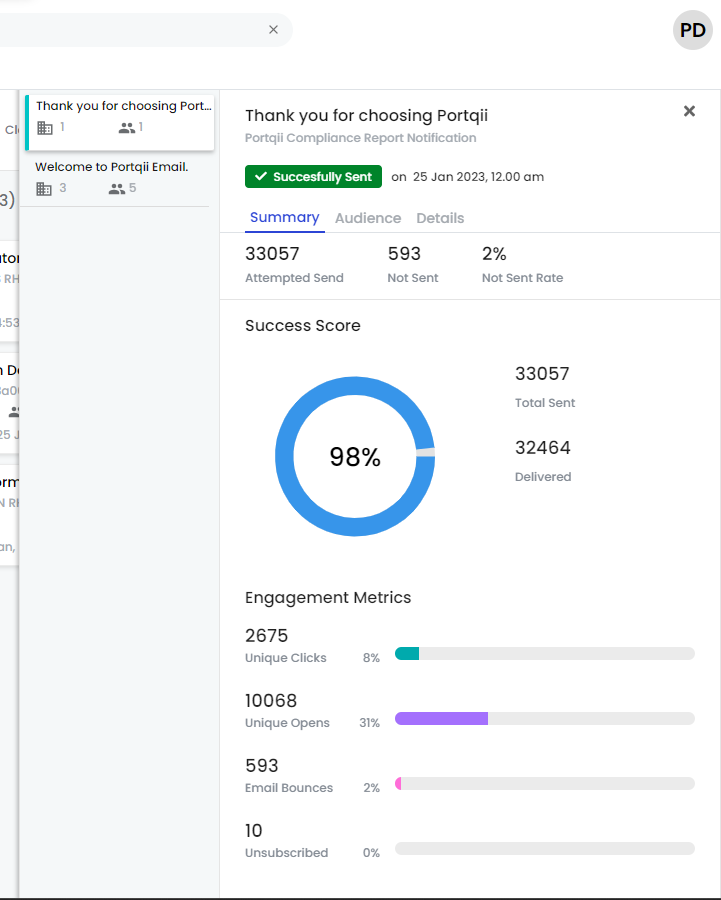
The detailed view shows other emails from the same campaign that have sends during the same hour.
Email Cards
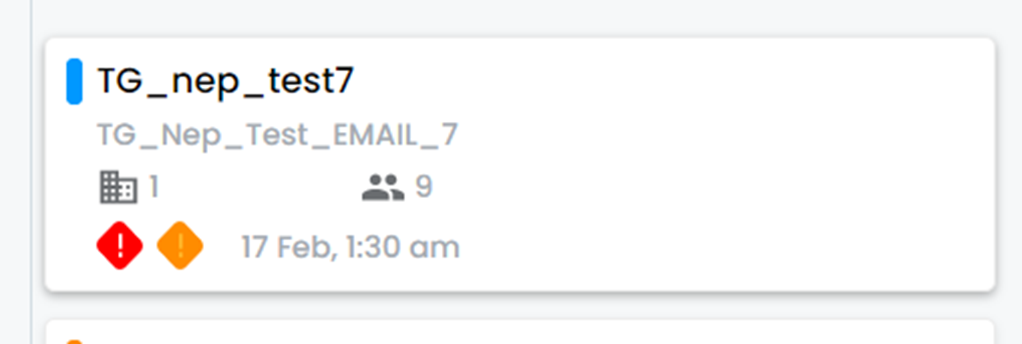
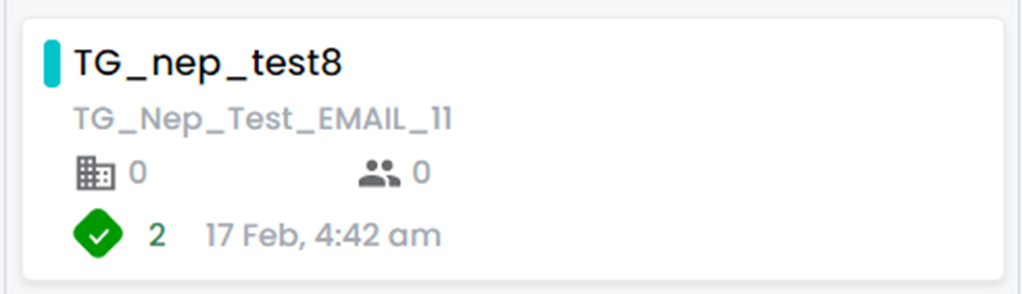
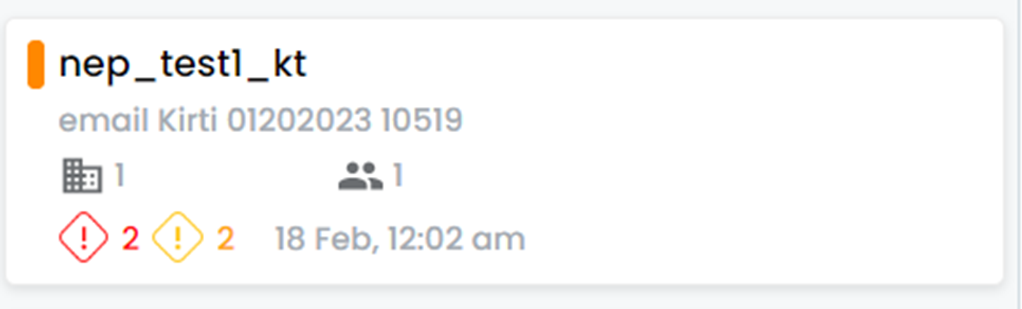
Each email card displays essential information:
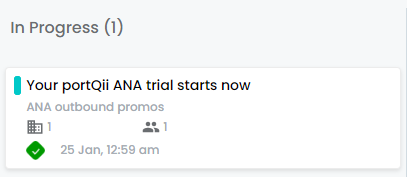
- Email subject
- Asset name
- Number of accounts involved
- Number of contacts involved
The bottom line of each card contains status indicators:
| Icon | What the Icon Means: |
|---|---|
 | Red filled rhombus: This indicates a completed email which had at least one contact that violated the touch governance (TG) rules. |
 | Yellow filled rhombus: This indicates completed email which had at least one contact that violated the overlapping rules. |
 | Green filled rhombus: This indicates completed email which had all the emails successfully sent without violating TG or overlapping rules. |
 | Red hollow rhombus: This indicates an upcoming email that has contacts which may violate the TG rules. |
 | Yellow hollow rhombus: This indicates an upcoming email that has contacts which may violate the overlapping rules. |
 | Green hollow rhombus: This indicates that the emails are being sent out – and not all emails have been sent yet. |
Email Card Examples
 |
 |
 |
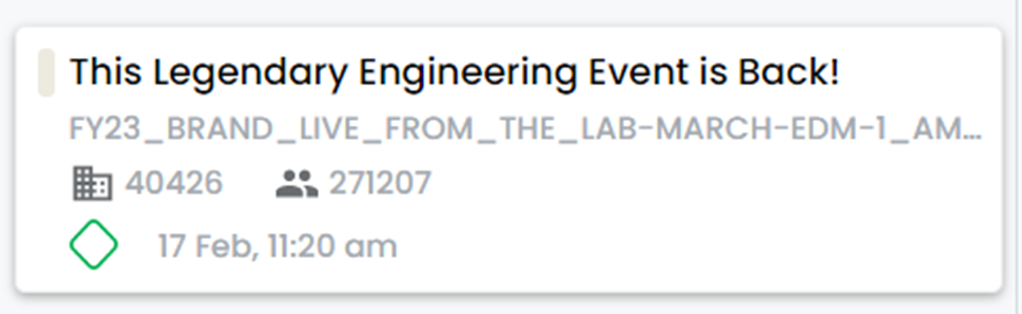 |
The bottom line also shows the date and time for the email batch. This represents the timing for just this batch, not all emails — you'll find additional email cards with similar details but different timestamps.
Column Logic
Email cards appear in columns based on their timing:
- Upcoming: Batch isn't due for more than an hour
- Completed: Batch completed more than an hour ago
- In Progress: Batch is sending emails, completed less than an hour ago, or starts within the next hour

Filtering Options
Filters are located in sections 1 and 2, and they refine the emails shown in section 3.
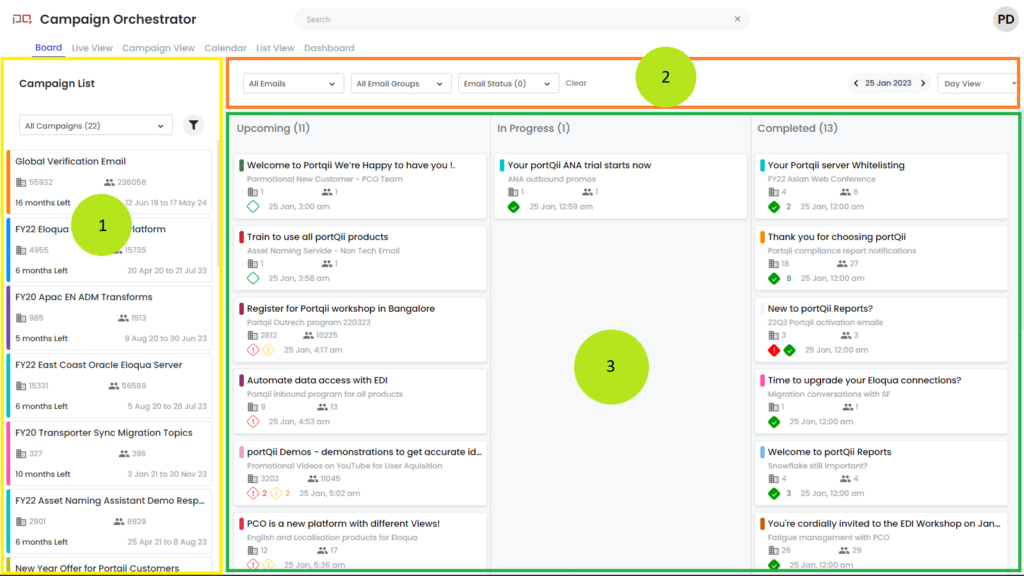
Top Bar Filters (Section 2)
View Selector
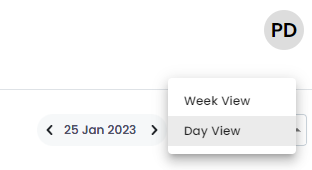
Choose between Day View and Week View. Day View is recommended for most use cases.
Email Filters
- All emails: Select specific emails to display
- All email groups: Filter by Eloqua email groups (only visible if groups exist in Eloqua)
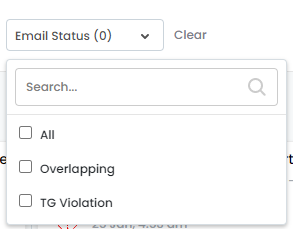
- Email Status: Filter by overlapping violations or Touch Governance violations
Campaign Filters (Section 1)
Campaign Name Filter
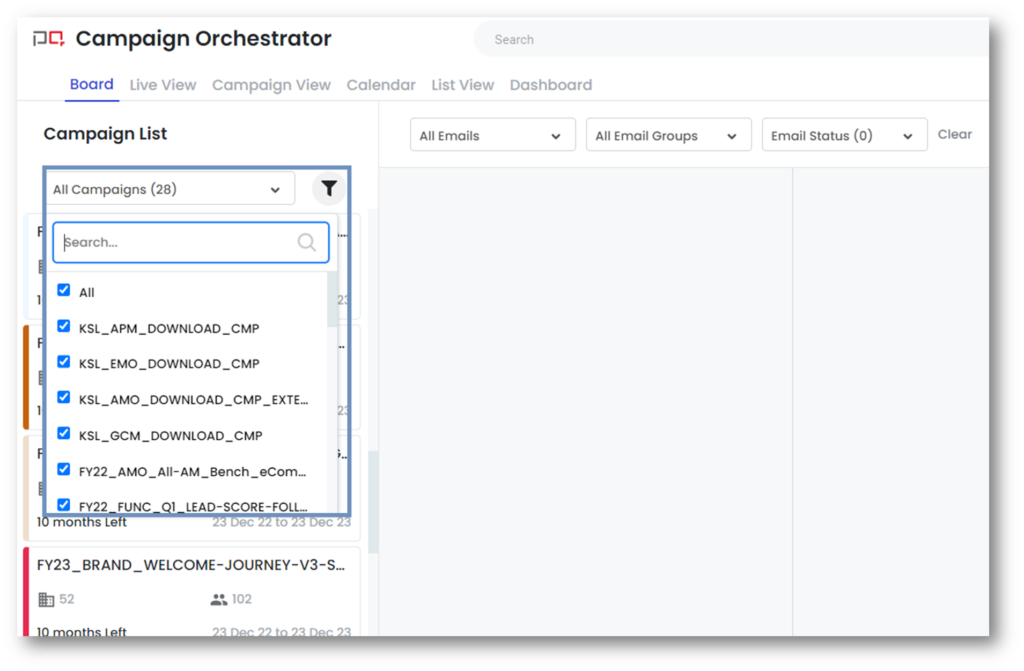
- Click the All-Campaigns dropdown to select specific campaigns
- Supports filtering and multi-selection
- Available on all views except dashboards
Advanced Campaign Filters
Click the funnel icon to access advanced filtering options:
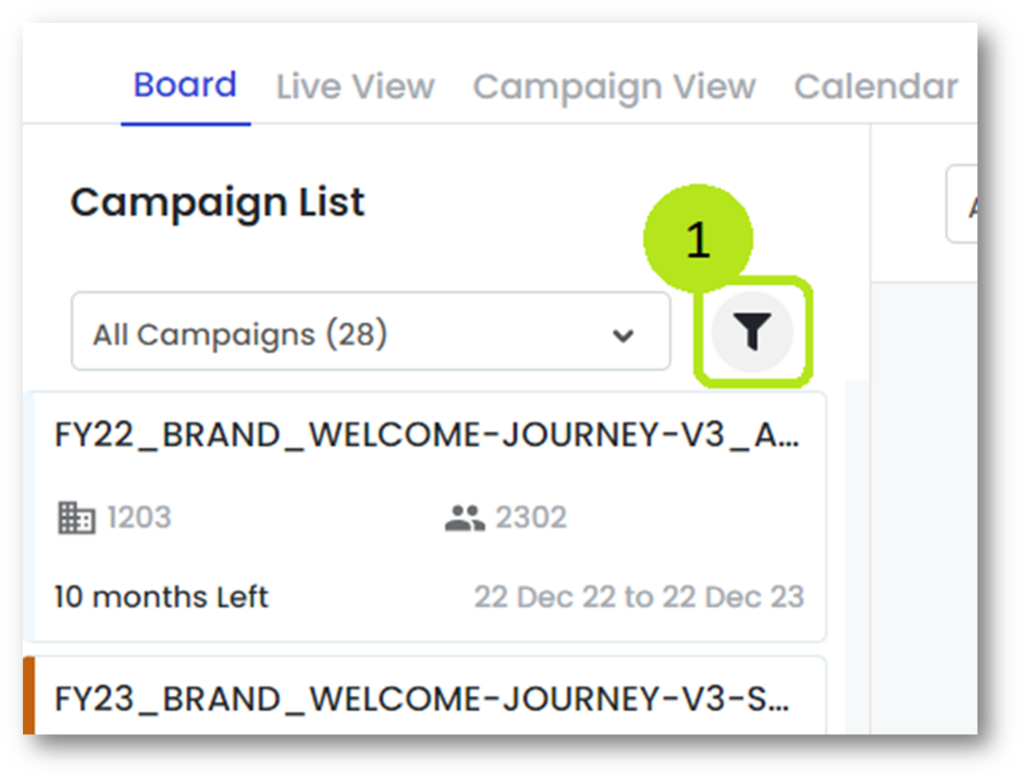 | Click on the funnel icon (Screenshot #1) |
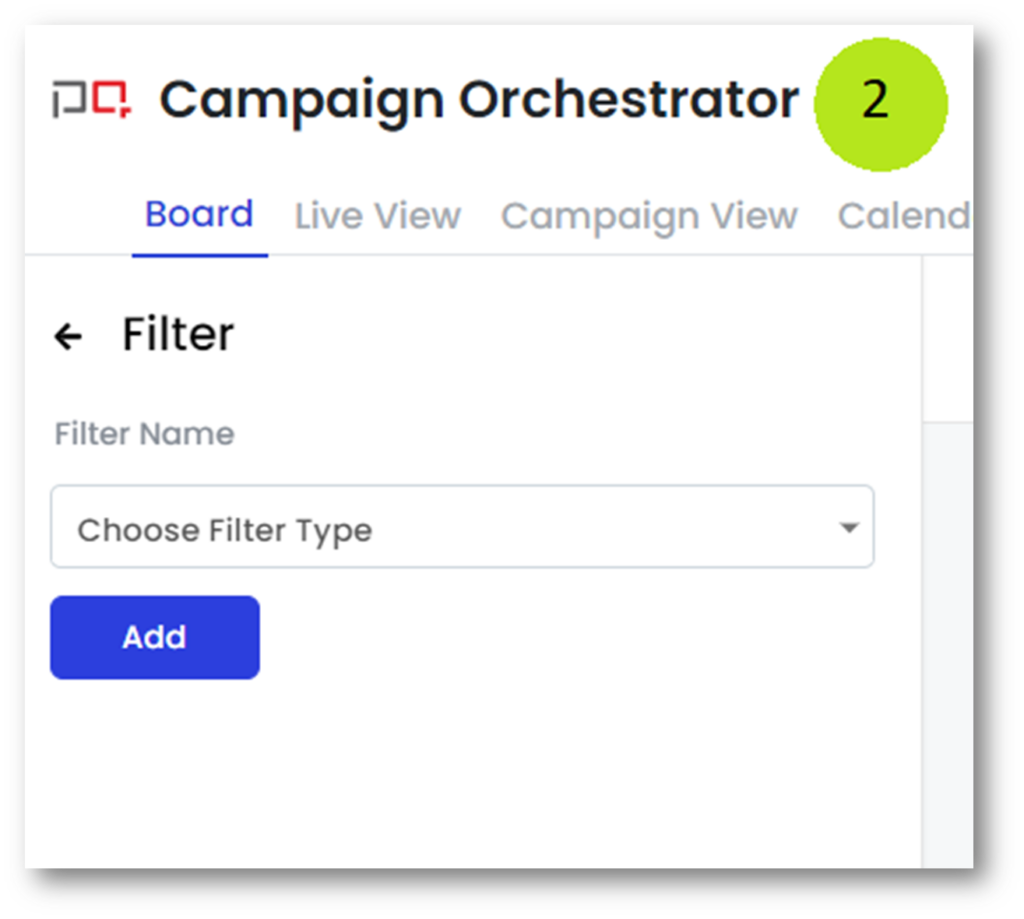 | This opens (Screenshot #2) |
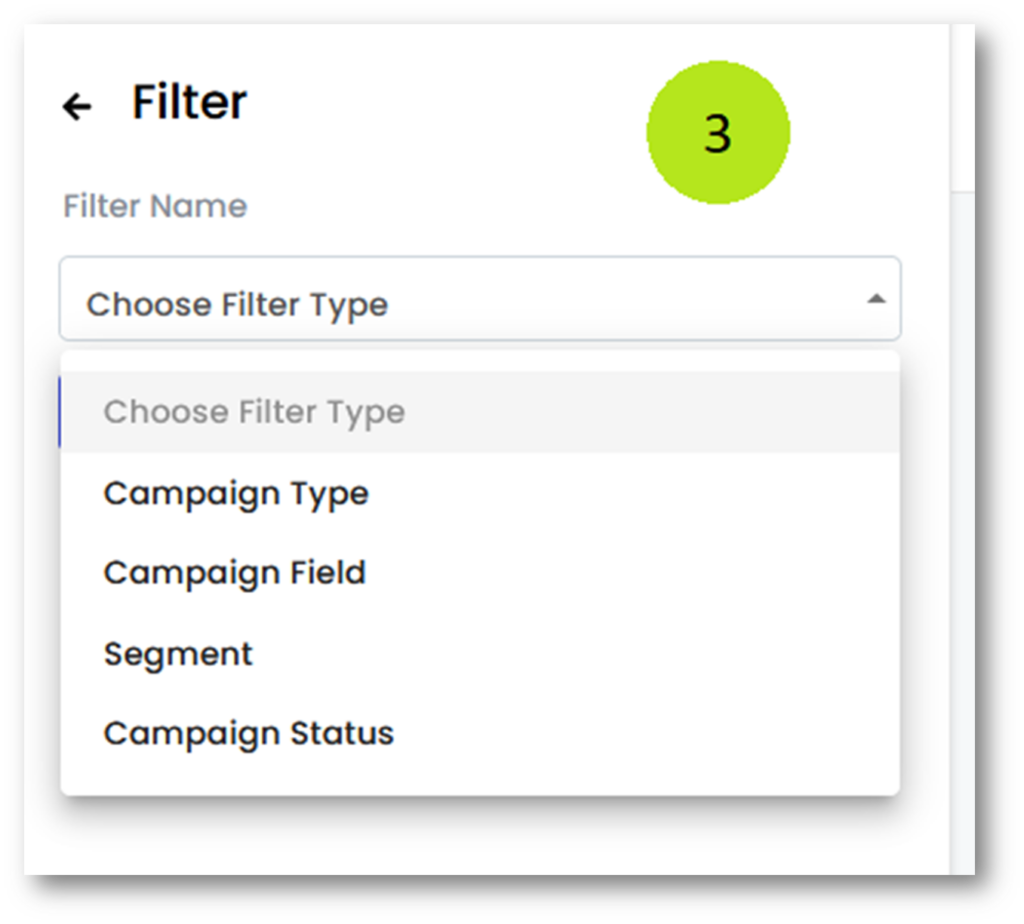 | The Choose Filter Type drop-down gives us four options: Campaign Type Campaign Field Segment Campaign Status |
These filters apply across all views.
Campaign Type Filter
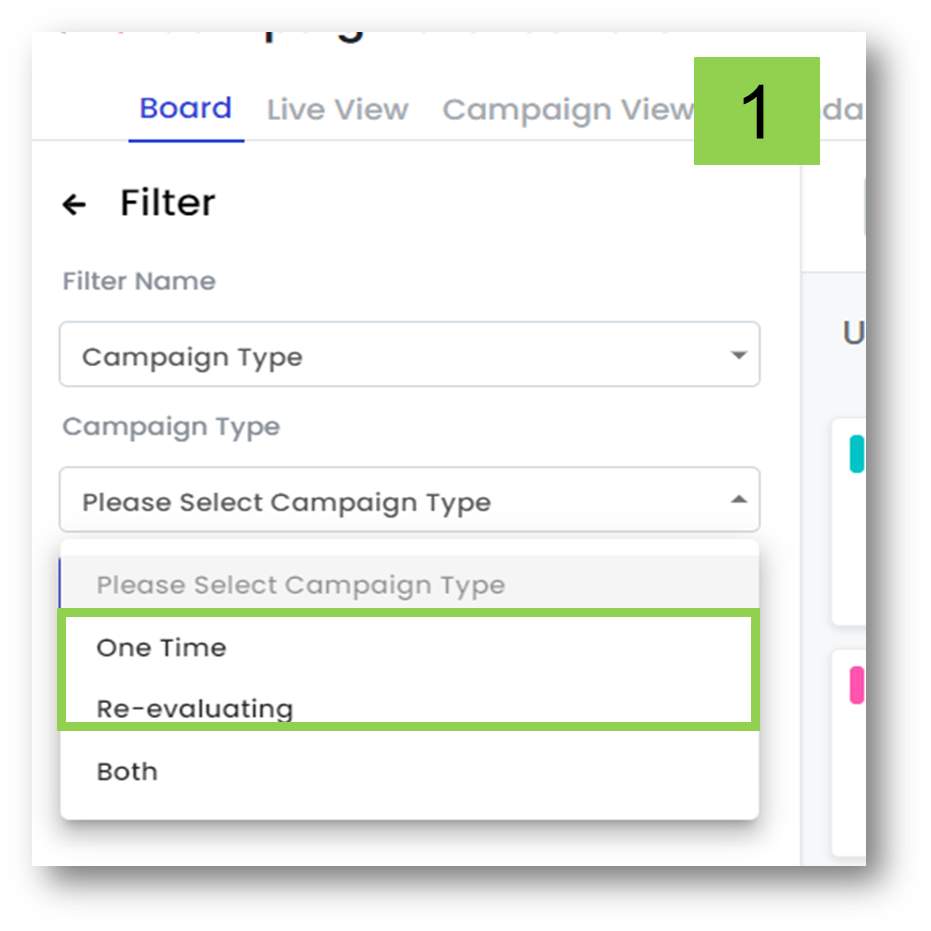 | Campaigns in PCO are classified into two types. Re-evaluating: * If the campaign is marked to "Allow the contacts to enter more than once" If the campaign has a re-evaluating segment * If the campaign has a form input step * If the campaign meets any one of the above criteria, then it is marked as 'Re-evaluating'. One Time: If the campaign meets none of the above conditions, then it is marked as One Time. |
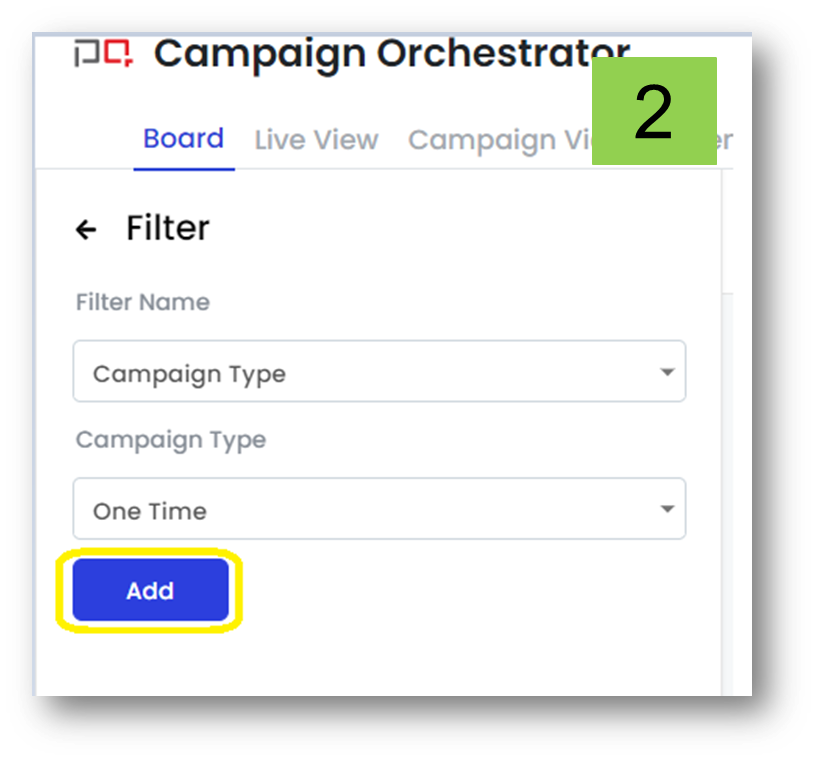 | Choose either "One Time" or "Re-evaluating" and click on the Add button (Shown in screenshot 2) |
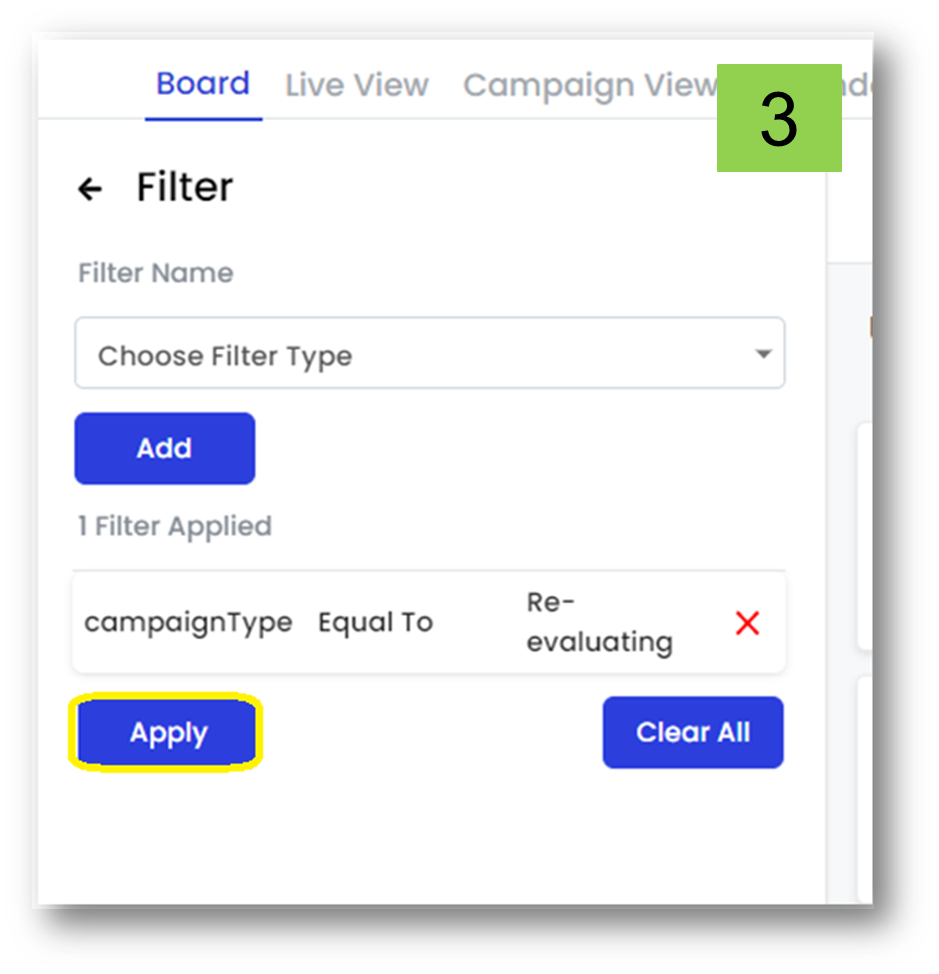 | Once the filters are added, click on the Apply button (Shown in Screenshot 3). |
Campaign Field Filter
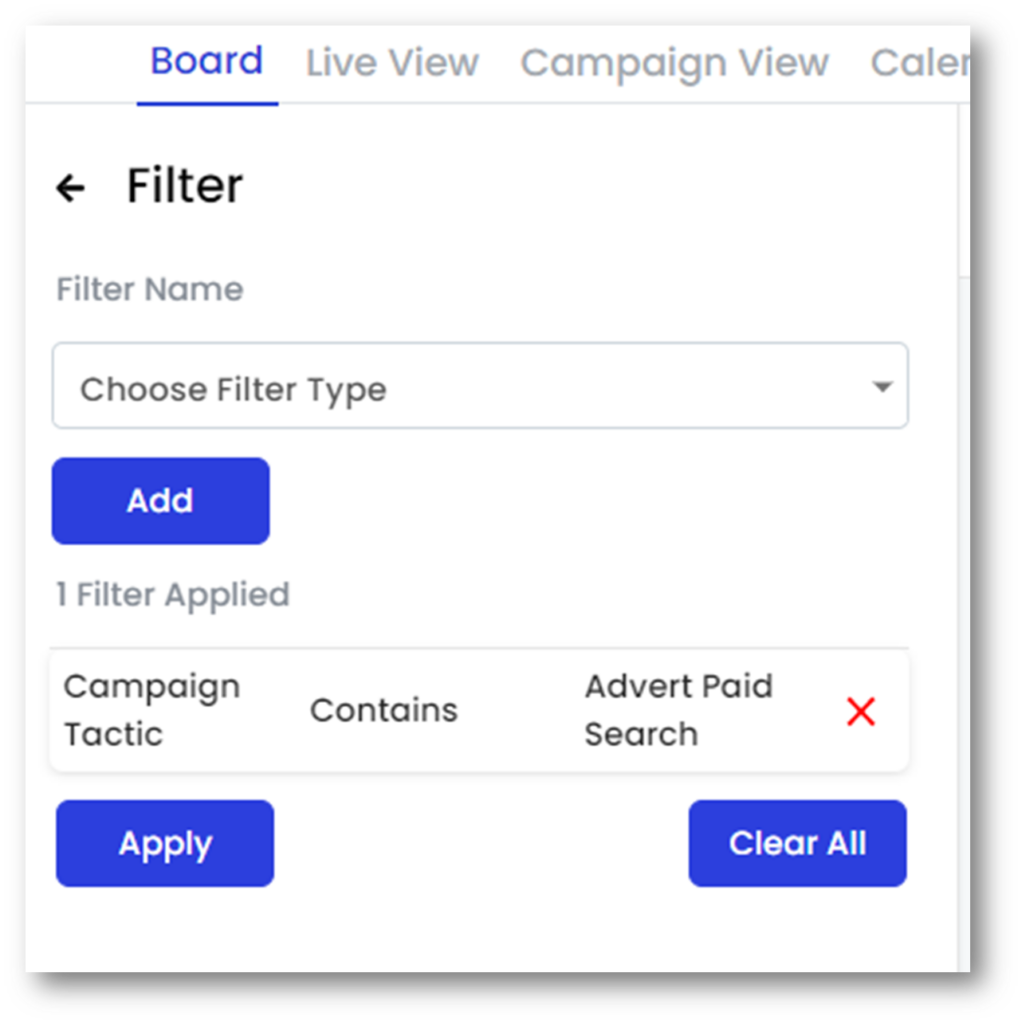 | We can use Campaign Fields as a filter Here (screenshot) we are filtering campaigns with the 'Campaign Tactic' campaign field set to Advert Paid Search |